Key Takeaways
Organizational charts have been around forever, but they’re no longer the dull wall posters they once were. The old boxes and lines have evolved into digital, online tools that show how your team works — anywhere in the world. Modern org charts are showing how teams collaborate and share responsibility across the business. Technology has transformed them from simple reporting maps into tools that reflect how work actually happens.
Building an org chart today may mean something entirely different than it did years ago. In this guide, we’ll walk you through how to create one organizational chart that’s simple, functional, and built to grow with your business. Let’s jump in.
What is an organizational chart?
An organizational chart is a visual map of your business showing people, teams, and roles connected to get work done. It includes team names, titles, departments, and reporting relationships laid out in a way that makes sense for growth. The layout of the org chart will show workflows and where collaboration happens across the business.
Here’s what a typical org chart shows:
- Teams and titles that define ownership.
- Reporting lines that show who leads whom.
- Departments grouped by role or function.
- Decision makers visible at a glance.
- Cross-team links that reveal collaboration paths.
Together, these elements paint a clear picture of how your organization operates. When built thoughtfully, an org chart becomes a shared reference point that helps people see how your business truly works.
Start with SMB Basics




Why an organizational chart matters for your team
Having an organizational chart helps to see where teams sit and who is designated for certain roles and responsibilities. When everyone understands that picture, business can flow in the right direction.
Hiring benefits: Teams can onboard faster because new hires know the flow of the organization by the chart.
Better forecasting: As a leader, you can see capacity and spot gaps before they become problems, allowing you to plan appropriately. You can collaborate with more confidence because roles and responsibilities are clear. Clarity saves time and builds trust with your team.
Accountability improvement: A clear chart brings accountability into focus. When people can see how their work connects to others, they take ownership naturally. Managers delegate with confidence. Team members know where to go for support. The org chart becomes a quiet form of structure that keeps the team steady while you grow.
When a chart can be harmful
An org chart can backfire when it stops reflecting how your team truly works. Maybe roles changed, but the chart didn’t. Maybe your structure became too layered, too rigid. That’s when confusion creeps in. People hesitate to act and collaboration slows down. The fix isn’t to scrap the chart, it’s to keep it alive by reviewing it — often. Treat it as a living document that adapts with your small and medium-sized business (SMB).
What to include in an organizational chart
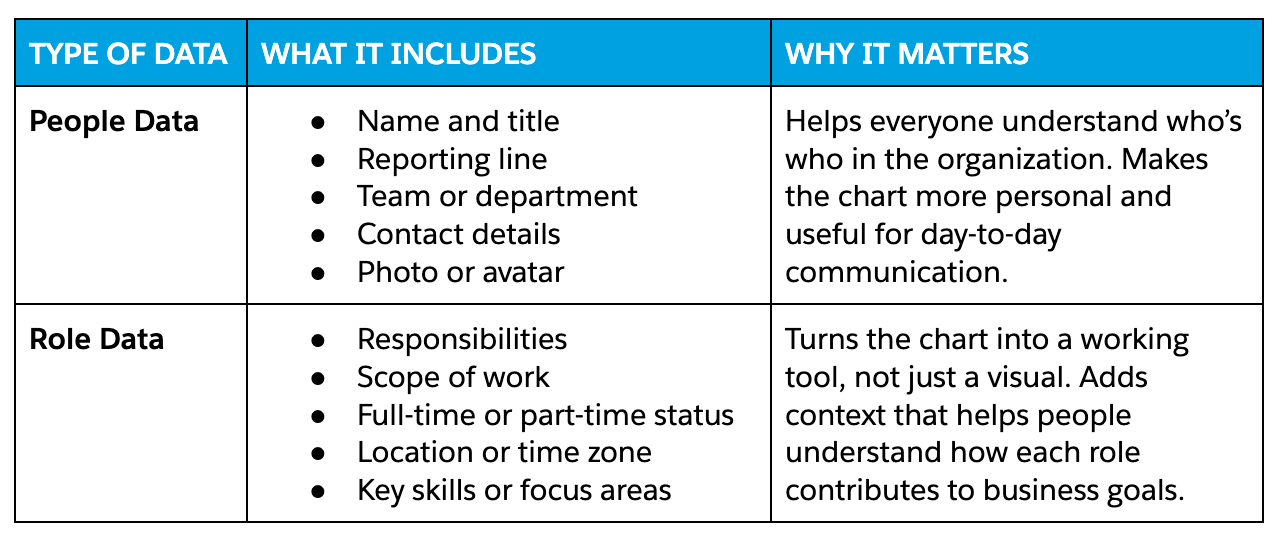
When it comes time to build your own organizational chart, you can choose whichever format suits you best. Here are a few things to include and why it matters:
Types of organizational charts
Before you start building your org chart, it helps to know what structure actually fits your team. The right chart depends on how your people collaborate and plan growth. Most organizations use one of a few common types that balance clarity with flexibility. These include:
Hierarchical charts
A hierarchical chart shows a clear top-down structure where each employee reports to one manager. You’ll see executives at the top, managers in the middle and individual contributors at the base. For small teams, this setup keeps decision-making simple and responsibilities clear.
Divisional charts
A divisional chart organizes people based on products, regions, or customer segments. This model helps growing teams manage multiple product lines or markets independently. It gives each group autonomy to move fast while still aligning with overall company goals. Small businesses often adopt this once they expand into new markets or service categories.
Matrix charts
A matrix chart allows employees to report to more than one manager, often a functional lead and a project lead. This setup works well for teams that handle cross-functional projects or collaborate across departments. For smaller teams planning to scale, the matrix model can introduce flexibility early while keeping collaboration at the center.
Flat charts
A flat chart reduces hierarchy altogether. Everyone sits on nearly the same level, and collaboration happens directly without layers of management. This type suits startups and small teams that thrive on agility and open communication. Decisions happen fast. Roles shift as the business evolves.
Accelerate your startup success with Salesforce Launchpad
We believe that business is the greatest platform for change, and success should be for everyone on Earth and the planet itself. Because the new frontier? It’s right here.



Step-by-step guide to build an org chart
An org chart looks simple from the outside, but creating one that actually works takes a bit of thought. Here are six simple steps to get started:
Step 1: Choose the structure type
Decide what you want the chart to show and how people will use it. Do you need a simple top-down view to show reporting? A matrix to reflect project teams? Or a flat map for a small, nimble crew? Pick the structure that answers those questions.
Quick test: if someone asks, “who do I go to for approvals,” it should reflect easily in your org chart.
Step 2: Decide on your data source
Figure out where the people and role data live. For many teams, a single source of truth makes updates less stressful. That might be an HR system or your customer relationship management (CRM). For example, if your team already tracks people and roles in Salesforce CRM, you can easily pull details such as names, titles, and reporting relationships from there. That keeps the chart current and tied to the systems your teams already use.
Step 3: Use a template or start from scratch
Templatizing your org chart gives you a scalable way to move forward with team growth. Include columns to fill: name, title, manager, team, responsibilities, location, status (full-time or part-time). Templates work well for small teams that need a clean first version fast. Start from scratch when your org has unusual reporting or you want custom role fields. Either way, export a comma separated values (CSV) sheet so you can update the chart programmatically later if needed.
Step 4: Create the chart
Depending on the size of your team, the business industry and the volume in which you work, here are a few ways to create a chart. Choose a creation method based on how often you’ll update the chart.
- Manual: Use drag-and-drop editors like Google Slides when changes are occasional. This helps you quickly edit and have visual control. This is good for small teams with low churn.
- Automated: Import a CSV or connect directly to your data source when changes happen frequently. Automated methods reduce errors and save time. For teams on Salesforce, AppExchange apps make this seamless. You can build visual maps and update the chart without re-exporting files. Pick automation when you want the chart to reflect live data, not a snapshot.
Step 5: Review with stakeholders and adjust
Managers, HR, and team leads should scan the chart for accuracy. Look for overlapping responsibilities, missing roles, and ambiguous titles. Resolve those quickly. Make small edits now rather than debating them forever. Lock in a single owner for updates so changes don’t slip through the cracks.
Step 6: Publish and update regularly
Decide where the chart lives so people actually use it. Embed it in your collaboration tools (like Slack) or your intranet. Attach it to the CRM account or a shared drive. Export a PDF for board meetings. Then set a review cadence. Try monthly for high-change teams and quarterly for steadier teams.
Be sure to assign a team member to own the org chart maintenance. If you use automation, set the sync frequency and check logs when fields change. And finally, communicate updates to the company so people treat the chart as the live reference it should be.
Wherever you are — just get started.
No matter where you are on your journey as a business owner, you can get started with Starter Suite for free — the CRM made for growth.

Why connecting your org chart to your CRM matters
When your org chart connects to your CRM, your team finally works from one source of truth. No more guessing who reports to whom or chasing down role updates in old files. Every title and reporting line stays accurate because it updates in real time. When someone joins, changes roles, or moves teams, the chart reflects it instantly. That saves hours of manual edits and keeps your internal systems clean.
A connected chart also helps teams collaborate better. You can quickly find the right person for a project, see who’s managing a customer relationship, or check which department owns a process. Work stops getting lost in silos. People can make faster decisions and stay aligned without long threads or extra meetings.
It also supports stronger planning and onboarding. Here’s how:
- For managers: It clarifies capacity, structure, and reporting so they can balance workloads and plan headcount.
- For new hires: Shortens the ramp-up time by showing who does what and how teams connect.
- For leadership and HR: It makes reviews, reorganizations, and approvals more transparent.
Maximize Your CRM Productivity
Learn how small and growing businesses are taking productivity to new levels with Salesforce CRM in this free e-book.
Enter a valid e-mail address
Enter a valid e-mail address
Enter a valid e-mail address
Enter a valid e-mail address
Enter a valid e-mail address
Enter a valid e-mail address
Employees
1-20 employees
21-200 employees
201-10,000 employees
10,001+ employees
Select the number of employees
Industry
Automotive
Communications
Financial Services
Healthcare
Tech
Education
Life Sciences
Manufacturing
Media
Nonprofit
Public Sector
Retail & Consumer Goods
Energy & Utilities
Other
Select your industry.
Country/Region
United States
Afghanistan
Albania
Algeria
American Samoa
Andorra
Anguilla
Antarctica
Antigua And Barbuda
Argentina
Armenia
Aruba
Australia
Austria
Azerbaijan
Bahamas, The
Bahrain
Bangladesh
Barbados
Belarus
Belize
Belgium
Benin
Bermuda
Bhutan
Bolivia
Bouvet Is
Bosnia and Herzegovina
Botswana
Brazil
British Indian Ocean Territory
Brunei
Bulgaria
Burkina Faso
Burundi
Cambodia
Cameroon
Canada
Cape Verde
Cayman Is
Central African Republic
Chad
Chile
China
Hong Kong
Macau
Christmas Is
Cocos (Keeling) Is
Colombia
Comoros
Cook Islands
Costa Rica
Cote D’Ivoire (Ivory Coast)
Croatia (Hrvatska)
Cyprus
Czech Republic
Democratic Republic of the Congo
Denmark
Dominica
Dominican Republic
Djibouti
Ecuador
Egypt
El Salvador
Equatorial Guinea
Eritrea
Estonia
Ethiopia
Falkland Is (Is Malvinas)
Faroe Islands
Fiji Islands
Finland
France
French Guiana
French Polynesia
French Southern Territories
F.Y.R.O. Macedonia
Gabon
Gambia, The
Georgia
Germany
Ghana
Gibraltar
Greece
Greenland
Grenada
Guadeloupe
Guam
Guatemala
Guinea
Guinea-Bissau
Guyana
Haiti
Heard and McDonald Is
Honduras
Hungary
Iceland
India
Indonesia
Ireland
Israel
Italy
Jamaica
Japan
Jordan
Kazakhstan
Kenya
Kiribati
Korea, South
Kuwait
Kyrgyzstan
Laos
Latvia
Lebanon
Lesotho
Liberia
Liechtenstein
Lithuania
Luxembourg
Madagascar
Malawi
Malaysia
Maldives
Mali
Malta
Marshall Is
Mauritania
Mauritius
Martinique
Mayotte
Mexico
Micronesia
Moldova
Monaco
Mongolia
Montserrat
Morocco
Mozambique
Myanmar
Namibia
Nauru
Nepal
Netherlands, The
Netherlands Antilles
New Caledonia
New Zealand
Nicaragua
Niger
Nigeria
Niue
Norway
Norfolk Island
Northern Mariana Is
Oman
Pakistan
Palau
Panama
Papua new Guinea
Paraguay
Peru
Philippines
Pitcairn Island
Poland
Portugal
Puerto Rico
Qatar
Republic of the Congo
Reunion
Romania
Russia
Rwanda
Saint Helena
Saint Kitts And Nevis
Saint Lucia
Saint Pierre and Miquelon
Saint Vincent And The Grenadines
Samoa
San Marino
Sao Tome and Principe
Saudi Arabia
Senegal
Serbia
Seychelles
Sierra Leone
Singapore
Slovakia
Slovenia
Solomon Islands
Somalia
South Africa
South Georgia & The S. Sandwich Is
Spain
Sri Lanka
Suriname
Svalbard And Jan Mayen Is
Swaziland
Sweden
Switzerland
Taiwan
Tajikistan
Tanzania
Thailand
Timor-Leste
Togo
Tokelau
Tonga
Trinidad And Tobago
Tunisia
Turkey
Turks And Caicos Is
Turkmenistan
Tuvalu
Uganda
Ukraine
United Arab Emirates
United Kingdom
United States Minor Outlying Is
Uruguay
Uzbekistan
Vanuatu
Vatican City State (Holy See)
Venezuela
Vietnam
Virgin Islands (British)
Virgin Islands (US)
Wallis And Futuna Islands
Western Sahara
Yemen
Zambia
Zimbabwe
Select your Country
State/province
北海道 – Hokkaido
青森県 – Aomori
岩手県 – Iwate
宮城県 – Miyagi
秋田県 – Akita
山形県 – Yamagata
福島県 – Fukushima
茨城県 – Ibaraki
栃木県 – Tochigi
群馬県 – Gunma
埼玉県 – Saitama
千葉県 – Chiba
東京都 – Tokyo
神奈川県 – Kanagawa
新潟県 – Niigata
富山県 – Toyama
石川県 – Ishikawa
福井県 – Fukui
山梨県 – Yamanashi
長野県 – Nagano
岐阜県 – Gifu
静岡県 – Shizuoka
愛知県 – Aichi
三重県 – Mie
滋賀県 – Shiga
京都府 – Kyoto
大阪府 – Osaka
兵庫県 – Hyogo
奈良県 – Nara
和歌山県 – Wakayama
鳥取県 – Tottori
島根県 – Shimane
岡山県 – Okayama
広島県 – Hiroshima
山口県 – Yamaguchi
徳島県 – Tokushima
香川県 – Kagawa
愛媛県 – Ehime
高知県 – Kochi
福岡県 – Fukuoka
佐賀県 – Saga
長崎県 – Nagasaki
熊本県 – Kumamoto
大分県 – Oita
宮崎県 – Miyazaki
鹿児島県 – Kagoshima
沖縄県 – Okinawa
Select a state/province
State/province
Alberta
British Columbia
Manitoba
New Brunswick
Newfoundland
Northwest Territories
Nova Scotia
Nunavut
Ontario
Prince Edward Island
Quebec
Saskatchewan
Yukon
Select a state/province
State/province
Alabama
Alaska
Arizona
Arkansas
California
Colorado
Connecticut
Delaware
District of Columbia
Florida
Georgia
Hawaii
Idaho
Illinois
Indiana
Iowa
Kansas
Kentucky
Louisiana
Maine
Maryland
Massachusetts
Michigan
Minnesota
Mississippi
Missouri
Montana
Nebraska
Nevada
New Hampshire
New Jersey
New Mexico
New York
North Carolina
North Dakota
Ohio
Oklahoma
Oregon
Pennsylvania
Rhode Island
South Carolina
South Dakota
Tennessee
Texas
Utah
Vermont
Virginia
Washington
West Virginia
Wisconsin
Wyoming
Select a state/province
We value your privacy. To learn more, visit our Privacy Statement.
Thank you for downloading the free e-book!
Three AppExchange tools to build org charts
You need a tool that helps you keep org charts accurate, visible, and useful. Using a native app that plugs into your CRM means updates, structure and roles stay in sync. Below are a few options worth exploring.
- Org Chart – Lightning Ready : A simple, lightweight component that shows reporting lines directly inside Salesforce. It works seamlessly in Lightning on both desktop and mobile. Perfect for small teams that need a clear, reliable view of their hierarchy.
- OrgChartPlus: A flexible tool that lets you build charts from contacts, accounts, or custom objects. You can drag, drop, and customize layouts to match your structure. Great for teams with layered roles or cross-functional collaboration.
- DemandFarm: An advanced tool that uses artificial intelligence (AI) to create org charts and relationship maps from Data 360. It identifies decision makers, champions, and influencers across your org. It’s best suited for growing businesses managing complex internal relationships.
Bonus: Slack Atlas is a handy tool that brings your org chart right into Slack. You can view roles, teams, and reporting lines without leaving your workspace. It’s ideal for distributed or Slack-first teams that want quick access to people info.
Boost team productivity with Slack
Bring together your team, your customers, and your tools to help take your business to the next level with Slack — it’s where business gets done.

Making your org chart work for you
An org chart only creates value when people actually use it. Its real strength isn’t in how polished it looks but in how clearly it helps you understand your business. The best org charts grow with your team, adapting as roles shift and new connections form. When you connect your chart to your CRM, that evolution happens naturally. Keep your org chart current and reliable so it always supports your business in the background.
Start your journey with the Free or Starter Suite today. Looking for more customization? Explore Pro Suite. Already a Salesforce customer? Activate Foundations to try out Agentforce 360 today.
AI supported the writers and editors who created this article.
Frequently Asked Questions (FAQs)
An organizational chart is a visual map that shows how your company is structured. It highlights roles, reporting lines, and relationships between teams. It helps everyone understand who does what and how work flows across the business.
An org chart brings clarity to your team structure. It makes it easier to manage roles, track changes, and onboard new employees. It also helps leaders plan growth and make smarter staffing decisions.
Start by listing every role in your company, along with reporting lines. Then choose a tool or template to visualize the structure. You can use CRM-connected tools from Salesforce AppExchange to keep it updated automatically.
Include people data such as names, titles, and teams. Add role details like responsibilities, scope, and location. The goal is to make the chart both accurate and useful for day-to-day collaboration.
You should update your org chart whenever there’s a new hire, role change, or team restructure. If it’s connected to your CRM, updates happen automatically so the chart always stays current.