Welcome to “How I Solved It.” In this series, we do a deep dive into a specific business problem and share how one Awesome Admin chose to solve it. This episode has a twist—the admin is me! Are you tired of manually reading customer emails or messages and copying that data into Salesforce? In this episode, I show you exactly how I solved this problem by building a screen flow that uses two different AI agent actions.
Take a trip back in time with me. Remember what building in Salesforce was like just a few years ago? What if I told you back then that you could build a flow that thinks? A flow that can read a customer’s stream of consciousness email or chat and just… understand it?
I’m sure you would have told me the ask is too wild.
Years ago, if you wanted to intelligently “read” an email or chat, you’d work with a developer to write custom Apex code, incorporate complex integrations, and have a big budget. This wasn’t a simple admin solution.
What if I told you it IS an admin solution today?! We’re going to put an AI brain right in Flow, and I’ll show you how using AI agent actions in Flow can completely change the way you automate for your company.
Key business problem
Businesses constantly receive valuable information from customers through unstructured text, such as chats, emails, and online order forms. The core problem is that this information is often “messy” and doesn’t follow a set format.
This creates two major business challenges.
- It’s inefficient and time-consuming: Employees must act as interpreters, spending valuable time manually reading and “deciphering” each message to understand the customer’s intent. The “old school way” involves juggling multiple screens and performing manual data entry, wasting time that could be spent on higher-value tasks.
- It’s a recipe for errors: When humans manually transfer data from a conversation into a system, mistakes are inevitable. This can lead to incorrect orders, bad customer experiences, and flawed data.
Let’s make this real by using my favorite business, Mochi Cupcakes, in a scenario. They get online orders all the time, and every second an employee spends manually deciphering an email, chat, or text message is a second lost. Some poor user has to start the swivel-chair Olympics. They read the message or text, pop open a new record, and manually copy… paste… copy… paste… trying to make sense of it all. It’s a total time-sink and an absolute error-magnet.
We’ve all got that “Mochi Cupcakes” problem in our org, right? It’s that dreaded Special Instructions box, a messy Contact Us email, or a chat transcript where a customer just dumps all their info at once.
What if the conversation was the order form for Mochi Cupcakes?
How I solved it
My input is unstructured text, an email, or a chat message from a customer, but how do I take the data from the message and turn those into data points I can use in automation? I knew, when using large language models (LLMs), that AI can do a lot of amazing things, taking unstructured data and understanding the information to summarize, categorize, etc. So, I thought perhaps I could sprinkle a little AI in my flow to help interpret an order from a message.
I knew my solution would involve a screen flow to gather the message and have the flow parse out the cupcake order details into usable data points, but could I also get it to create the cupcake order and related cupcake order items without wildly complex looping/decisioning flow logic? Back in the day, the answer would be no or would require Apex code. Today, it’s not a complex flow at all.
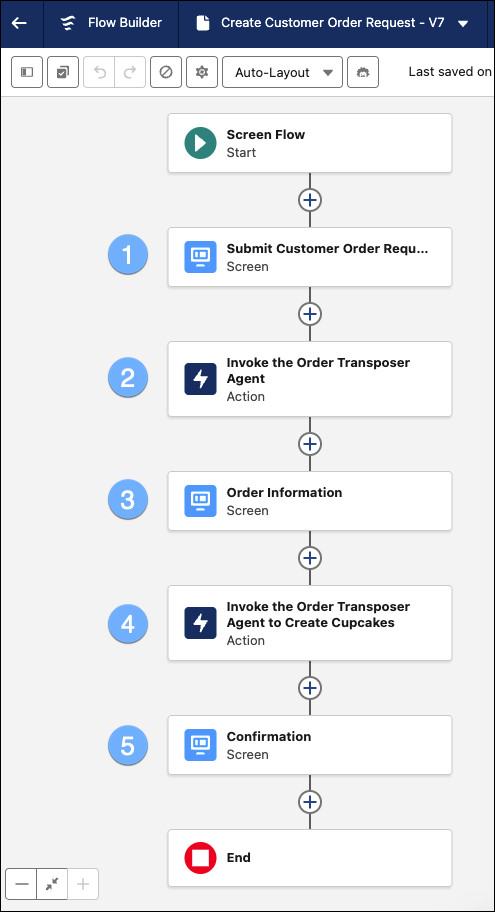
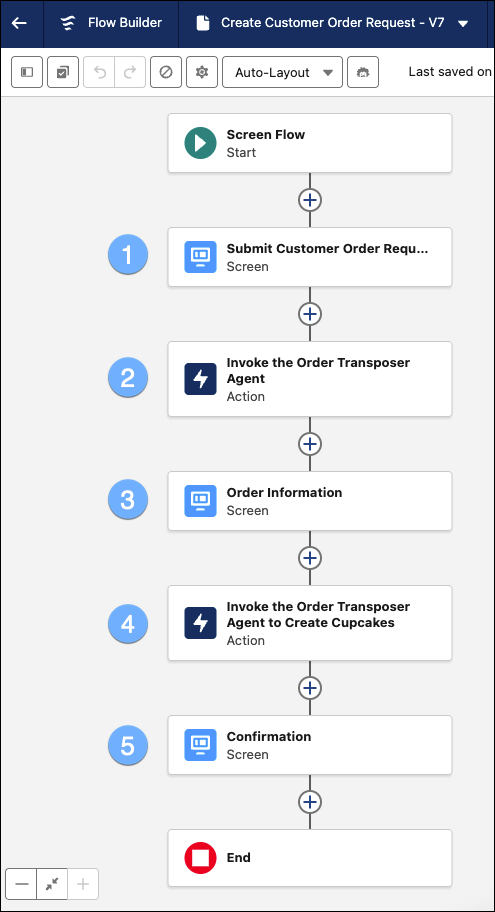
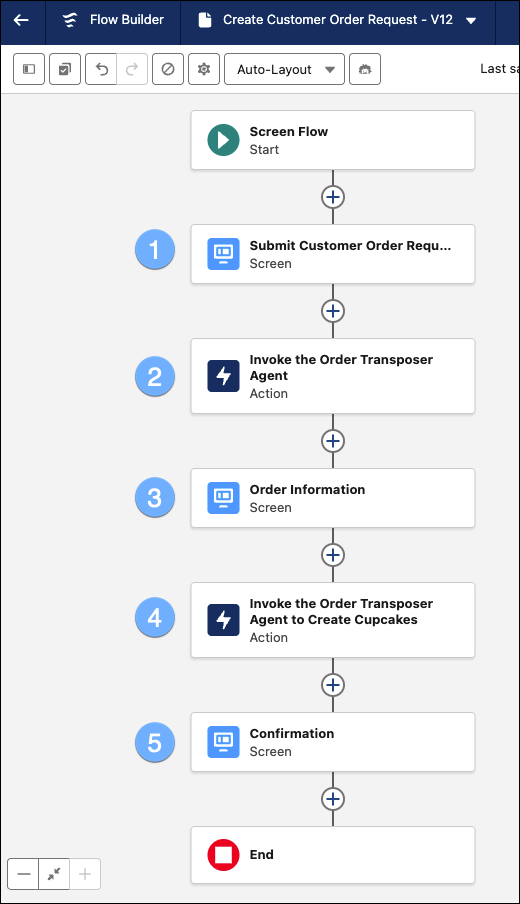
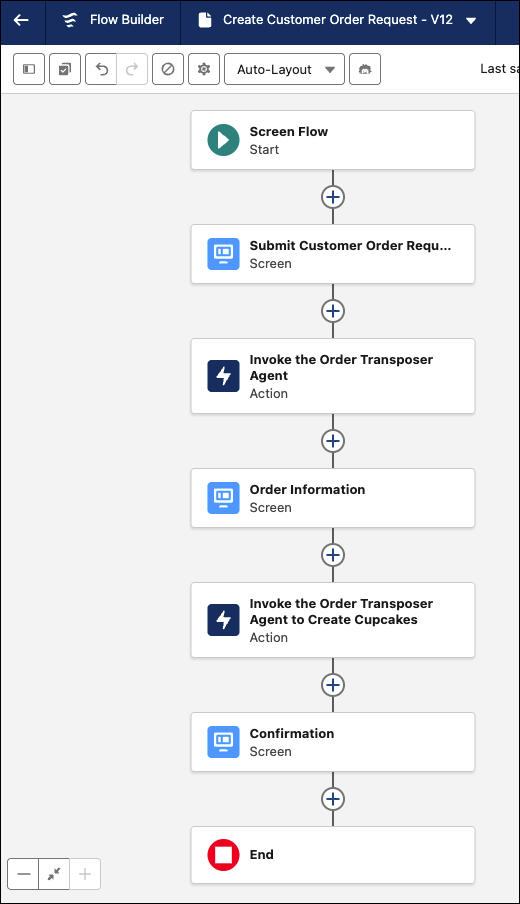
In this screen flow, the employee provides (1) the unstructured text (in the form of an email message, chat message, or text message), the flow (2) invokes an AI agent to parse the cupcake order details into structured data points from the unstructured text, (3) it displays to the employee the parsed data points, for the human-in-the-loop review, the flow (4) invokes the AI agent to create the cupcake order and associated cupcake order items using the structured data points, and lastly, (5) it shows the employee a confirmation order details with a link to the cupcake order record.
First, build and activate your agent
Before we get into the AI-powered flow, we need to create and activate our agent. I called mine the Order Transposer Agent.
My Order Transposer Agent has two topics it will use in the screen flow.
- Parse Order Information
- Place a Cupcake Order
My Parse Order Information topic handles parsing customer-provided order details from conversational text to populate an order form for final confirmation before placing the order.
Here are the instructions for this topic.
1. Determine the order priority from the conversation. If there is a sense of urgency, set the priority to Urgent. Otherwise, it’s Normal.
2. Extract the customer’s name from the conversation if provided.
3. Identify the date and time the order is desired by and populate it in the form. If an exact date is not provided (such as only day of week), please translate it into an actual date: mm/dd/yyyy format.
If the customer does not provide an order desired by time, use noon as the time.Use this format for the order date/time desired by: “mm/dd/yyyy XX:XX” using 12 hours.
4. Determine the total number of cupcakes ordered from the conversation.
5. Parse the detailed order information, including flavors or types of cupcakes, and include it in the form. You must use this format for each cupcake flavor: “cupcake flavor – cupcake quantity”
6. Capture any special instructions mentioned by the customer and add them to the order form.
7. If any required information is missing, ask clarifying questions to gather the details.
This topic has no actions. My agent can get the job done solely from instructions. Woot woot! 
My Place a Cupcake Order topic handles user requests to place an order for cupcakes, including selecting flavors, quantities, and delivery options.
Here are the instructions for this topic.
1. If the user does not specify the cupcake type or quantity, ask clarifying questions to gather necessary details.
2. Use the provided conversational context to extract relevant order details such as flavors, quantities, and any special instructions.
3. If the user provides incomplete information, guide them to supply the missing details to proceed with the order.
4. Ensure that all items are correctly added to the order and verify accuracy before completing the process.
5. Before you can create the cupcake order, you must retrieve the contact ID using the customer name. Never ask the customer for the record ID.
6. You must create the cupcake order record first with the following information known:
-Customer = contactId
-Date/time order desired by
-Order method: We assume it is pickup unless otherwise specified.
-Order type: New
-Order priority: “Normal” or “Urgent”
-Cupcake order summary: Take the cupcake order details information. Format it so it looks like [cupcake flavor – quantity] separated by a “|”
7. Once the cupcake order is created, create a cupcake order item for each cupcake flavor the customer wants to order. Make sure the cupcake order is the record ID of the cupcake order record.
8. Provide a summary of the order including the Cupcake Order Number and link to cupcake order as a confirmation message.
This topic has three flow actions.

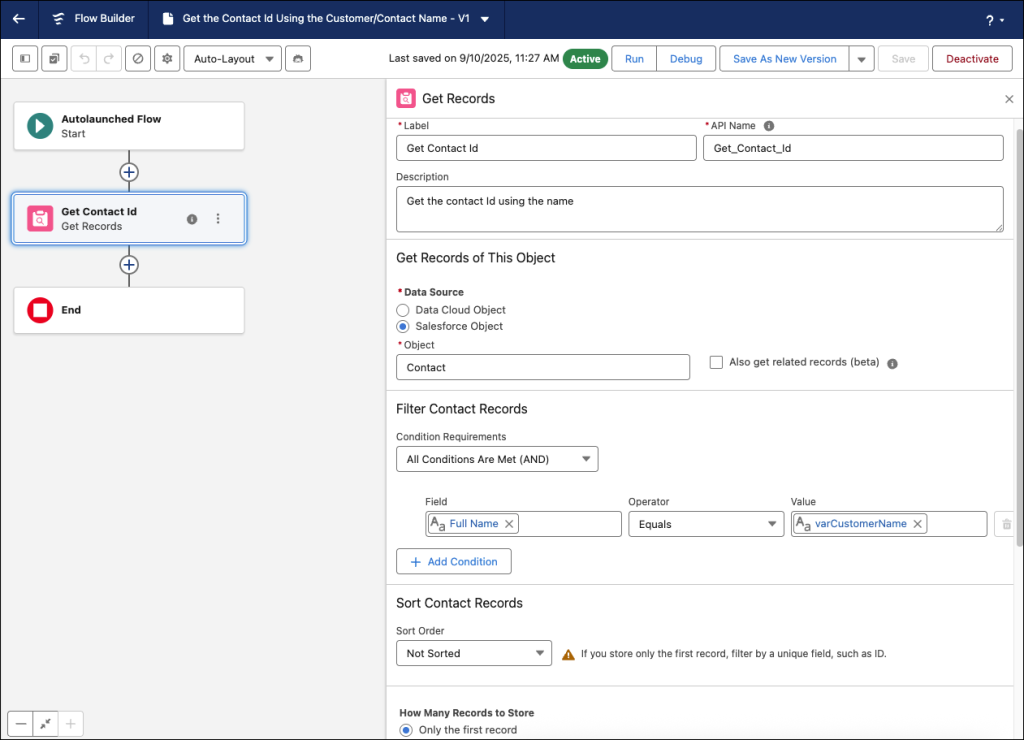
The ‘Get the Contact Id Using the Customer/Contact Name’ autolaunched flow is a one-element flow that gets the contact’s ID with the customer’s name.
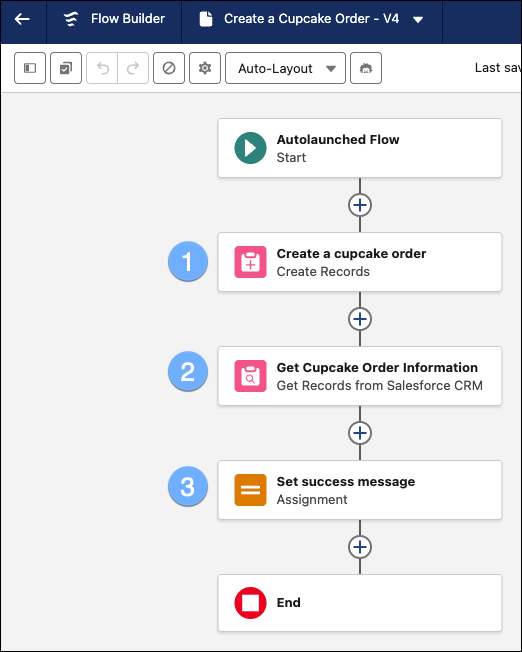
The ‘Create a Cupcake Order’ autolaunched flow (1) creates the cupcake order using the information given to the agent, (2) retrieves the cupcake order number for use by the agent and (3) sets a success message to send back to the agent upon completion of this flow.
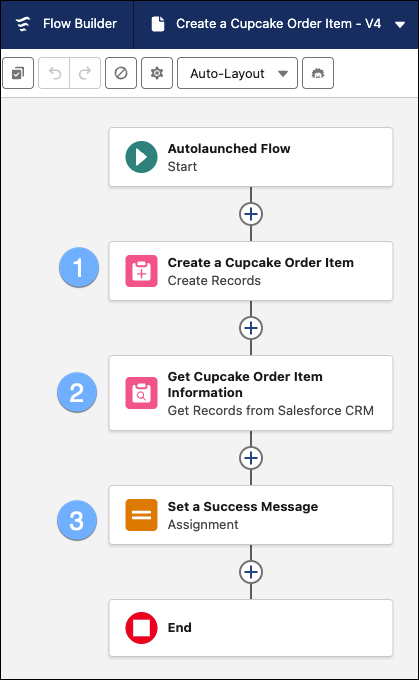
The ‘Create a Cupcake Order Item’ autolaunched flow (1) creates the cupcake order item for each cupcake flavor in the order, (2) retrieves the cupcake order number for use by the agent and (3) sets a success message to send back to the agent upon completion of this flow.
Once the agent is built, tested, and activated, we can use it in an AI agent action in our screen flow.
Set the agent request (aka user prompt) as an input in your AI agent action
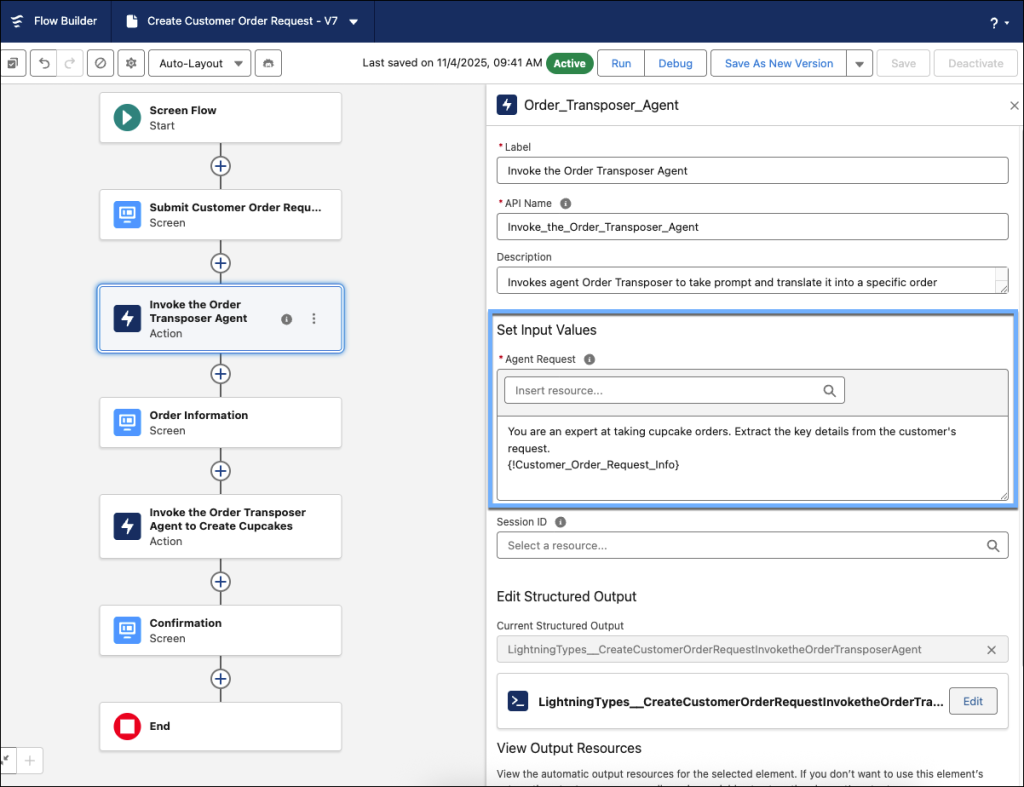
Before we get into the thick of things, here’s my completed screen flow. It’s pretty straightforward with some screen elements and two AI agent actions.
We first (1) request the customer order information. The flow (2) invokes the AI agent to parse the data from the unstructured message 1) into individual data fields and (3) displays it to the employee for the human-in-the-loop review. When the employee requests to process the order, the flow (4) invokes the same AI agent but this time, it’s to create the cupcake order (that is, create the cupcake order and related cupcake order records). Lastly, (5) a confirmation screen is shown to the employee once the cupcake order is placed.
Adding an AI agent to a flow is fairly easy: Select action | AI agent action | your agent. Then, the Agent Request is the prompt to the agent, but your flow is providing the prompt to the agent, not a user. The magic comes when you configure the structured output. This takes that messy data and tells Flow, “I’m looking for these data points and once you find it, you will store them in these specific outputs for Flow to use going forward.”
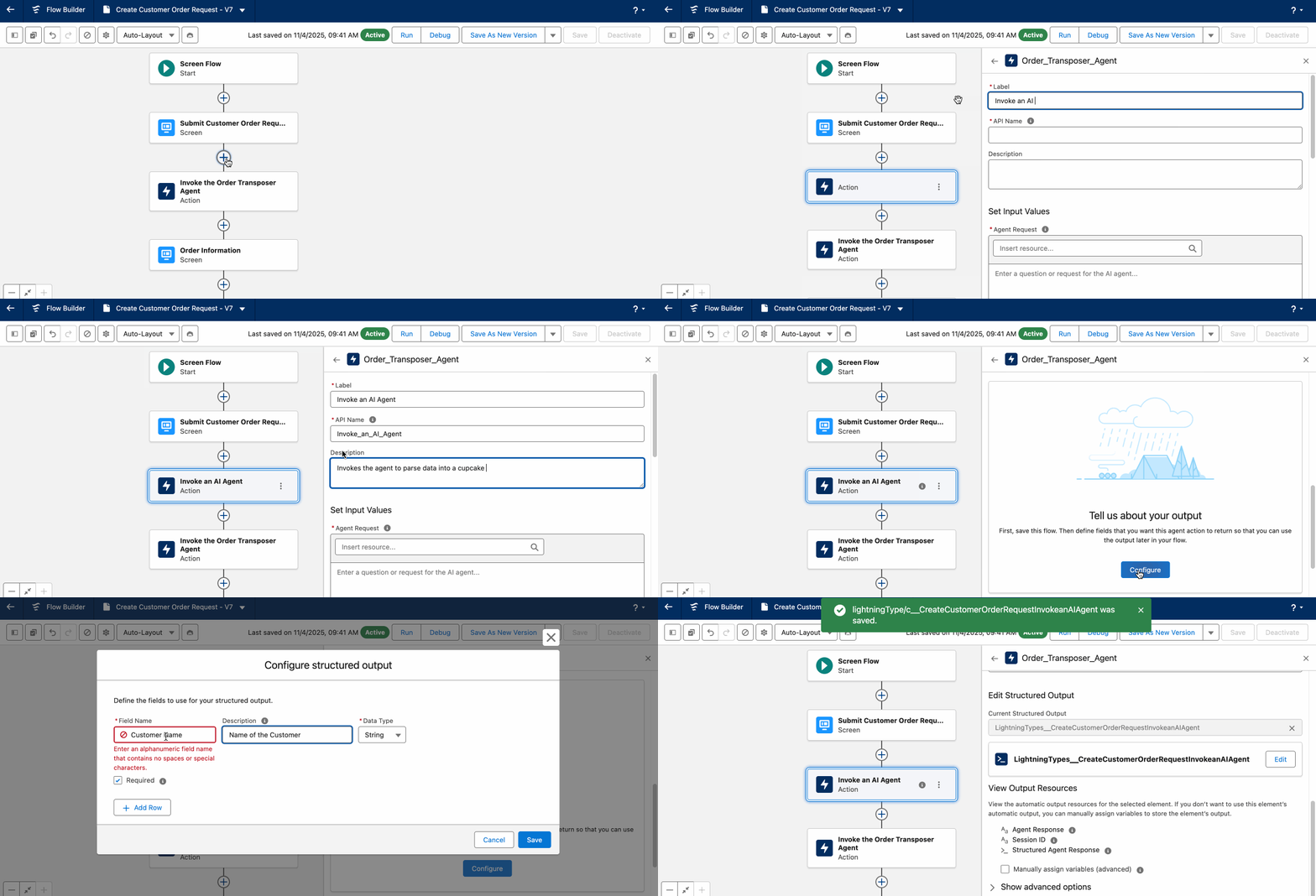
In the ‘Invoke the Order Transposer Agent’ Flow element, in the Agent Request section, is where you’ll find the inputs for our agent. Think of this as the prompt flow providing to the agent on behalf of the user, asking them to extract details from a customer’s request for a cupcake order using the information of the unstructured message provided in the screen element.
Specify your structured output for use in the flow
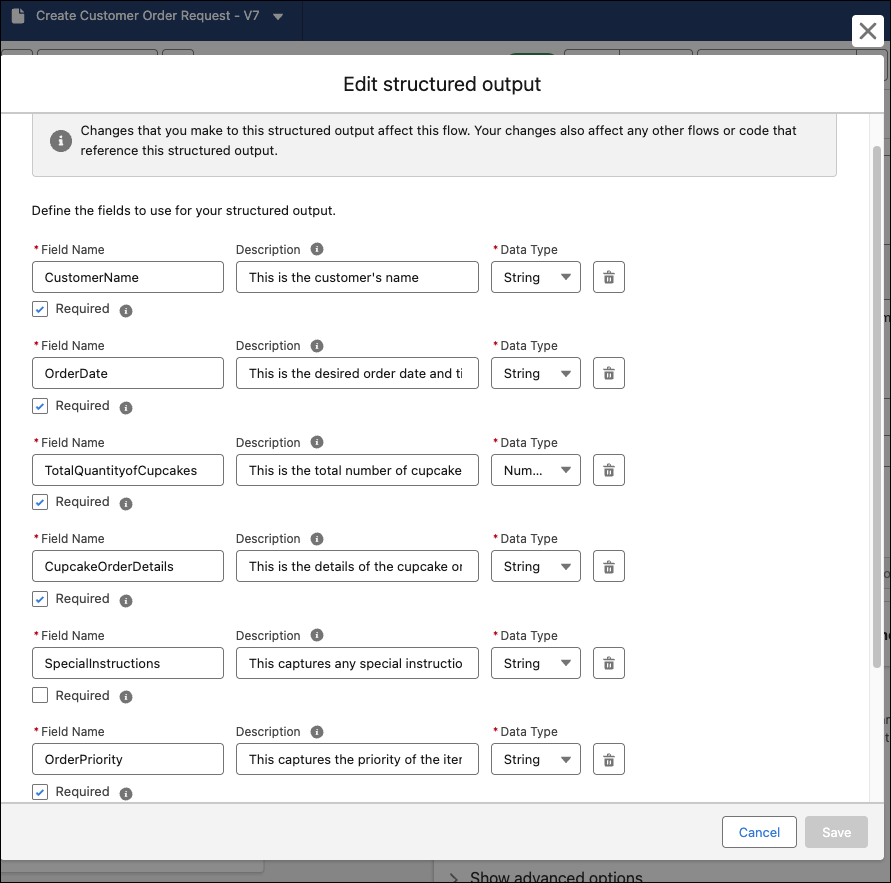
We specified the following structured output for this agent: customer name, order date, total quantity of cupcakes in the order, cupcake order details, special instructions, and order priority. Output descriptions and data types are extremely important. The LLM uses the descriptions to determine the data to put into the defined structured output. Data types must match the data types you use elsewhere in Flow.
Use the structured output in the flow
Once the data is in the structured outputs, you’re golden. You can do those amazing things you do in flows. To use the structured output in your flow, in Resources, find the outputs of action under ACTIONS, then select the <AI Agent action> > structured agent response > <the structured output>. The GIF shows adding the structured output of SpecialInstructions from the AI agent action to the Special Instructions text field in the screen element.
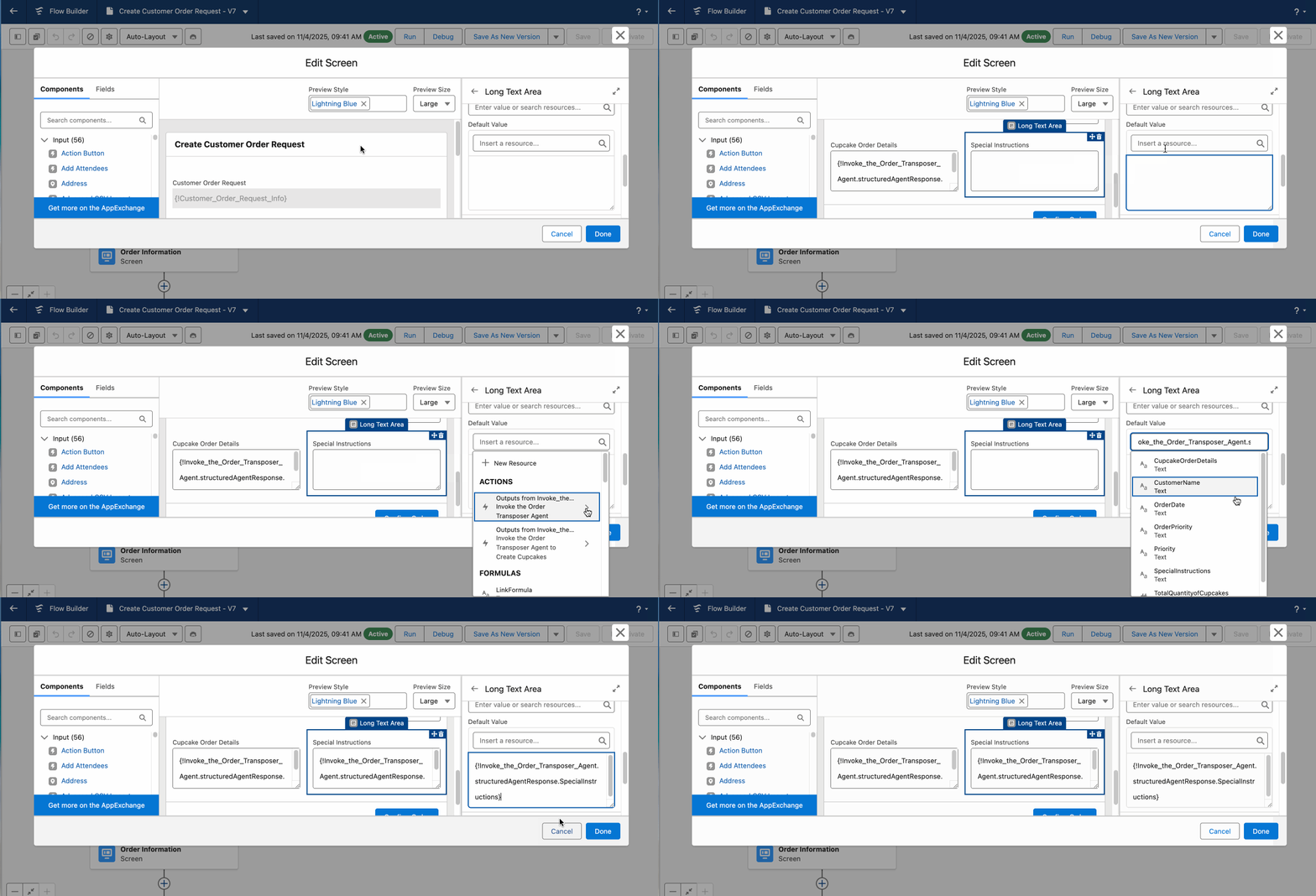
As you can see, we played back the values from the unstructured message stored in the structured outputs from the ‘Order Transposer Agent AI Agent’ action in the screen element, ensuring the human-in-the-loop that the agent accurately parsed the data into the correct structured outputs.
![Screen element with structured outputs from the AI agent action pre-populated in the fields.]](https://d3nqfz2gm66yqg.cloudfront.net/images/20251125095113/Image-10-1-1024x568.png)
Rinse and repeat for the AI agent to create the cupcake order
You can continue to invoke additional AI agents in your flow by adding more AI agent actions. Like the first example, provide the prompt to the agent in the Agent Request. In this case, I used:
Place the cupcake order
{!Invoke_the_Order_Transposer_Agent.agentResponse}
Here are a few important things to note about configuring the AI agent action.
- I used the reference of agentResponse (the response from the agent) from the first AI agent action to place the cupcake order with the information from the other agent.
- In this action, I specified the Session ID. I wanted to continue on in the same session as the previous agent and not lose context; so for the resource, I selected the Session ID from the output of the first AI agent action.
- I need to specify a few structured outputs for use with this agent as well.
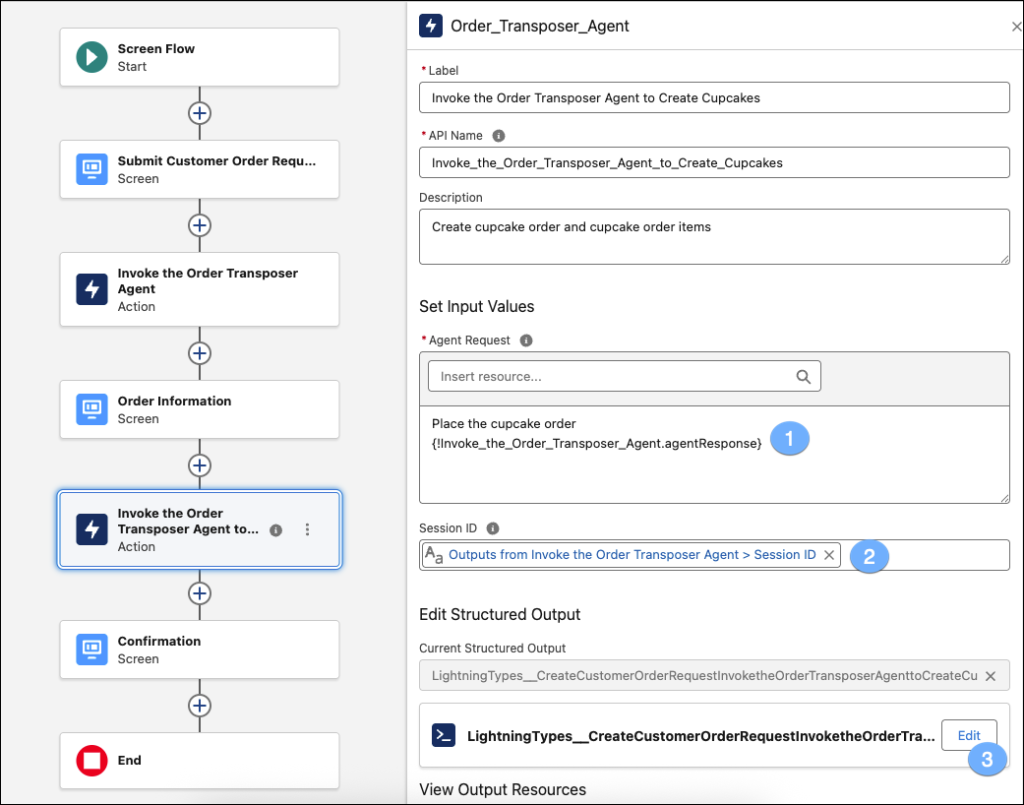
With this AI agent action, my agent creates a single cupcake order and as many cupcake order items that are needed. Back in the day, I would’ve needed to build a fairly complex flow that had Loops and Decisions to determine how many cupcake order items to create. And with that implementation, I would’ve needed to implement a limit on cupcake order items. But with Agentforce, the agent is smart enough to know how many times it needed to invoke the flow action to create the cupcake order record. Mind blown!  It’s all about building smarter, not harder.
After the agent creates the cupcake order and cupcake order items, I need the cupcake order number, cupcake order summary information, customer name, and cupcake order ID on the Confirmation screen element. To do this, I specify each data point as a structured output.
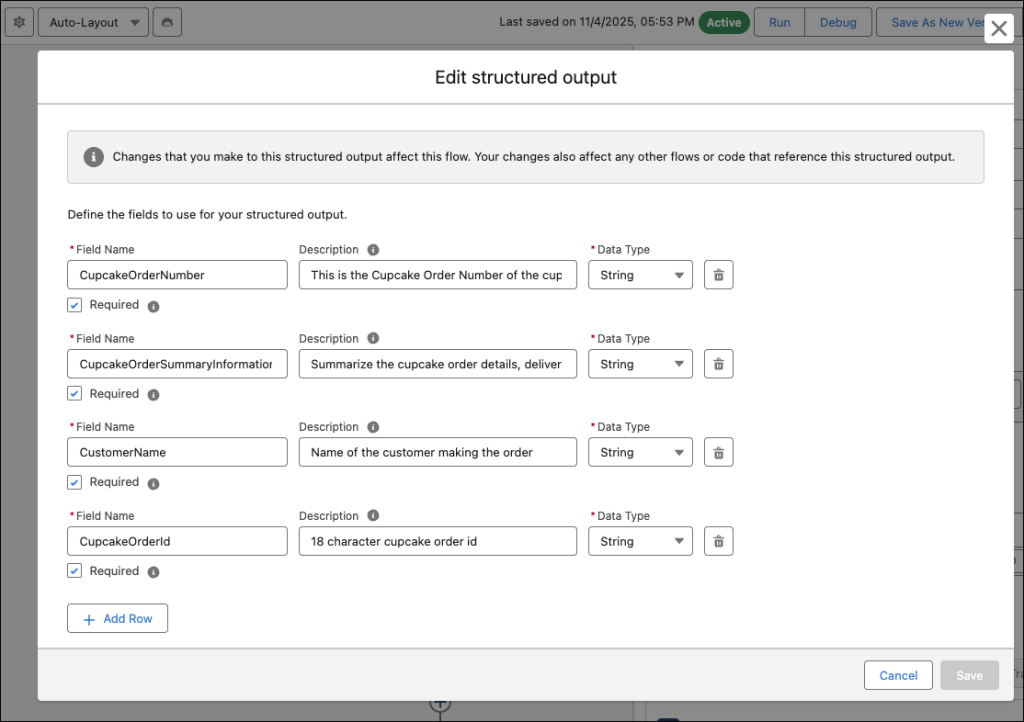
On the Confirmation screen element, I’m referencing my structured outputs: the cupcake order number, customer name, cupcake order summary information, and the record ID are used in the ‘Access the record’ link.
![Confirmation screen.]](https://d3nqfz2gm66yqg.cloudfront.net/images/20251125095257/Image-13-1024x576.png)
And that’s a wrap. We created an AI-powered screen flow to intelligently parse data from unstructured data into structured data for use in automation—all without any code!
This is so much bigger than cupcakes 
Awesome Admins, let this really sink in. Just a few years ago, being able to build such a solution was science fiction for admins. This level of intelligence, understanding human language, would have required such complex code and massive projects.
Today? Simply create an agent, add an AI agent action in a flow, and build it yourself. No code needed!
Think about your service team. An angry, rambling email instantly becomes a high-priority case, assigned and escalated. Think about your sales team. A vague “tell me more” inquiry from your website instantly becomes a hot lead, with the right product of interest already filled in.
You can turn unstructured chatter into real, automated action for your company. This isn’t just a new feature—it’s a whole new way to build your automation, powered by AI.
Resources
- Trailhead: Agent Customization with Flows
- Salesforce Help: Best Practices for Agent Action Instructions
- Saleforce Help: Build Agent-Driven Processes With Structured Outputs From Custom Agent Actions
The post Transform Unstructured Text With an AI-Powered Flow | How I Solved It appeared first on Salesforce Admins.