Your sellers want to ask Claude about their accounts that live in Salesforce. Some already do, with CRM snippets and notes copy-pasted into whatever tool is open. Salesforce in Claude gives them a sanctioned path: it runs as the seller, with their own permissions, connecting live to Salesforce, the source of truth.
And it doesn’t stop at reading. The Sales Cloud in Claude plugin also lets Claude update records in Salesforce. Before you think, “I’m not sure I’m ready to let Claude make updates in my org,” know that your Claude admin can configure what you allow through the connector’s tool restriction settings.
Everything Claude can read is set by the seller’s permissions. Whether it can change anything is set by the tool restriction settings on the connector in Claude. Your job as an architect is deciding how much to allow. This post helps you make that call grounded in an understanding of how the integration works and the control levers available right now.
Understand how Salesforce reaches Claude
AIforce puts Salesforce inside the clients and interfaces your users already work in, such as Claude and other AI surfaces. The Headless Toolkit is the set of technical features behind it. Its core is a connection layer: Salesforce-hosted Model Context Protocol (MCP) servers and APIs that expose Salesforce records and workflows to any approved MCP-compatible client.
Sales Cloud in Claude is the quickest way to put that connection to work. It’s delivered through the Sales Cloud in Claude plugin, built by Salesforce and Anthropic, which bundles 37 sales skills, the Salesforce MCP connection, and a setup skill that personalizes the skills to each user’s role and book of business. Sellers stay in Claude and ask for account briefs, renewal prep, QBR decks, and meeting follow-ups. It’s currently in beta and requires an enterprise agreement with Anthropic and Sales Cloud licenses.
Underneath, the plugin talks to the standard Salesforce Hosted MCP Server. That server exposes a set of tools: Discover, Describe, Dispatch read-only, and Dispatch. Reads go through Dispatch read-only. When the plugin skills create and update records, they use Dispatch.
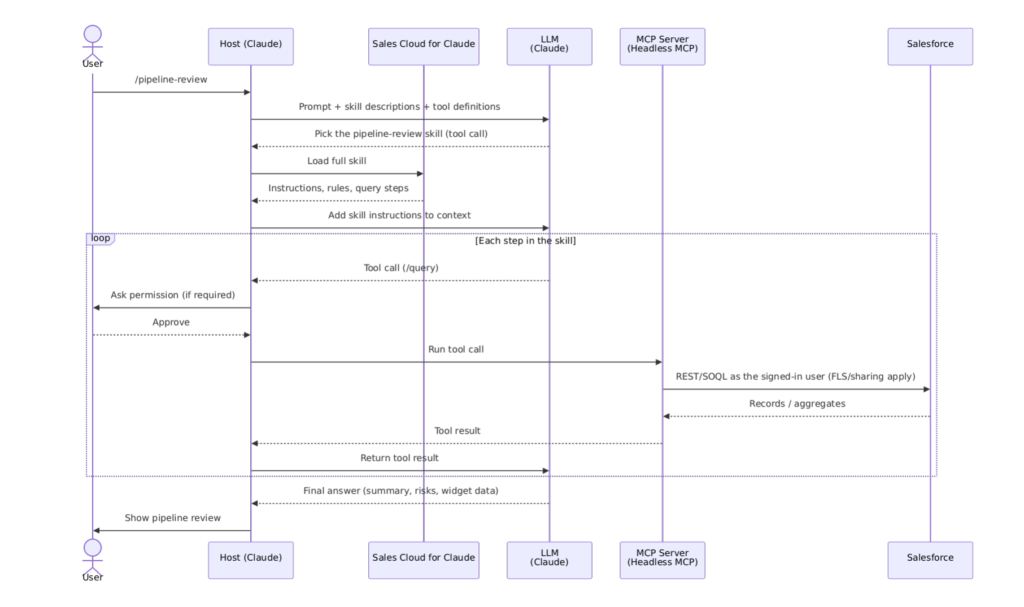
Let’s take a look at how the pieces fit together, taking the pipeline review skill as an example:

Follow one request: a seller preps for their 2 p.m.
It all starts with a one-time setup. A Salesforce Admin activates the Salesforce MCP server, creates an External Client App (ECA), and shares its consumer key and secret with the Claude admin. The Claude admin enters them in the organization’s connector settings, installs the plugin, and decides who gets access. Then comes the step that allows you to control the extent of what Claude will be able to do: the Claude admin sets the connector’s tool restrictions. That’s where you decide whether Claude can only read or can also create and update records, and whether to ask for approval first.
The first time a seller uses the plugin, they sign in with their own Salesforce account through OAuth, and a setup skill tunes the plugin to their role and book of business.
Now the request. Let’s say they run the pipeline review skill using the ‘/’ command, or just ask Claude for it in natural language. Here’s what happens, in order:
- Claude picks the skill if they go the natural language route. It sends the user’s prompt, the skill descriptions, and the tool definitions to the model, which chooses the matching skill. Claude then loads that skill in full: the instructions, the rules, and the query steps.
- The model works through the steps, one tool call at a time. Reading needs no approval, because skills only work when an admin allows read calls. Writing is different. Whether Claude can write at all, and whether it asks first, depends on the Dispatch setting. A pipeline review only reads, so nothing in this walkthrough needs approval.
- Every call runs as the user. The MCP server queries Salesforce as the signed-in user, so field-level security (FLS) and sharing rules apply.
- The results go back to the model used by Claude. After each call, the model sees what came back, decides the next step, and finally writes the answer.
The two key takeaways from this are:
- The requests to Salesforce run through the seller’s credentials. That’s why user permissions matter so much.
- The data that is returned from Salesforce is processed by Claude’s connected LLM, under your organization’s agreement.
What you need to decide is the right level of permissions, and whether Claude can change anything.
User permissions determine what Claude can access
For a long time, when systems were talking to each other, the API contract did the scoping for you. An integration could only do what the API exposed, and you knew exactly what that was. An AI client connected through the hosted server has no such contract. At this moment, the Salesforce MCP server doesn’t support a generic system user with a dedicated set of permissions.
Instead, Claude gets whatever access the authenticated user has, and it decides how to use that access based on the tools it has available. You don’t control the model’s internal guardrails like you would with Agent Script in Agentforce, and you can’t rely on such guardrails to keep what it will do inside your boundaries.
This means that for now your permission model does the work the API contract used to do. Object permissions, FLS, and sharing rules determine the scope of what is made available, and they mirror what the human user can do in Lightning Experience.
That’s partly good news, because there’s no new security model to learn. It does change what those permissions are for. A person uses the fields their job needs. Claude can reach everything their profile and permission sets allow, including potentially overly broad access like “View All” or “Modify All”. And whatever Claude reads goes to the model, so this review is a data-sharing decision as much as a security one. You must review the access of your pilot user group before you enable the plugin for them, and clean up what shouldn’t be there.
Tool restrictions determine what Claude can change
Permissions set what Claude can reach. A second control, set in Claude, decides whether it can change anything. Your Claude admin finds it under Organization Settings > Connectors > Salesforce – Beta > Tool Restrictions, where each tool of the Salesforce MCP server gets its own setting.
Most of those settings aren’t a choice. Dispatch read-only, Discover, and Describe must be Always Allowed, or the skills don’t work. Dispatch covers creating and updating records. It has three options:
- Needs Approval: Claude can create and update records, but asks the seller for approval first. Salesforce recommends this as the steady-state setting.
- Always Allowed: Claude creates and updates records without asking.
- Deny: Claude can’t create, update, or delete anything. This keeps Salesforce in Claude read-only.
When Dispatch is set to Always Allowed, nothing blocks Claude from creating or updating records until your Claude admin changes the setting to Deny or Needs Approval. Which setting you choose depends on how much you’re willing to let Claude do.
Note: The plugin has no skills that delete anything, but Claude isn’t limited to its skills. It could call Dispatch directly and delete any record the user has permission to delete, unless you set Dispatch to Deny. Needs Approval requires the user to confirm each delete first, and Always Allowed lets deletes go through without asking.
Set Dispatch to Needs Approval if you’re comfortable letting Claude make updates once the seller approves them. The seller stays accountable for every change, and you get the value of the write skills from day one. But consider how closely your end users are reading what Claude asks them for permission to do, and decide whether this is how you want to start.
Set it to Deny if you want to start read-only. You find out what Claude actually queries, and how your permission model holds up, before it can change a single record. You can move to Needs Approval later without redoing anything. Treat Always Allowed as the exception, and use it only when you can explain why an approval step adds nothing.
Set tool restrictions for Claude
See the Tool Restrictions settings your Claude admin needs to configure, including Dispatch API.



Plan the required access based on the job to be done
This is where the architecture design work is done. Be conscious that a seller’s permissions were originally created for a human seller. Now you need to ask whether the access as provided to the human user is the right scope for what Claude will read, and, if you allow updates, for what it can change.
For most sales teams, the answer is yes once you’ve done a review to remove overly broad permissions. Remove anything the end user shouldn’t have had anyway, like leftover “View All” or unrestricted sensitive fields. You aren’t taking away anything their job needs, so this is a good start.
Some situations require Claude to be able to see or do less. Especially watch for sellers who also hold administrative permissions, tasks that need a fraction of the fields their profile and permission sets provide access to, and data that’s sensitive and legitimately theirs but does not need to be accessible by Claude. When you see this type of use case, you need to either restrict the access of the end user or build a custom experience directly on AIforce.
If you allow create and update by having the Claude admin set Dispatch API to Needs Approval or Always Allowed, you must check which sellers hold “Modify All” or other destructive permissions that could have unintended consequences.




Where to start
Start with the data Claude can access, which is whatever your sellers’ permissions allow. Then look at what Claude can do with that data, which is whatever the Dispatch API setting allows. Start conservative with read access, then build it out slowly. Move to Needs Approval first, so a seller confirms every change, and only when you’re extremely confident, to Always Allowed. These three steps show you how to get there:
- Review permissions before you pilot. Check “View All” and “Modify All” access, FLS, and sharing rules for the profiles and permission sets of the users in your pilot group, and note which sellers also hold admin permissions.
- Agree the Dispatch API setting with your Claude admin. Set it to Deny to start read-only. Move to Needs Approval when you’re ready for Claude to make updates once the seller approves them, and treat Always Allowed as the last step. Decide on a setting and make sure it is set, because tools are unrestricted by default.
- Pilot the plugin with a small group. Run read flows first and measure one outcome. If you chose Needs Approval, review the first approvals for unintended updates before you widen the group.
As you progress through these steps, capture each decision in an architectural decision record (ADR): the permission cleanup you did, the Dispatch setting you chose and why, and any exceptions.
AIforce in Action for Architects
AI assistants are redefining where people experience software. With AIforce, your end users can experience the full power of Salesforce wherever they work, including Claude, Slack, Coworker, and more. In this new video series, follow along as Salesforce Architect Evangelists explore, experiment, and share what’s possible with AIforce.