

Have you ever checked what your website looks like to something that can’t see it?
AI agents don’t admire your hero image or your brand colors. They read the accessibility tree.
The accessibility tree is the structured, semantic layer your browser builds from the DOM, the same layer screen readers have used for decades.
- OpenAI’s Publishers and Developers FAQ confirms that ChatGPT Atlas interprets page structure and interactive elements through ARIA roles and labels, and that making your site more accessible makes it easier for the agent to understand.
- Microsoft’s Playwright MCP, one of the most widely adopted frameworks for agent browsing, is built around accessibility snapshots instead of screenshots for the same reason.
The only reason SEOs are suddenly discussing the accessibility tree in 2026 is that AI agents now read that exact layer, and WebMCP is on track to let those agents act on websites, not just read them.
Here’s how to put your website’s accessibility tree to work with these 10 SEO use cases.
| No. | Use case | Plugs into |
|---|---|---|
| 1 | Agent readiness audit on money pages | Technical audits |
| 2 | Diagnose JavaScript rendering gaps | Rendering audits |
| 3 | Audit conversion paths for WebMCP | CRO and agent commerce prep |
| 4 | Benchmark competitor machine legibility | Competitive analysis |
| 5 | Validate heading and landmark hierarchy | Content structure |
| 6 | Fix anchor text through accessible names | Internal linking |
| 7 | Audit images and alt text for AI extraction | Content extraction and AI citations |
| 8 | ARIA snapshots in CI | Monitoring and regression testing |
| 9 | Before/after tree diffs for migrations | Migration QA |
| 10 | Prioritize accessibility fixes by SEO value | Roadmapping |
Don’t skip: Read this accessibility warning first
Before you touch a single ARIA attribute for SEO reasons, remember what this layer is actually for.
The accessibility tree exists so people with disabilities can use the web. Everything in the W3C’s Web Content Accessibility Guidelines, including the WCAG 3.0 draft that restructures conformance around outcomes rather than checkpoints, was written for people using assistive technology.
That means the stakes of getting it wrong are higher than a lost citation. Sloppy ARIA doesn’t just confuse an agent. It actively misleads a screen reader user who has no way to know they’re being misled.
It can also get you sued. Some law firms run automated accessibility audits at scale to identify potential lawsuit targets. More than 8,600 accessibility lawsuits were filed in 2025 alone.
Professionals specifically qualified for this work, called certified accessibility specialists, can help. If your site serves a large audience or operates in a regulated industry, bring one in.
Treat SEO benefits as a side effect of doing accessibility correctly, never the other way around.
Now that we’ve covered the important part, let’s get to the workflows.
Track, grow, and measure your visibility across Google, AI search, social, local, and every channel that influences buying decisions.
Two ways to view your accessibility tree
Every use case below starts with the same step: Look at the tree. You have one easy method and another that’s almost as easy, with a few more steps.
The easiest method
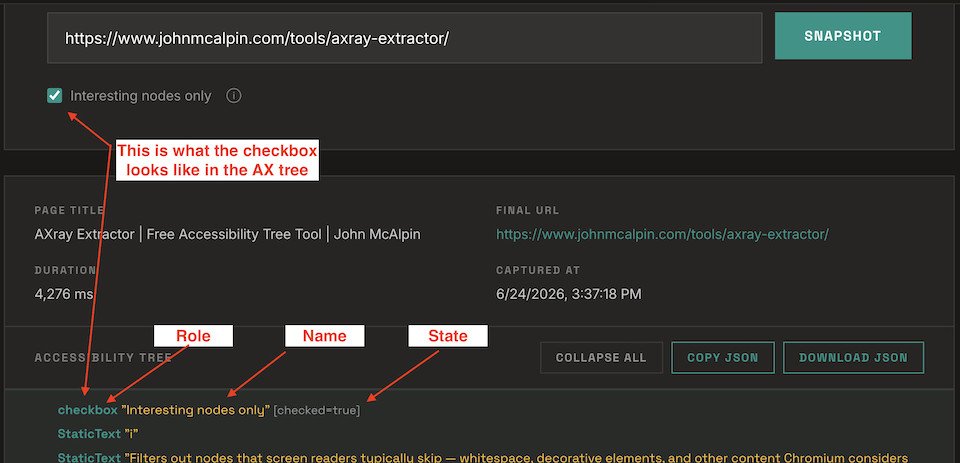
I built a free tool called the AXray Extractor that captures the full accessibility tree of any live URL using a real headless browser. Paste in a URL, capture the tree, filter to the nodes that matter, and copy or download the entire tree as JSON.
No DevTools knowledge or account is required, and the JSON export makes several of the workflows below much faster.

The easy method with a few more steps
Chrome DevTools has a full-page accessibility tree view. To start:
- Open DevTools.
- Go to the Elements panel (usually open by default).
- Open the Accessibility pane in the right sidebar (or, in some layouts, the bottom pane).
- Enable Full-page accessibility tree.
The DOM view switches to the accessibility tree, where you can inspect each node’s role, name, and state.

TL;DR
- Use the extractor when you want speed or a shareable export.
- Use DevTools when you need to trace a specific broken node back to the exact markup causing it.
SEO use cases for auditing accessibility trees
1. Run an agent readiness audit on your money pages
This is the foundational workflow. Everything else builds on it.
The workflow
- Pull your top 10 to 20 pages by revenue or conversions from analytics.
- Capture the accessibility tree for each one (extractor or DevTools).
- For every page, answer these questions:
- What are the most important user actions on this page?
- Does every important action appear as a node with the correct role and a clear accessible name?
- Score each page against this pass/fail checklist:
- Primary CTA exposed as a button or link with a descriptive name.
- Every form input has a programmatically associated label.
- Navigation wrapped in a navigation landmark.
- Main content wrapped in a main landmark.
- Key content, including pricing, product details, and contact info, present in the tree as readable text.
- Log the results in a sheet, one row per page, one column per check.
What good looks like: Every interactive element on the page has a role that isn’t generic and a name a stranger could act on without seeing the screen.
What to fix when it fails: Unnamed or generic nodes almost always trace back to div-based controls, icon-only buttons without labels, or inputs missing labels. Fix with native HTML first, a real <button>, a real <label>, and reach for ARIA only when native elements can’t do the job.
2. Diagnose JavaScript rendering gaps
You already audit JavaScript rendering. The tree gives that audit a new inspection surface:
- Old method: “Did the content render?”
- New method: “Did the content reach the layer agents actually read, and when?”
The workflow
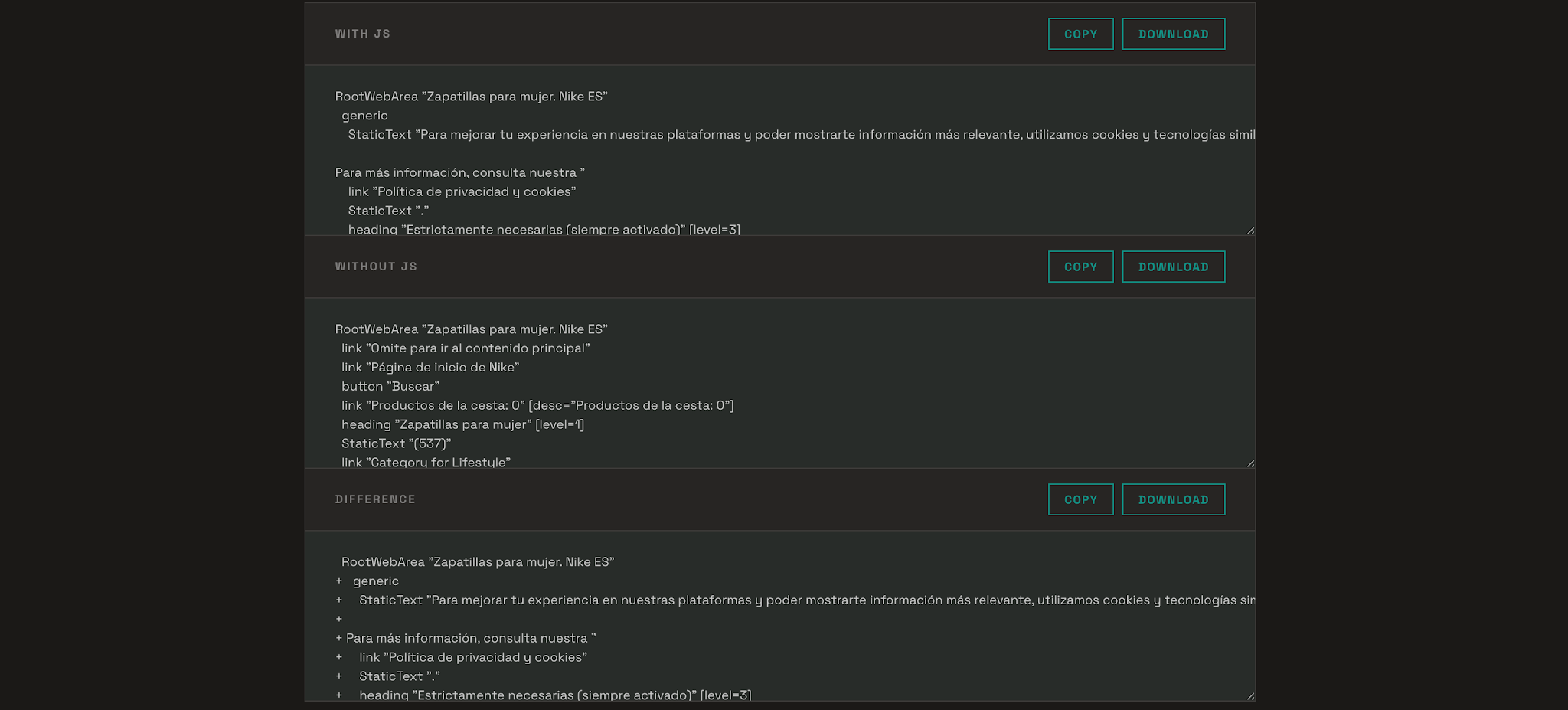
- Go to the AXray Extractor.
- Select Capture JS Diff.
- Scroll down to view the differences.
What good looks like: Your core content, headings, and primary links exist in both captures. Enhancement can hydrate late. Substance can’t.
What to fix when it fails: Content that never reaches the tree without client-side JavaScript is invisible to any agent that doesn’t fully execute your scripts, and it’s exactly the content most at risk with traditional crawlers, too.
Run this on a typical client-side rendered ecommerce category page, and the usual finding is that the product grid, the filters, and sometimes the H1 all live exclusively in the post-hydration tree. Server-side render or pre-render anything that fits that description.
3. Audit conversion paths for WebMCP
Agents are moving from reading websites to transacting on them. WebMCP, the W3C draft standard co-authored by Google and Microsoft engineers and now in a Chrome origin trial, lets a website expose its functions directly to agents.
But as of this writing, most sites won’t have WebMCP tooling for a while, which means we have time to prepare our websites for the future.
The workflow
- Pick one revenue flow, such as checkout, lead form, or signup.
- Walk it step by step in the tree view, one screen at a time.
- At each step, flag four failure types: unnamed buttons, div-based click handlers, unlabeled inputs, and state that never updates (an accordion that
expandednever flips, a submit button thatdisablednever releases). - File each flag as a ticket with the exact node and the markup fix.
Here’s the classic before and after:
<!-- What your dev shipped. The tree sees: role generic, no name, no interaction hint. --> |
Same pixels for the human. Night and day for the machine.
What good looks like: An agent could complete the entire flow using only roles, names, and states, with zero guessing.
What to fix when it fails: Replace div handlers with native buttons and links, associate every input with a <label>, and make sure JS actually updates ARIA states when the UI changes. An aria-expanded="false" that stays false while the panel visibly opens is worse than no attribute at all, because it confidently lies.
4. Benchmark your competitors’ machine legibility
If agents mediate a growing share of discovery and purchase decisions, machine legibility is a competitive metric rather than a compliance metric. Unlike backlinks, your competitors’ accessibility trees are right there in public.
The workflow
- Pick your most important template (product page, service page, or pricing page) and the equivalent URL on three to five competitors.
- Capture each tree. Playwright makes this scriptable with a one-liner per page:
await page.ariaSnapshot()returns a YAML representation of the entire tree (see the ARIA snapshots documentation). The AXray Extractor works well for a handful of URLs. - For each capture, count four things:
- Total meaningful nodes.
- Named versus unnamed interactive nodes.
- Landmarks present.
- Headings exposed with the correct levels.
- Build a scorecard, one row per site.
What good looks like: A simple table you can put in front of a stakeholder.
| Site | Interactive nodes | Named | Unnamed | Landmarks | Headings exposed |
|---|---|---|---|---|---|
| You | 42 | 31 | 11 | 3 of 5 | 14 |
| Competitor A | 38 | 38 | 0 | 5 of 5 | 18 |
| Competitor B | 51 | 22 | 29 | 1 of 5 | 9 |
What to fix when it fails: If a competitor’s tree is dramatically cleaner than yours, its pages are cheaper and more reliable for agents to parse.
Remember, there’s no “right number” of interactive nodes, and more doesn’t equal better. This is simply a spot check.
5. Validate heading and landmark hierarchy as agents receive it
Heading audits usually happen in a crawler export, which reports what’s in the HTML. The tree reports what’s actually consumed. Those two things disagree more often than you’d hope.
The workflow
- Capture the tree for your key content templates.
- Extract every heading node and check the levels in sequence. Look for skips (H1 to H3), duplicates (two H1s), and reversals.
- Check for “visual headings”: text styled to look like a heading but exposed to the tree as plain text because it’s a styled div.
- Check for the inverse: aria-level overrides or role=”heading” on random elements that scramble the real order.
- Confirm every meaningful content block sits inside a landmark (main, navigation, complementary). Content floating outside any landmark loses its context for extraction.
What good looks like: One H1, sequential heading levels beneath it, and every heading in the tree matching a heading a person would identify by looking at the page.
What to fix when it fails: Restyle real heading elements rather than promoting styled divs with ARIA, and remove aria-level overrides unless there’s a genuine accessibility reason for them.
Agents use your heading hierarchy to segment and extract content. A scrambled hierarchy turns your carefully structured article into an undifferentiated blob.
6. Fix anchor text through accessible names
Internal linking audits usually mean crawling anchor text. The tree does something a crawler can’t: It shows every link’s accessible name, which is what agents and screen readers actually receive, in one view.
Three problems become instantly visible:
- Generic names: “Read more,” “Click here,” “Learn more,” repeated 40 times per page
- Empty names: Icon-only links (social icons, arrow buttons, logo links) with no name at all
- Silent overrides: An aria-label that replaces perfectly good visible anchor text with something worse
That last one is the sneaky one. If your visible anchor says “Compare enterprise pricing plans,” but someone slapped aria-label="Link" on it, the tree says “Link.” The agent reads “Link.” Your carefully written anchor text may as well not exist.
The workflow
- Capture an ARIA snapshot of the page (Playwright’s
ariaSnapshot()or the extractor’s JSON). - Extract all nodes with the link role.
- Sort by accessible name.
- Fix in priority order: empty names first, then generic names, then overrides.
What good looks like: Every link name describes its destination well enough that someone reading only the list of names could navigate your site.
What to fix when it fails: Give icon links an aria-label that describes the destination, rewrite generic anchors to be descriptive, and delete ARIA labels that override good visible text. Your internal linking strategy only works if those names survive the trip into the tree.
7. Audit images and alt text for AI extraction
Filter your tree capture to nodes with the image role, and you’ll get an instant inventory of what your images contribute to machine understanding. Usually, the answer is “less than you think.”
The workflow
- Capture the tree for your top image-heavy templates.
- Filter to image nodes and review each name (the exposed alt text).
- Flag three failure types: missing names (empty alt on meaningful images), noise (decorative images exposed to the tree instead of hidden with empty alt), and useless names (“image,” “chart,” “photo123”).
- Rewrite against best practices.
The goal here isn’t compliance. It’s extraction and citation. An image with no accessible name contributes nothing when an AI system decides whether your page answers a question.
To optimize images for AI search:
- Compose images as single logical blocks without visual noise.
- Keep text in images legible instead of crushing it with compression.
- Place images next to their supporting text inside semantic markup, such as
<figure>and<figcaption>. - Write alt text that includes spatial context (what’s left, right, foreground, and background).
- Put explicit labels directly on data visualizations instead of relying on legends.
What good looks like: Every meaningful image has a name that could stand in for the image, and every decorative image is absent from the tree entirely.
What to fix when it fails: Use empty alt text (alt="") on decorative images to remove noise, and descriptive, spatially aware alt text on everything that conveys information.
8. Put ARIA snapshots in continuous integration (CI) to catch regressions before deployment
This is my favorite workflow because it’s the only one on this list that works while you sleep.
Everything above is a point-in-time audit. The problem with point-in-time audits is that the next deployment can quietly undo them. A refactor swaps a button component, an accessible name disappears, and nobody notices until an agent, or a screen reader user, hits the wall.
Playwright’s toMatchAriaSnapshot assertion turns your accessibility tree into a versioned test baseline. Here’s how it works:
- Capture a YAML snapshot of a template’s tree and commit it to the repository.
- During every build, Playwright recaptures the tree and compares it against the baseline.
- If a deployment strips a name, drops a landmark, or demotes a heading, the build fails before it ships.
The implementation is about 15 lines:
import { test, expect } from '@playwright/test'; |
Run npx playwright test --update-snapshots once to generate the baselines, commit the .aria.yml files, and you’re monitoring.
When a legitimate redesign changes the structure, rerun with the update flag and review the YAML diff in the pull request. That diff is human-readable. A reviewer sees - button "Submit" become – button "" and knows exactly what broke.
What good looks like: Structural regressions fail CI rather than surfacing during a quarterly audit three months after the damage started.
What to fix when it fails: Whatever the diff says. That’s the whole point.
9. QA migrations and redesigns with before-and-after tree diffs
Migration checklists cover redirects, metadata, canonical tags, and internal links. I’ve never seen one that covers the accessibility tree, which is a problem because a redesign can preserve every URL and title tag while silently destroying the structure agents read.
Picture the standard scenario: A site replatforms to a new JavaScript framework. Every redirect resolves, every meta tag survives, and the migration is declared a success. Meanwhile, the new component library ships every CTA as a div, the landmark structure evaporates, and the tree goes from a clean hierarchy to generic soup.
Nothing in a traditional migration QA checklist would catch it.
The workflow
- Capture ARIA snapshots of your top 10-20 templates before the migration and store them in a safe place. (If you’ve already completed use case 8, this step is done.)
- After launch, capture the same templates on the new site.
- Diff each pair.
- Triage the results: Missing landmarks and unnamed interactive elements are launch blockers. Renamed nodes and reordered sections are review items.
What good looks like: The post-migration tree preserves every landmark, every named control, and the heading hierarchy of the old site, or deliberately improves on them.
What to fix when it fails: Work through the diff exactly as you would a redirect audit, starting with the highest-traffic templates. Then add “tree diff” as a standing line item in your migration checklist so you never have to do this reactively again.
10. Prioritize accessibility fixes by SEO value
Most accessibility backlogs are sorted by WCAG severity, which is correct for compliance but useless for getting the work resourced. Nobody funds “347 contrast errors.” People fund revenue.
The workflow
- Take your tree failures from use cases 1 through 9 and group them by template.
- Pull three data points for each template:
- GSC clicks.
- Conversion value.
- AI citation presence (whatever visibility tracking you use for LLM mentions).
- Cross-reference the data. A missing accessible name on your pricing page CTA outranks 50 issues on your 2019 blog archive.
- Resort the backlog based on that combined value, and hand your development team a top-10 list instead of a 400-row export.
What good looks like: Accessibility work framed as revenue protection, with the highest-value templates fixed first, while maintaining the WCAG severity view in parallel for compliance (because the legal risk from the warning section hasn’t gone away).
What to fix when it fails: This is less about fixing markup and more about fixing prioritization. It’s also what turns the previous nine workflows from isolated tactics into an operating model your team can actually run.
See where your brand appears, where it doesn’t, and exactly how to win more visibility across search, AI, local, social, and every channel that matters.
Where to start
Don’t try to run all 10 workflows this week. Start with use case 1 on your top 10 pages. It surfaces the most damage per hour invested. Then implement use case 8 so the gains you make can’t silently regress. Fold use cases 2, 3, and 9 into the audit and migration checklists you already use, and let the rest enter the rotation as the need arises.
Agents account for a growing share of the traffic hitting your site, and they’re only becoming more capable of acting on what they read. The sites that win that traffic will be the ones that are most legible to them. Now you know how to measure that.
Good luck, and happy auditing.