You’ve got a working prototype in Google AI Studio. A React frontend, a Node.js backend, maybe a database. Now you want a live URL to share with your team, your users, or a friend who wants to try it.
Google Cloud gives you a full platform for deploying production applications, with fine-grained IAM controls, billing management, and region selection. That’s exactly what you want when you’re building something serious. But when you just need to get a prototype online in the next ten minutes, there’s now a faster path.
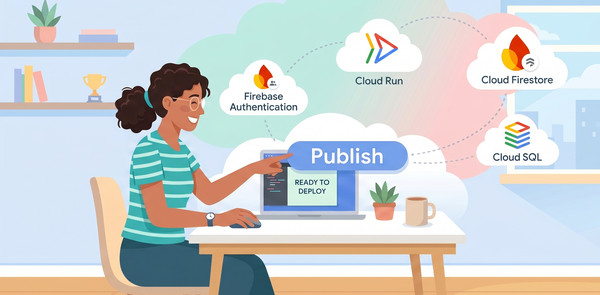
Google Cloud Starter Tier resources like Cloud Run, Cloud Firestore, Cloud SQL for PostgreSQL, and Firebase Authentication are provisioned in a fully-managed project. You can get started with using them without a payment method (like a credit card) or a billing account. Your Google Account is enough to go from prompt to live URL, with a database and auth all baked in.
What the Starter Tier actually is
When you set up any of the Starter Tier services within Google AI Studio, Google provisions a fully managed project behind the scenes. You don’t create it, configure it, or administer it. Google handles the region selection, API enablement, and security policies for you.
Who can use it? The Starter Tier is currently available to individual Google Accounts. If you are signed in with a corporate or educational Google Workspace account, organization-level administrative policies may restrict your ability to deploy resources. It is also bound by the regional availability of Google AI Studio.
This is different from a standard Google Cloud project where you’d manage IAM roles, enable APIs, and link a billing account. The Starter Tier project is minimalist by design. You can’t enable BigQuery or Pub/Sub in it. You can’t change the region of any resources. And that’s the point: fewer knobs means fewer ways to go off track.
The console experience matches this philosophy. Instead of the full Google Cloud console with hundreds of product pages, Starter Tier users get a simplified view focused on what matters for a prototype: application logs, performance metrics, and basic container configuration. If you navigate to an unsupported product, you’ll be prompted to start a separate Free Trial instead of accidentally provisioning billable resources.
One thing to know: Starter Tier resources aren’t governed by the standard Google Cloud Terms of Service. They fall under the Starter Tier Additional Terms. For prototyping and business applications, these terms won’t get in your way.
What you get: the pre-wired stack
The Starter Tier doesn’t give you the entire Google Cloud catalog. Instead, it offers a pre-wired stack of four products that are provisioned on demand as your application’s architecture requires them.

Cloud Run
Cloud Run is the compute layer. Every Google AI Studio deployment creates a Cloud Run service that handles HTTP traffic. Under the Starter Tier, you can deploy up to two active web applications at a time per Google Account. Cloud Run services scale automatically based on incoming traffic and scale down to zero when idle, meaning your prototypes don’t consume resources when not in use. They run in a single region that is locked in when you first provision your Starter Tier environment.
Firebase Authentication
If your app needs user login, the Starter Tier includes Firebase Authentication with Google Sign-In preconfigured. The AI agent in Google AI Studio can detect when your prompt implies user identity (for example, “build a shared to-do list”) and will offer to enable auth automatically.
If your application builds on Google Workspace integrations, this sign-in flow simplifies credentials. Once a user logs in, your application can request OAuth access scopes to securely interact with their Gmail, Docs, Calendar, or Sheets data, making it straightforward to prototype internal tools like summarizers or inbox sorters.
Cloud Firestore
Cloud Firestore is a database service that handles NoSQL data storage. The Google AI Studio agent can provision it automatically when your prompt implies the need for structured data storage. The AI agent generates the client-side sync code (typically a /src/lib/firebase.ts file), and drafts application-appropriate Firebase Security Rules (for example, utilizing request.auth.uid to restrict document access to the authenticated creator).
If you hit a “Missing or insufficient permissions” error, you can click “Fix error” in Google AI Studio, and the agent will rewrite the security rules to match your updated app logic. It’s worth reviewing these security rules manually before sharing your app broadly, though. AI-generated security rules are a starting point, not a guarantee.
All Firestore databases created by the Google AI Studio agent share a usage quota (more on that in the limits section below).
Cloud SQL for PostgreSQL Developer edition
When you need relational data with proper schemas, joins, and ACID compliance, the Starter Tier provisions Cloud SQL for PostgreSQL Developer edition, designed to work seamlessly with AI Studio agent. The developer edition enables instant provisioning and scale to 0, which enables fast and low cost developer experience. You also get the full power of open source PostgreSQL with capabilities like pgvector, so you can build semantic search or RAG applications without bolting on a separate vector database.
As you iterate on your application using prompts, Google AI Studio agent will automatically generate the required schema and migrate the schema, as you move through building and publishing your application.
From prompt to live URL in five steps
1. Open Google AI Studio Build Mode. Go to Google AI Studio and switch to Build Mode. No payment method, no project setup.
2. Describe your app. Type a prompt like “Build a shared to-do list app using Firebase as a backend.” The agent generates a React frontend and a Node.js backend, with a live preview on the right side of the screen.
3. Enable Firebase (if prompted). If your prompt involves user data or authentication, the agent shows a configuration card to enable Firebase. Click the Settings icon to pick a region (this locks in the Cloud Run region too), then confirm.
4. Click Publish > Get Started > Publish App. The agent packages your code and provisions a Cloud Run service in your Starter Tier project.
5. Grab your URL. Within seconds, you’ll have a live .run.app URL. You can monitor it from the simplified Google Cloud console view that shows logs and metrics for your deployed containers.
That’s it. No Dockerfile, no gcloud CLI, no YAML configuration files.
How the Starter Tier compares
Google Cloud offers several ways to explore for free. Below, we compare the Starter Tier to the Free Trial, the most common entry point for new users.
| Starter Tier | Free Trial | |
| What you get |
Pre-wired stack that includes four products, with limited quota:
|
|
| What we need from you |
A Google account |
Accept Google Cloud Terms of Service |
| Time limit | None | 90 days |
| Project control | Google-managed | Full control |
| Console experience | Simplified | Full |
| Best for | Prototyping from AI Studio | Evaluating the full Google Cloud platform |
| What happens when you are ready for more? |
Upgrade to a paid account by adding a payment method. If you’ve never had a billing account before, you will receive the $300 Welcome credit and access to the Free Tier. You will then be billed for usage that the Free Tier and $300 credit cannot cover. |
Upgrade to a paid billing account to keep your existing project, remaining credits, and Free Tier and full platform access. You will then be billed for usage that the Free Tier and any remaining credit cannot cover. |
Starter Tier is best for AI Studio prototyping. Choose the Free Trial If you need BigQuery, GKE, or Gemini Enterprise Agent Platform, or the 90-day period to evaluate GCP broadly with no risk of being billed. Both paths allow you to seamlessly upgrade to a paid account for the full experience whenever you are ready.
How to plan for limits
The Starter Tier is generous for prototyping, but it does have boundaries. Knowing them upfront saves you from unpleasant surprises.
Two-app cap. You can deploy a maximum of two applications. Note that if you want to replace one of your active applications, you should deploy over or overwrite the existing app slot in Google AI Studio rather than attempting to delete the service manually in the Cloud Console.
Single region. All resources in your Starter Tier project are pinned to one region, chosen whenever the first Starter Tier service is provisioned. For example, if a Firestore database is provisioned before deploying to Cloud Run, then the region is chosen at that time.
Locked API surface. You can’t enable additional Google Cloud APIs (BigQuery, Pub/Sub, Cloud Functions, etc.) in a Starter Tier project. If you need them, you’ll need to upgrade.
Ephemeral filesystem. Because your published Google AI Studio app runs inside a serverless Cloud Run container, it inherits a temporary filesystem. Any files you write directly to disk (like uploaded images, generated PDFs, or local SQLite databases) will vanish when the container scales to zero or gets redeployed. Since Google AI Studio redeploys your container with each prompt iteration, this happens frequently. Store persistent data in Firestore or Cloud SQL for PostgreSQL.
Firestore shared quota. All Firestore databases created by the Google AI Studio agent share a single shared-quota group. In Google Cloud, a quota represents a usage limit or daily budget to protect the project and prevent abuse. It is not a guarantee of reserved server capacity.
| Quota Metric | Starter Tier Maximum Limit |
| Total Stored Data | 1 GiB total |
| Network Egress | 10 GiB per month |
| Write Operations | 40,000 writes per day |
| Read Operations | 50,000 reads per day |
| Real-Time Updates | 50,000 updates per day |
If any database in the group exhausts a daily limit, all databases in the group pause until roughly midnight Pacific Time. Firebase Authentication usage is metered separately, so a spike in logins won’t eat into your database quota.
Cloud SQL share quota: You are limited to building a maximum of 2 apps with Cloud SQL. AI Studio agent will automatically fallback to Firestore if the Cloud SQL quota is exceeded. You can get more quota by growing out of the sandbox.
Growing out of the sandbox
The best part of the Starter Tier is how you upgrade from it. There’s no migration, no data export, no DNS cutover. When you’re ready to scale, you upgrade in place.
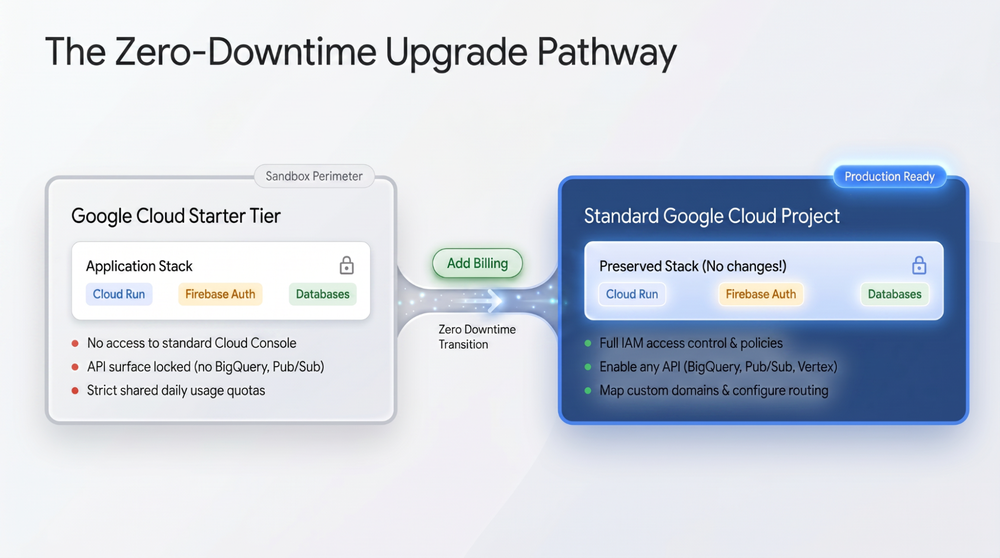
From the Projects page in Google AI Studio, click “Set up billing.” You’ll create a Cloud Billing account, enter a payment method, and accept the standard Google Cloud Terms of Service. If you are a new Google Cloud customer, you will automatically receive the $300 Welcome credits, which will offset your usage costs during the trial period. The upgrade happens with zero downtime: your Cloud Run services keep running, your databases keep their data, and your .run.app URLs don’t change.
After upgrading, you get full IAM control, the ability to enable any Google Cloud API, and access to all regions and scaling options. The following cost safeguards are recommended:
- Set a budget alert: Go to the Google Cloud Billing console and set up a budget alert (e.g., at $10) to notify you if usage exceeds your expectations.
- Set a Cloud Run max instance cap: In the Starter Tier, Google pins your maximum container instances to 1. Once you upgrade, configure an instance limit (e.g.,
--max-instances 5) to prevent unexpected scaling charges from sudden traffic spikes. - Configure API quotas: Set caps on API calls (such as the Gemini API or Firestore reads/writes) to enforce a hard ceiling on usage.
One caveat: Firestore databases created by the Google AI Studio agent stay in the shared-quota group even after you add billing. If you want to get more usage quota for your database, then you need to go to the Firebase console, navigate to your Firestore database, and click “Upgrade database”. This will remove the instance from the shared-quota group and put it on standard billing, although standard Firestore Free Tier limits still apply before you are charged.
The continuity across paths makes this process smooth. You can start with a prototype on the Starter Tier, iterate on it for weeks, and then flip it to a production-grade Google Cloud project when it’s ready, without rebuilding anything.
Got questions about the Starter Tier or want to share with me what you’ve built with it? You can also share your thoughts with the community on r/GoogleCloud and r/Firebase subreddits.