The previous blog demonstrated how simple it is to start using Gemini 3. With Google AI Studio, you can easily continue your journey by getting an API Key and ready-to-use code. This allows you to quickly run and then customize your code to build your next application.
In this blog, we will show you how to vibe code your first app—which leverages the Gemini 3 Flash Preview model—and deploy it as a publicly accessible URL on Google Cloud Run.
Google AI Studio lets you go from idea to app quickly by using natural language to generate fully functional apps using the power of Gemini 3. In Build mode, you can describe the application that you want by typing into the input box, or using the speech-to-text button.
Once the app is ready, you can deploy it to Google Cloud Run with a single button click, allowing you to go from code to shareable URL in seconds. Cloud Run is a fully managed platform where you can run frontend and backend services, batch jobs, host LLMs, and queue processing workloads without the need to manage infrastructure. What’s more, you get two million requests free per month on Cloud Run.
Let’s get started!
Step 1: Vibe Code in Build Mode
The Build mode in Google AI Studio lets you quickly build (or vibe code) and deploy apps that test out the latest capabilities of Gemini like Nano Banana and the Live API.
Once logged into Google AI Studio, click on “Build” in the menu on the left, and then type into the input box the idea for your application, describing it in as much detail as possible.
Once you are ready, click on “Build” within the text area. Ensure that you select a Gemini 3 model for building this out – you can select Gemini 3 Flash Preview model – this is a model in the Gemini 3 family with a good balance of quality and speed.
The prompt we used in our example is:
```
Build me a game - "Where am I"?
Come up with an interesting one line popular fact about a popular tourist city.
Give me 4 multiple choice options for the city.
Score me on 5 such questions.
Use gemini-3-flash-preview to generate the questions and the multiple choice answers.
```
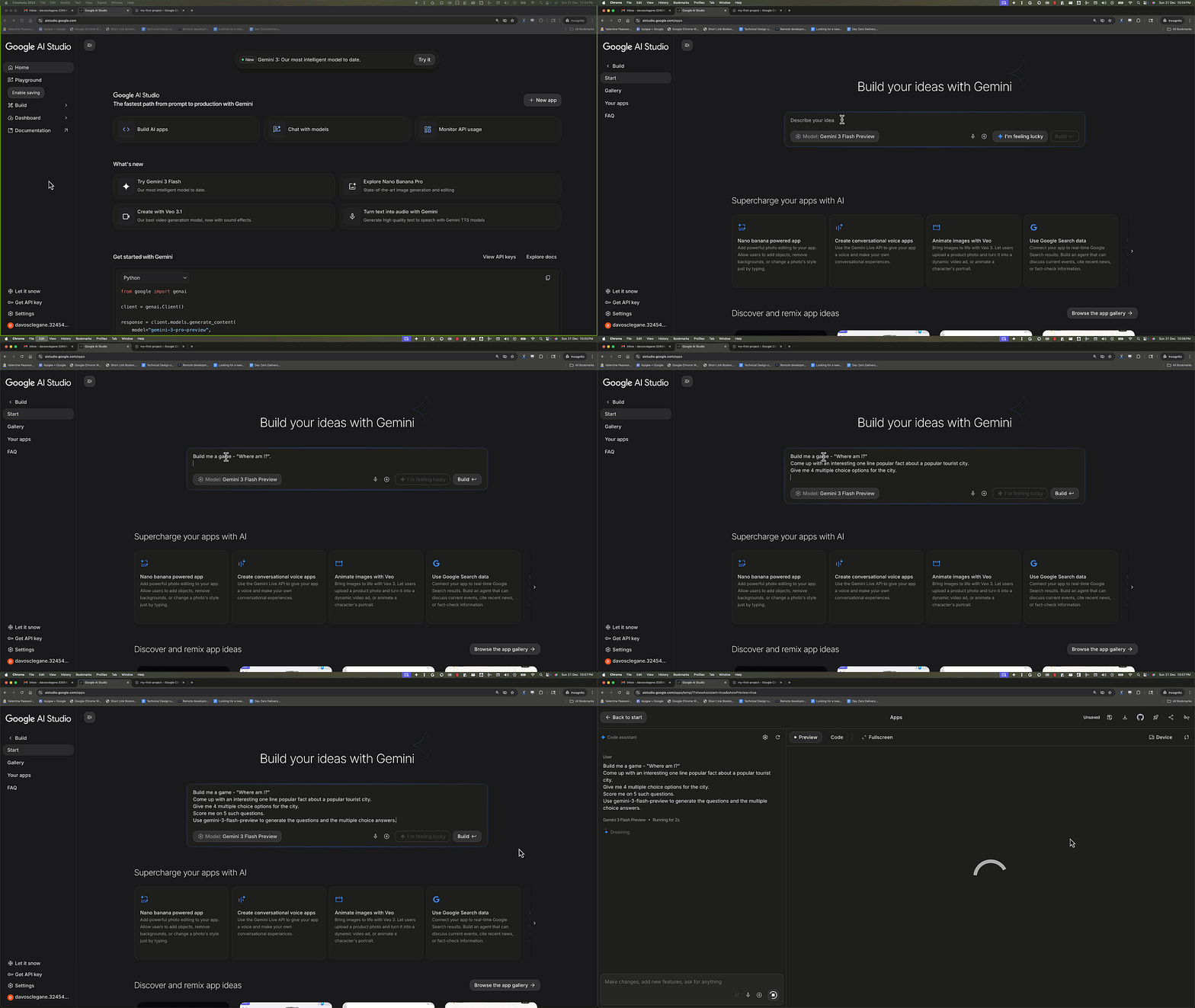
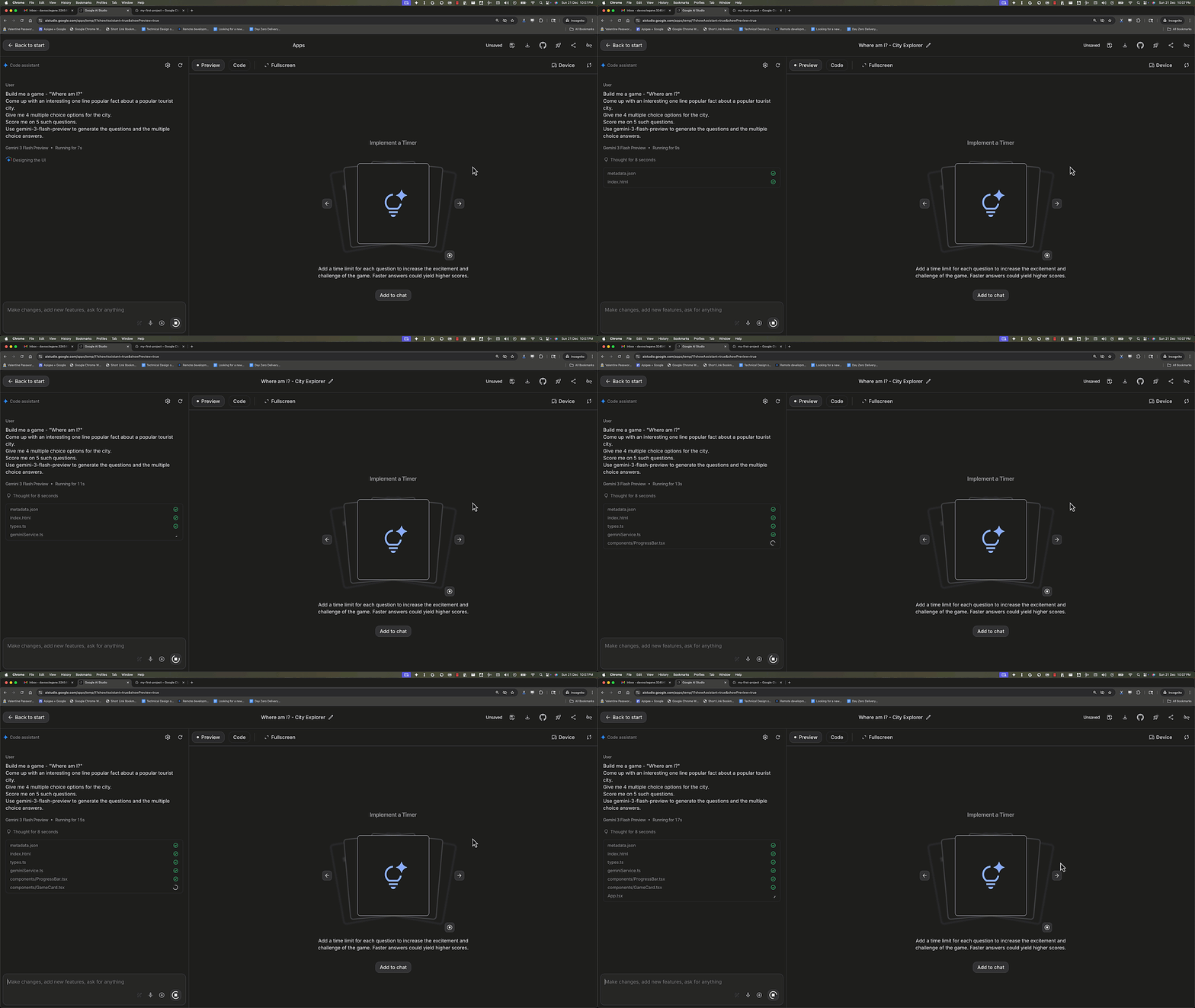
Now sit back and watch Gemini understand your request and build out a full featured and working app. While you wait, Google AI Studio suggests prompts for additional features on the panel on the right, which you could use to enhance your application.
Step 2 : Test the App
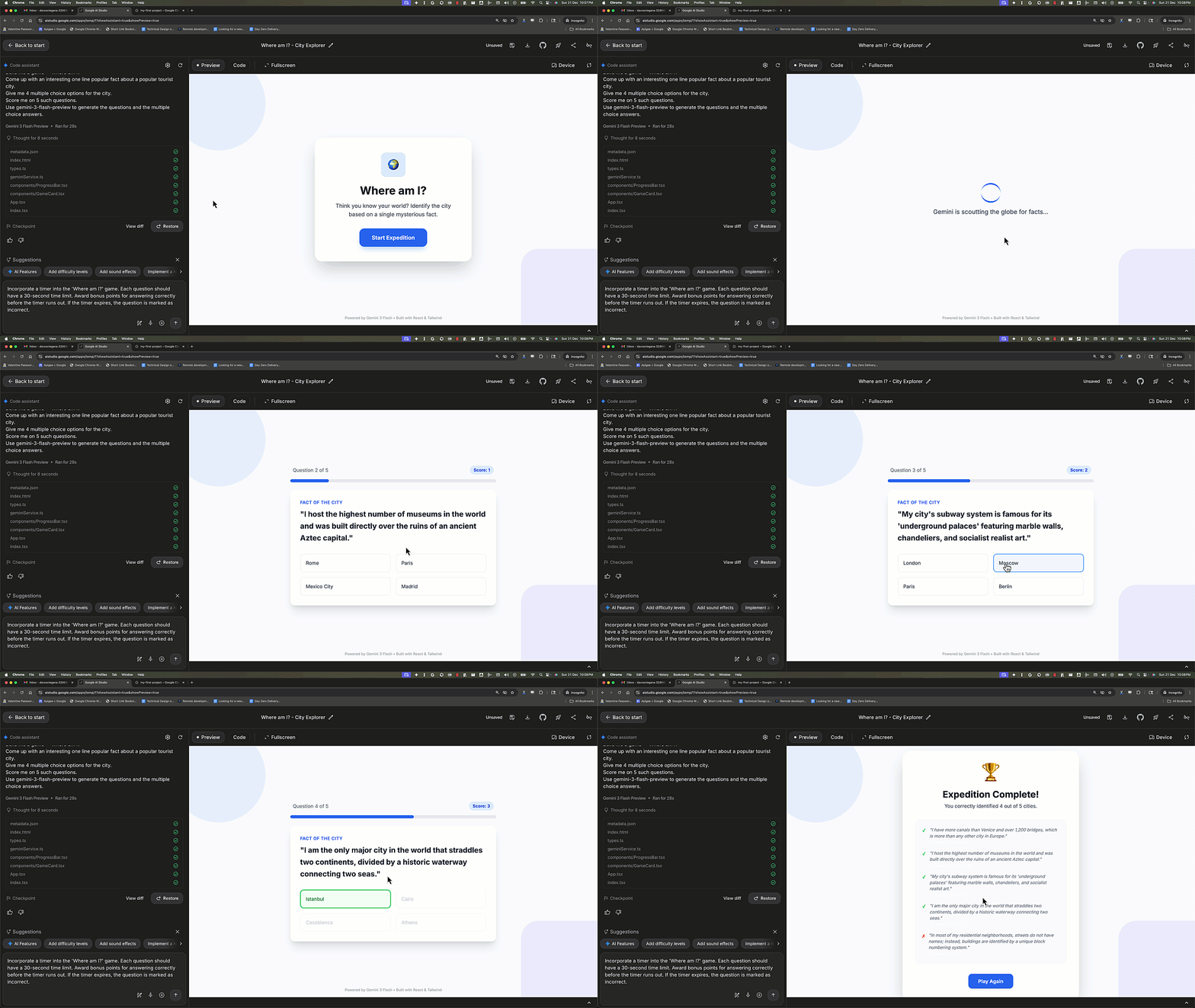
A great feature of Google AI Studio is that you can test the app without leaving it. As soon as the app is generated, it is available immediately in the “Preview” panel on the right. Here you can test your app, check that the functionality works as intended. You can even iterate on the features of the app – either using the AI suggested enhancements or adding your own features.
Step 3 : Deploy the App
Once the app is ready to your liking, AI Studio makes it very easy to deploy the app to Cloud Run on your Google Cloud Project in just a few clicks.
Note: To deploy to Cloud Run, you will need a Google Cloud Project with a valid billing account. If this is your first time with Google Cloud, follow the instructions in this codelab to create your first project with a trial billing account.
Using the “Deploy App” button on the top right, select the project that you would like to deploy it to (import the project first, if it is the first time you are deploying to that project from AI Studio), click “Deploy app” and wait a few minutes while the app you just Vibe Coded is deployed and ready to be shared.
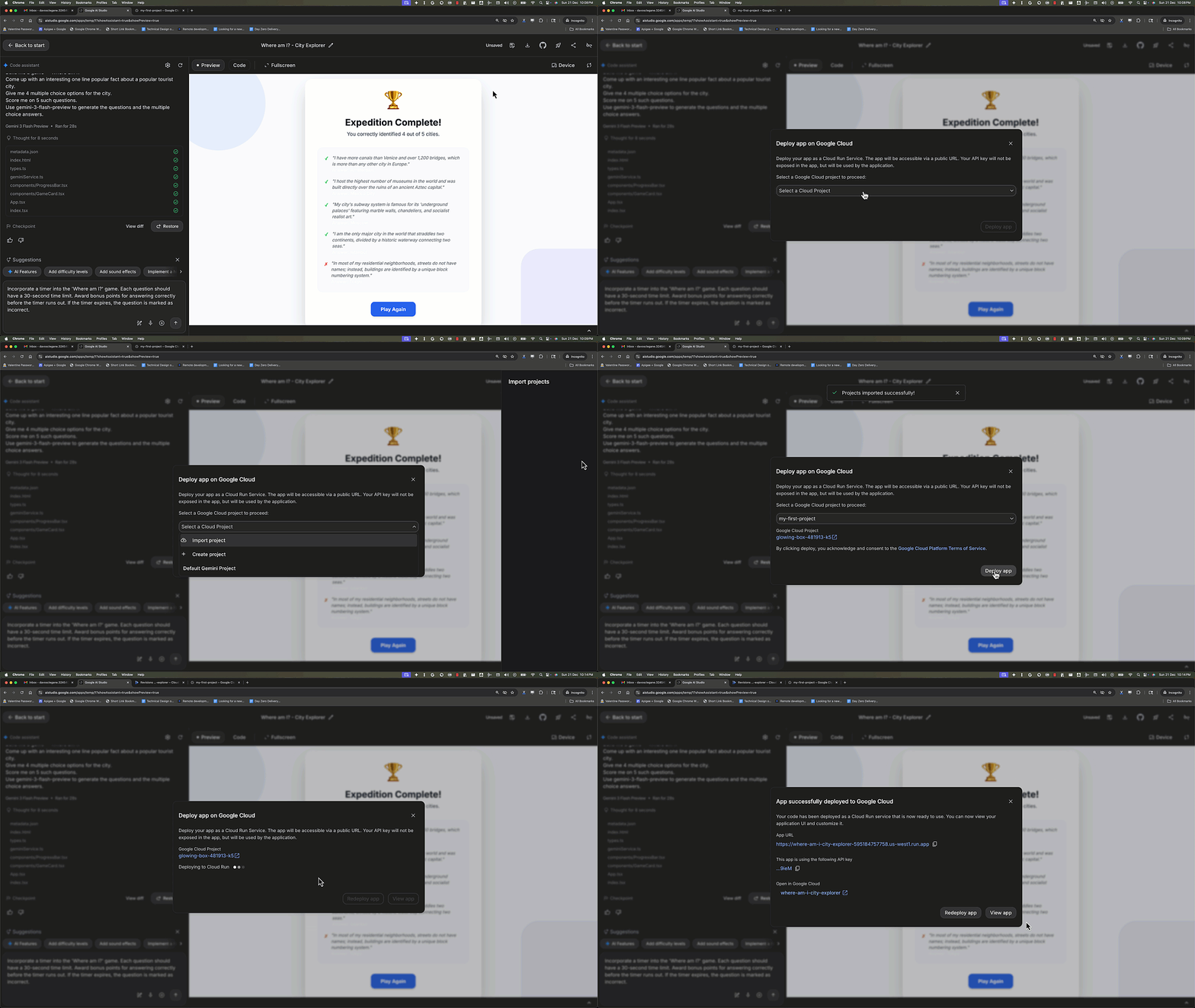
Once you get the confirmation of deployment, you are presented with an App URL where the app is hosted and you can use this URL to access your application powered by Gemini 3 and hosted on Google Cloud.
Google AI Studio exports the current API Key that you are using to Google Cloud Run’s environment variables so that your application is able to access the Gemini API. If you have to change the API key, you can do that easily in the Service details section within Cloud Run within the Google Cloud console.
Congratulations!
You have now built an application powered by Gemini 3 from the ground up using Google AI Studio and deployed it on Google’s highly scalable infrastructure from where you can share your innovative ideas with the world.