The Gemini 3 family of models, our most intelligent yet, features state-of-the-art reasoning to help you learn, build, and plan anything. Within this family, Gemini 3 Flash is designed for speed and efficiency, offering high performance in complex reasoning, multimodal understanding, agentic, and “vibe coding” tasks with Flash-level latency and cost. This blend of powerful reasoning and efficiency makes it ideal for enabling everyday tasks and highly effective agentic workflows.
As a developer, you can integrate Gemini 3 Flash immediately into your applications via Google AI Studio and Vertex AI for Enterprises.
In this blog, we’ll show how you can write your first piece of code to invoke the Gemini model by acquiring an API key from Google AI Studio and developing with the Google GenAI SDK.
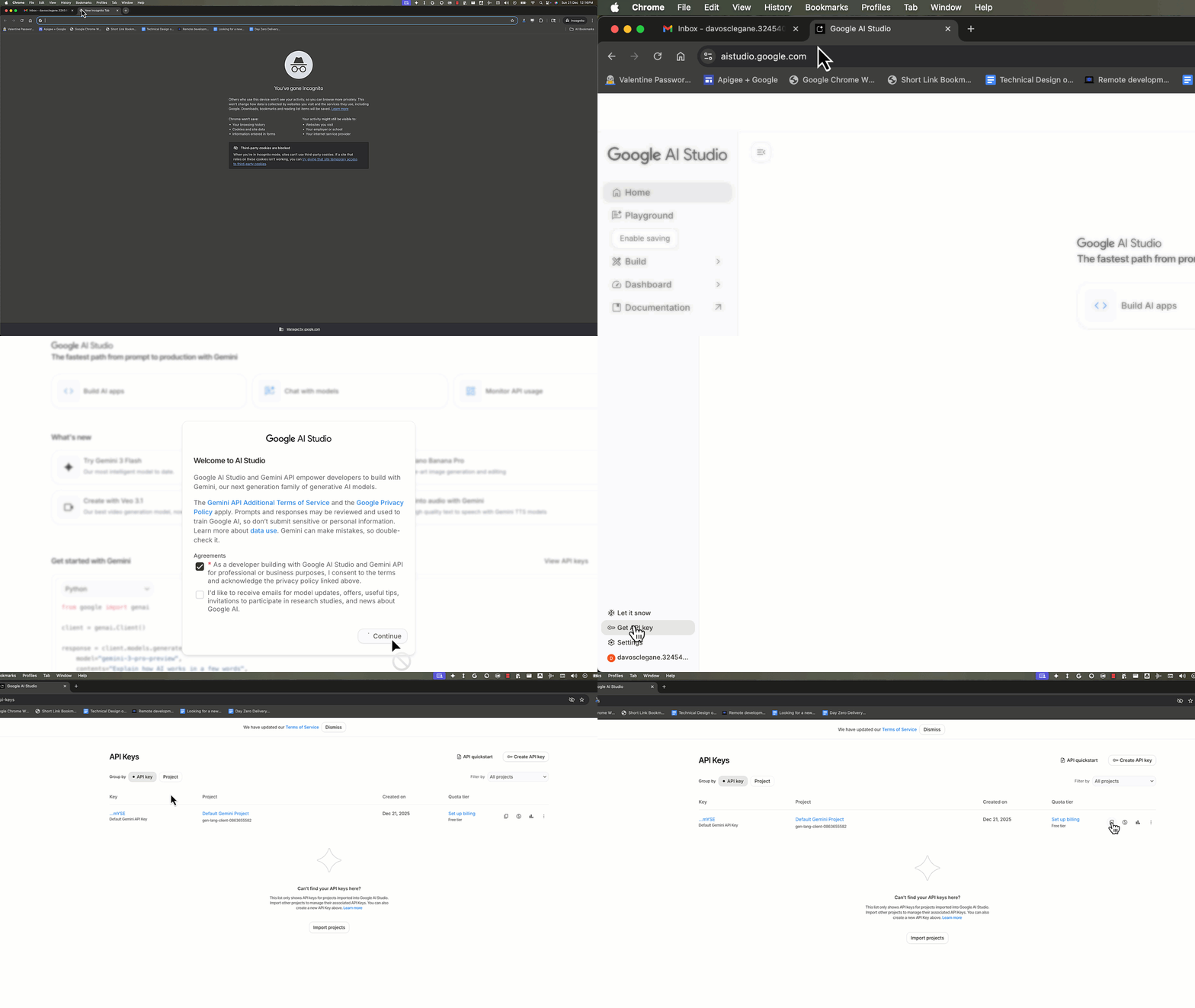
Step 1: Get an API Key
Google AI Studio offers the fastest path from prompt to production with Gemini by letting you quickly try out models and experiment with different prompts. When you’re ready to build, you can select “Get code” and your preferred programming language to use the Gemini API.
You can use your existing Gmail account to log-in to or sign-up with Google AI Studio (accessible via the easy to remember URL ai.dev). Once there, Click on “Get API Key” at the bottom left to create and manage all your Gemini API Keys, or navigate directly to the Google AI Studio API Keys page.
For first time users, after accepting Terms of Service, Google AI Studio creates a default Google Cloud Project and API Key, allowing you to get started right away.
Once you have an API key, you can set your API key as an environment variable or provide your API key explicitly to invoke your first API call.
Step 2: Invoke the API
Now that you have the API key setup, you can write your first application using the Gemini API.
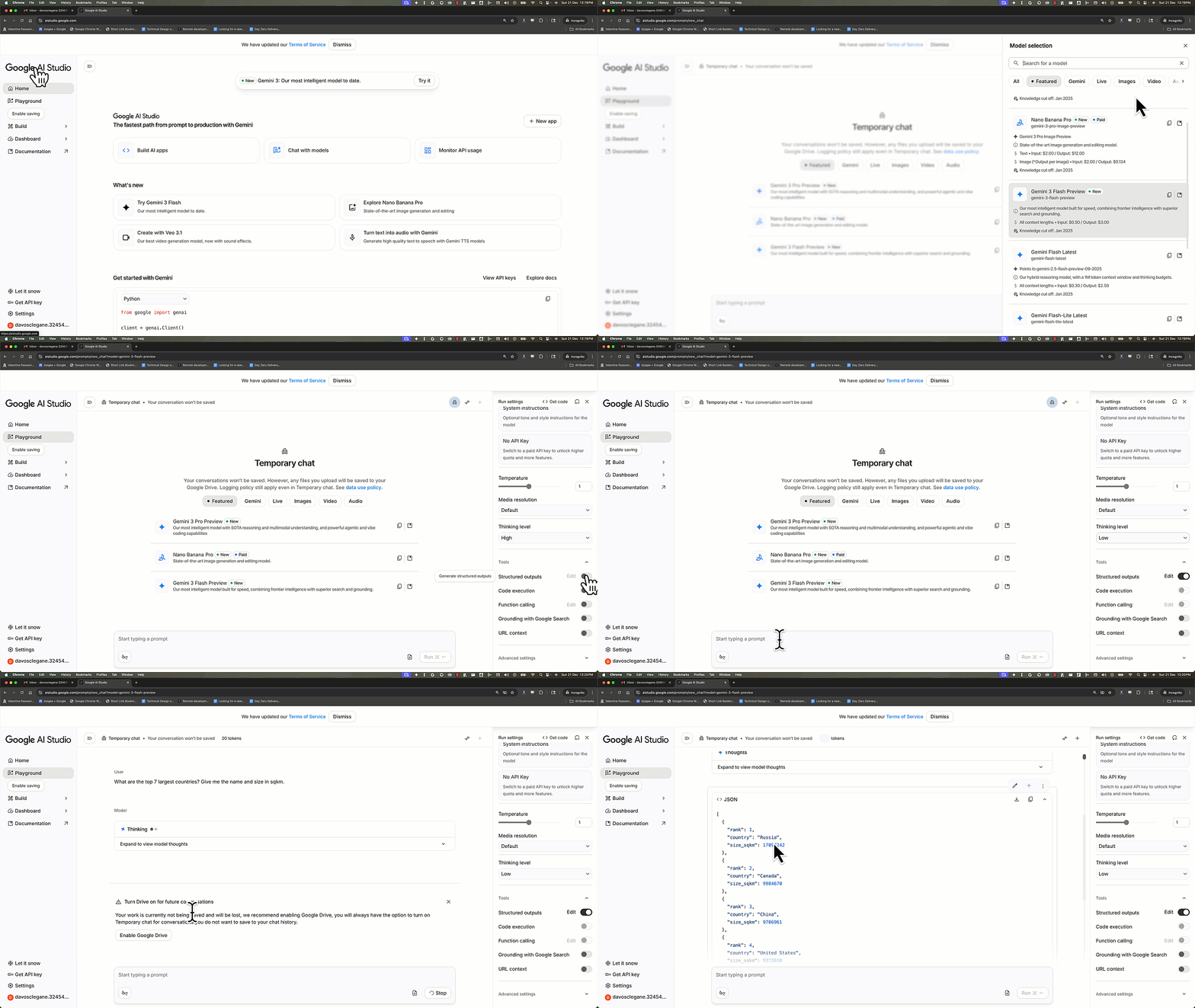
Google AI Studio lets you test your prompts in an interactive Playground, where you can experiment with text, image, audio, and video models all in one place.
Note: Be sure to select the “Gemini 3 Flash Preview” model via the model selector at the top right so that you are using the latest Gemini model from Google.
First, we will test with a prompt. On the right side you can toggle on or off the built-in tools optimized for Gemini models, or adjust the model parameters.
The prompt we used for this example is –
```What are the top 7 largest countries? Give me the names and size in sq km.```
We toggled the option to use Structured outputs and set Thinking level to Low.
When building with the Gemini API, we recommend using the Google GenAI SDKs. These are the official, production-ready libraries that are developed and maintained for the most popular languages.
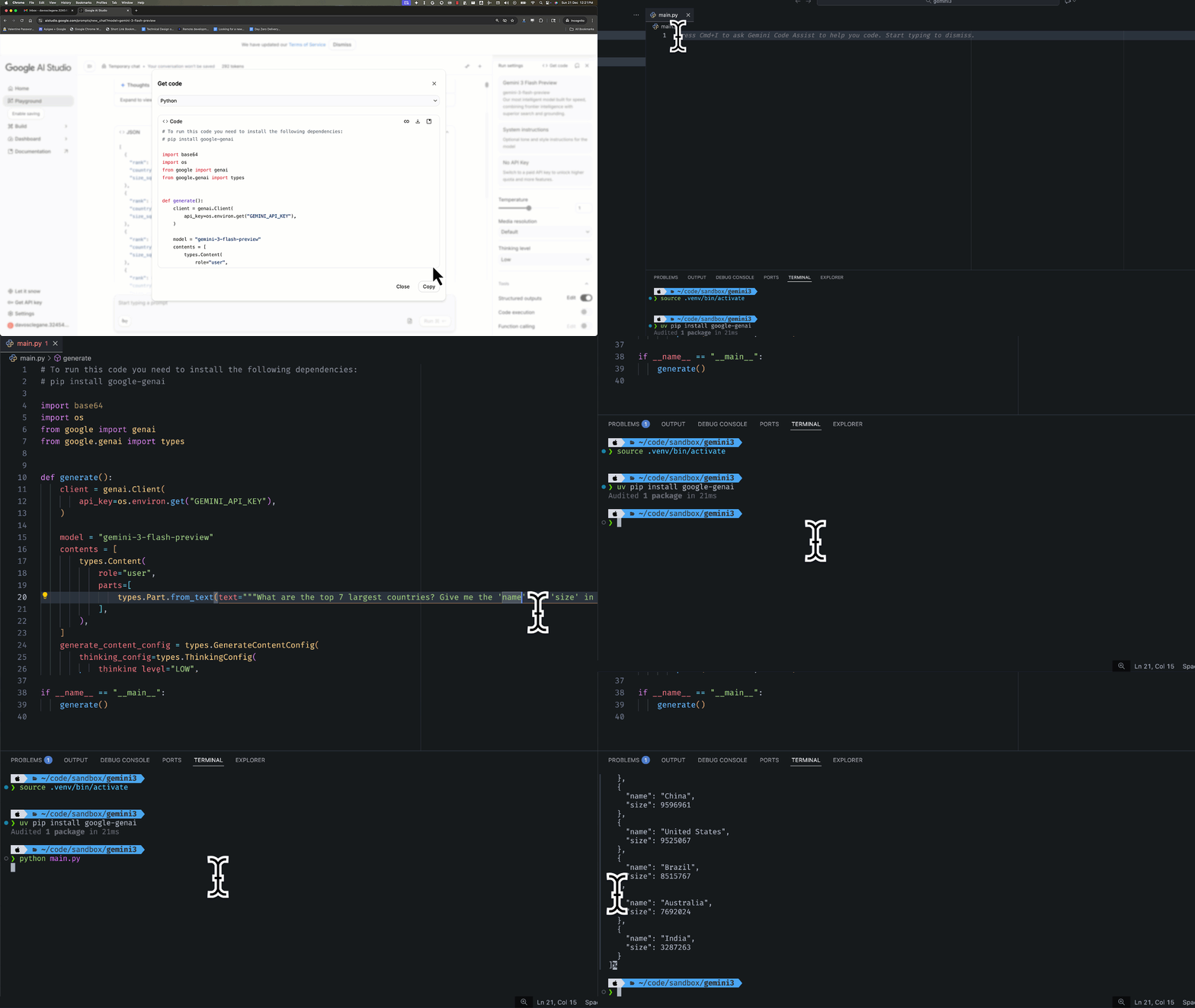
You can easily get the code for the model, model parameters, and tools that you have selected in the Playground, by clicking on “Get code” at the top right. Select the language of your choice, copy the code displayed and run it in your preferred development environment.
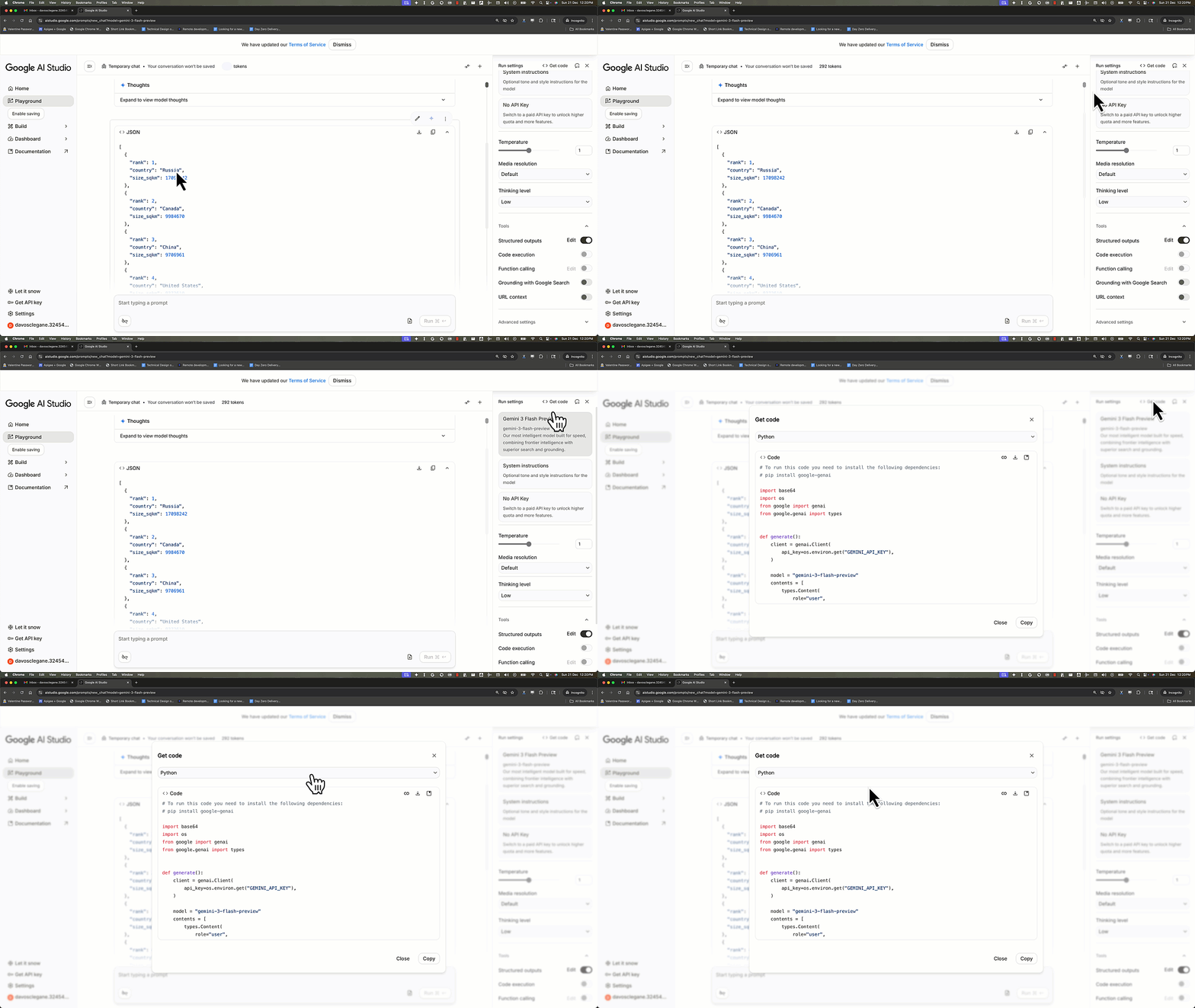
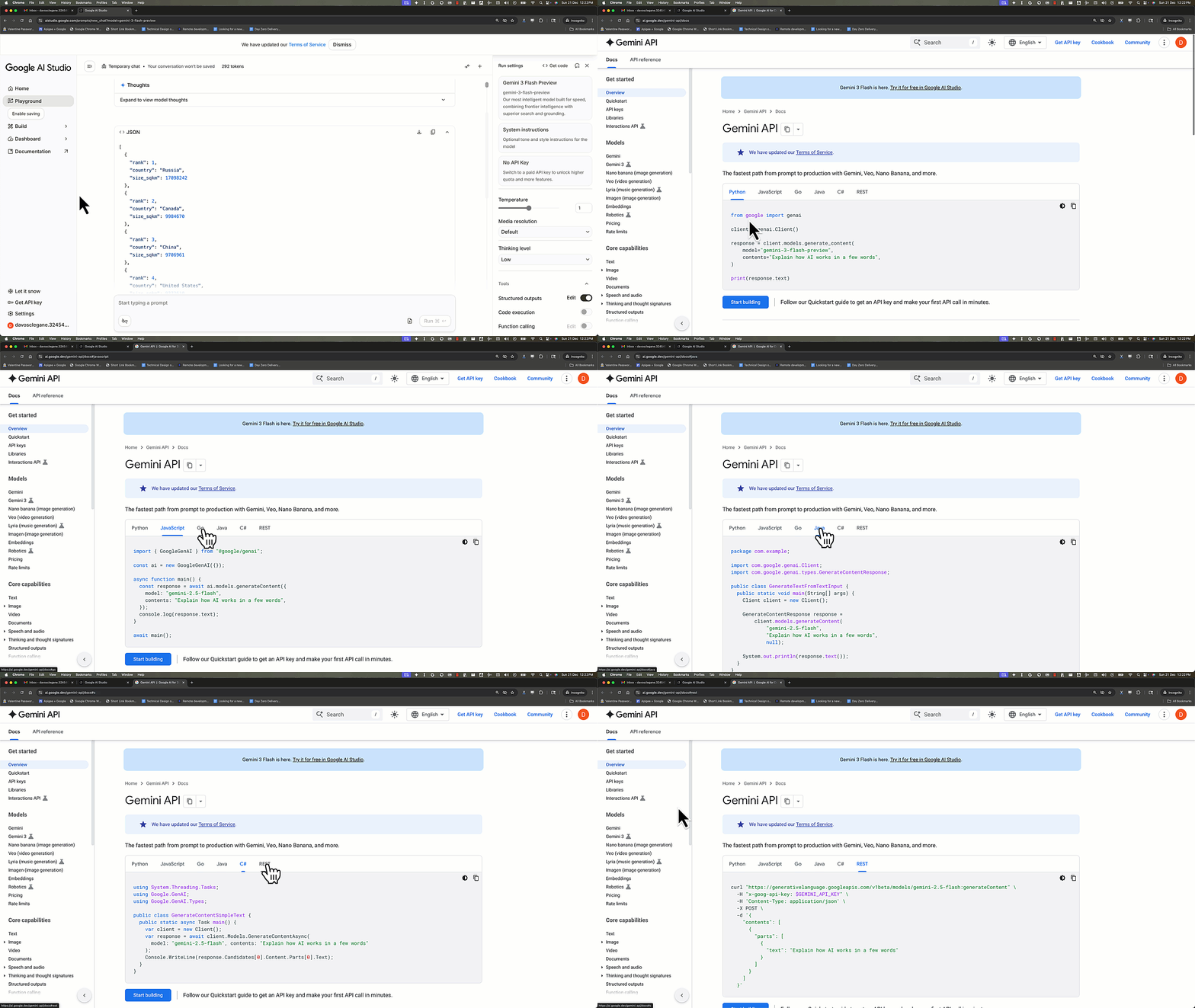
To get more examples of using the SDKs head over to the Gemini API docs, and navigate to “quickstart” to take a look at the library and sample code for the language of your choice.
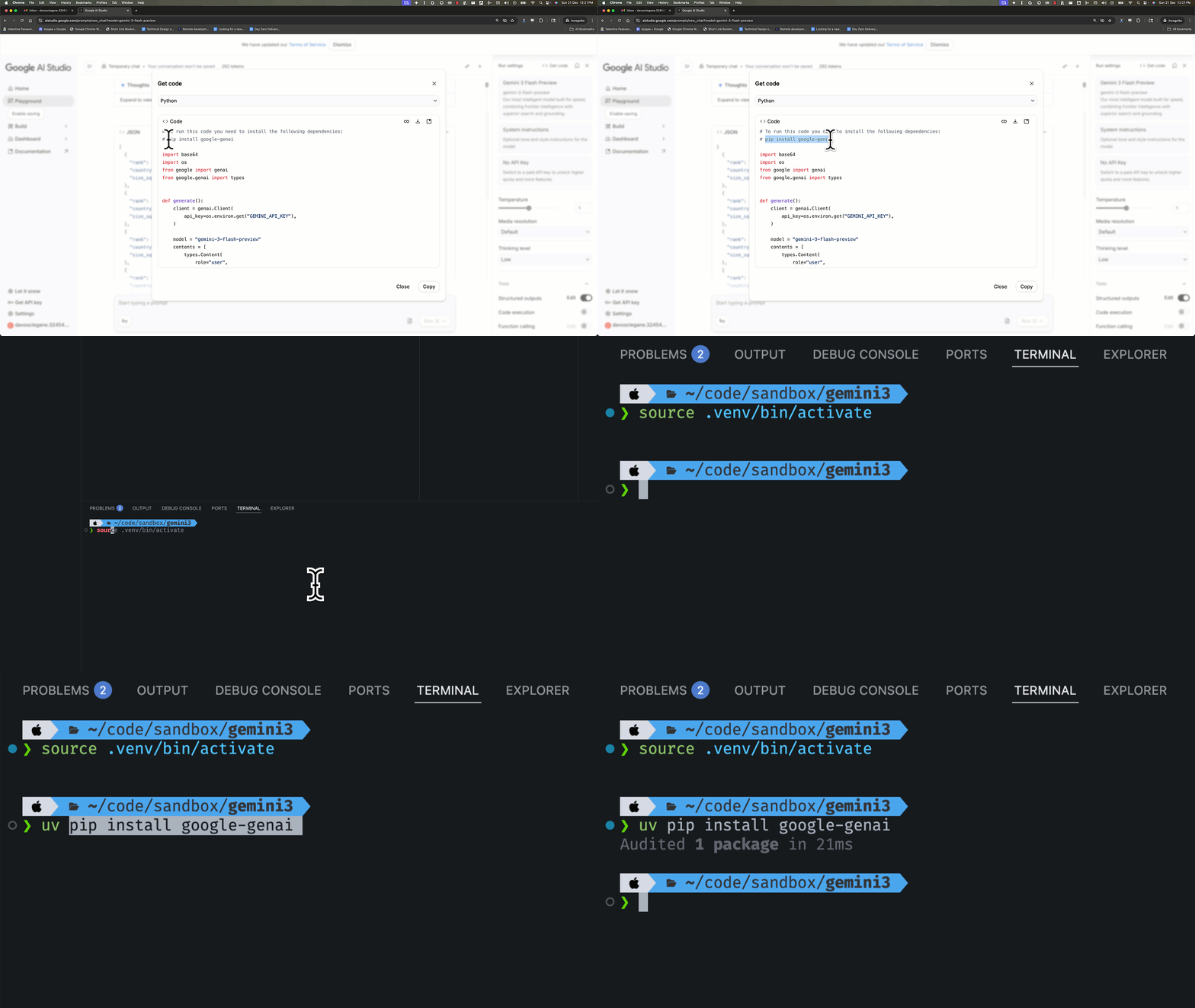
First, we’ll install the ‘google-genai’ package for python to get started with.
Next, we’ll copy the sample code for python into a file on the local terminal and run it to see the output from the model on my local machine. You’ll see that the code reflects the model choice, the tool options selected, and even the thinking level that we selected in the UI. You only need to update the prompt — we’ll use the same example prompt that we used before.
Congratulations!
You now know how to use the latest Gemini 3 models with the Google GenAI SDK. You can leverage this knowledge to write your own AI and Agentic applications, and build your next innovation with Gemini.