Build and Deploy a Remote MCP Server to GKE in 30 Minutes
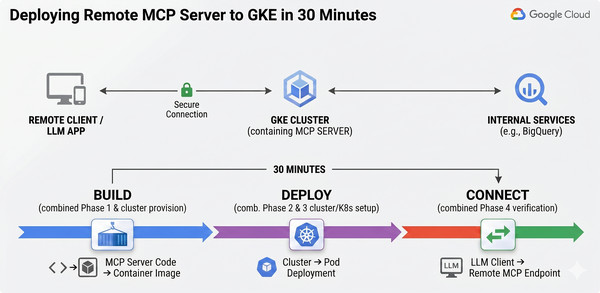
Integrating context from tools and data sources into LLMs can be challenging, which impacts the ease of development for AI agents. To address this challenge, Anthropic introduced the Model Context Protocol (MCP), which standardizes how applications provide context to these models. Developers often want to build an MCP server for their APIs to make them available to fellow developers, allowing them to use it as context in their own applications. Google Kubernetes Engine (GKE) provides a scalable, reliable, and secure environment to deploy these remote MCP servers.
This guide shows the straightforward process of setting up a secure remote MCP server on GKE.
MCP transports
The Model Context Protocol follows a client-server architecture. It initially only supported running the server locally using the stdio transport. The protocol has since evolved and now supports remote access transports, specifically Streamable HTTP.
With Streamable HTTP, the server operates as an independent process that can handle multiple client connections. This transport uses HTTP POST and GET requests. The server must provide a single HTTP endpoint path that supports both POST and GET methods, such as https://example.com/mcp. You can learn more about the different transports in the official documentation.
Benefits of running an MCP server on GKE
Running an MCP server remotely on GKE provides several architecture benefits:
- Scalability: GKE Autopilot is built to handle highly variable traffic. Since MCP Servers are stateless, GKE can scale horizontally to handle spikes in demand efficiently.
- Centralized access: Teams can share access to a centralized MCP server, allowing developers to connect from local machines, Agents or pipelines instead of running redundant local servers. Updates to the central server immediately benefit everyone.
- Enhanced security: The Kubernetes Gateway API combined with SSL certificates provides an easy way to force secure, encrypted traffic. This allows only secure connections to the MCP server, preventing unauthorized access.
Prerequisites
Before starting, ensure the following tools are installed:
- python 3.10 or higher
- uv (for package and project management, see the installation documentation)
- Google Cloud SDK (
gcloud) kubectlcommand-line tool
Installation
Prepare environment variables
- code_block
- <ListValue: [StructValue([(‘code’, ‘export PROJECT_ID=$(gcloud config get-value project)rnexport REGION=us-central1’), (‘language’, ”), (‘caption’, <wagtail.rich_text.RichText object at 0x7f1ffc09f700>)])]>
Create a folder, mcp-on-gke, to store the code for the server and deployment.
- code_block
- <ListValue: [StructValue([(‘code’, ‘mkdir mcp-on-gke && cd mcp-on-gke’), (‘language’, ”), (‘caption’, <wagtail.rich_text.RichText object at 0x7f1ffc09fe50>)])]>
Now configure the Google Cloud credentials and set the active project.
- code_block
- <ListValue: [StructValue([(‘code’, ‘gcloud auth loginrngcloud config set project $PROJECT_ID’), (‘language’, ”), (‘caption’, <wagtail.rich_text.RichText object at 0x7f1ffc09f2e0>)])]>
Initiate the GKE Autopilot cluster creation in the background. This process takes a few minutes, so starting it now allows the cluster to provision while you complete the rest of the setup. Make sure to use an Autopilot version that ensures Cost-Optimized Compute (CCOP) is enabled for fast autoscale.
- code_block
- <ListValue: [StructValue([(‘code’, ‘gcloud container clusters create-auto mcp-cluster \rn –region $REGION \rn –release-channel rapid \rn –async’), (‘language’, ”), (‘caption’, <wagtail.rich_text.RichText object at 0x7f1ffc09fd90>)])]>
Use uv to create a project, which will generate a pyproject.toml file.
- code_block
- <ListValue: [StructValue([(‘code’, ‘uv init’), (‘language’, ”), (‘caption’, <wagtail.rich_text.RichText object at 0x7f1ffc09f760>)])]>
Next, create the additional files needed: server.py for the MCP server code, test_server.py for testing, and a Dockerfile for the container deployment.
Math MCP server
Large language models are excellent at non-deterministic tasks, such as generating text, summarizing ideas, and reasoning about concepts. However, they can be unreliable for deterministic tasks like math operations. To solve this, developers can create tools that provide valuable context. Using FastMCP, a framework for building MCP servers in Python, it is possible to create a simple math server with two tools: add and subtract.
First, add FastMCP as a dependency.
- code_block
- <ListValue: [StructValue([(‘code’, ‘uv add fastmcprnuv add asyncio’), (‘language’, ”), (‘caption’, <wagtail.rich_text.RichText object at 0x7f1ffc09fdc0>)])]>
Copy the following code into server.py to create the server.
- code_block
- <ListValue: [StructValue([(‘code’, ‘from fastmcp import FastMCPrnfrom starlette.requests import Requestrnfrom starlette.responses import PlainTextResponsernimport asynciornimport loggingrnrnlogger = logging.getLogger(__name__)rnlogging.basicConfig(format=”[%(levelname)s]: %(message)s”, level=logging.INFO)rnrnmcp_port=3000rnrn# Initialize the FastMCP serverrnserver = FastMCP(rn “Math Server”,rn)rnrn@server.tool()rndef add(a: int, b: int) -> int:rn “””Add two numbers together.”””rn return a + brnrn@server.tool()rndef subtract(a: int, b: int) -> int:rn “””Subtract the second number from the first.”””rn return a – brnrn@server.custom_route(“/healthz”, methods=[“GET”])rnasync def health_check(request: Request) -> PlainTextResponse:rn “””Simple health check endpoint that returns a 200 OK response”””rn return PlainTextResponse(“OK”)rnrnif __name__ == “__main__”:rn logger.info(f” MCP server started on port {mcp_port}”)rn # Could also use ‘sse’ transport, host=”0.0.0.0″ required for Cloud Run.rn asyncio.run(rn server.run_async(rn transport=”streamable-http”, rn host=”0.0.0.0″,rn port=mcp_portrn )rn )’), (‘language’, ‘lang-py’), (‘caption’, <wagtail.rich_text.RichText object at 0x7f1ffc09fdf0>)])]>
This example uses the streamable-http transport, which is recommended for remote servers. The script encapsulates the logic needed to run a scalable MCP endpoint.
Testing the MCP server locally
Create the test_mcp_server.py script to connect to test the MCP Server. This will be useful to test the MCP server before deploying it to GKE.
- code_block
- <ListValue: [StructValue([(‘code’, ‘from fastmcp import Client, FastMCPrnimport asynciornimport loggingrnrn# Connect to the remote MCP serverrnclient = Client(“https://localhost:3000/mcp”)rnrnasync def test_remote_server():rn async with client:rn # Basic server interactionrn await client.ping()rnrn # List available operationsrn tools = await client.list_tools()rn print(f”Available tools: {tools} \n”)rnrn # Execute add operationrn result = await client.call_tool(“add”, {“a”: 5, “b”: 3})rn print(f”Result of addition: {result} \n”)rnrn # Execute subtract operationrn result = await client.call_tool(“subtract”, {“a”: 5, “b”: 3})rn print(f”Result of subtraction: {result} \n”)rnrnif __name__ == “__main__”:rn asyncio.run(test_remote_server())’), (‘language’, ‘lang-py’), (‘caption’, <wagtail.rich_text.RichText object at 0x7f1ffc09f580>)])]>
Run the MCP server locally to test the connection:
- code_block
- <ListValue: [StructValue([(‘code’, ‘uv run server.py’), (‘language’, ”), (‘caption’, <wagtail.rich_text.RichText object at 0x7f1ffc09f2b0>)])]>
Then execute the test script in a new terminal to verify the connection.
- code_block
- <ListValue: [StructValue([(‘code’, ‘uv run test_mcp_server.py’), (‘language’, ”), (‘caption’, <wagtail.rich_text.RichText object at 0x7f1ffc09fb80>)])]>
The output should print available tools and the results of invocing the add and subtract tools confirming the MCP server is functional.
Building the container image
To speed up the deployment process, build the container image while the cluster is still creating.
First, prepare the Dockerfile:
- code_block
- <ListValue: [StructValue([(‘code’, ‘FROM python:3.10-slimrnCOPY –from=ghcr.io/astral-sh/uv:0.4.15 /uv /bin/uvrnWORKDIR /apprnCOPY pyproject.toml .rnCOPY server.py .rnRUN uv syncrnCMD [“uv”, “run”, “server.py”]’), (‘language’, ”), (‘caption’, <wagtail.rich_text.RichText object at 0x7f1ffc09f340>)])]>
Now, set up the Artifact Registry and build the container image.
Set up Artifact Registry
- code_block
- <ListValue: [StructValue([(‘code’, ‘gcloud artifacts repositories create mcp-repo rn–repository-format=docker rn–location=$REGION’), (‘language’, ”), (‘caption’, <wagtail.rich_text.RichText object at 0x7f1ffc09fca0>)])]>
Build and push the image in parallel
- code_block
- <ListValue: [StructValue([(‘code’, ‘gcloud builds submit –tag $REGION-docker.pkg.dev/$PROJECT_ID/mcp-repo/math-mcp-server:latest’), (‘language’, ”), (‘caption’, <wagtail.rich_text.RichText object at 0x7f1ffc09fb50>)])]>
Once the image build is complete, verify that the cluster is ready and retrieve the credentials. If the output of the cluster is not “RUNNING” wait for it to be ready.
- code_block
- <ListValue: [StructValue([(‘code’, ‘gcloud container clusters listrngcloud container clusters get-credentials mcp-cluster –region $REGION’), (‘language’, ”), (‘caption’, <wagtail.rich_text.RichText object at 0x7f1ffc09ffa0>)])]>
Deploying to GKE with Gateway API and SSL
The next step involves deploying the server workloads and exposing them securely using the Kubernetes Gateway API rather than the legacy Ingress. This guarantees secure, encrypted traffic via SSL certificates.
Create a deployment.yaml file to define the Kubernetes Deployment and Service. Replace the placeholders with your actual project ID and region.
- code_block
- <ListValue: [StructValue([(‘code’, ‘apiVersion: apps/v1rnkind: Deploymentrnmetadata:rn name: mcp-serverrnspec:rn replicas: 2rn selector:rn matchLabels:rn app: mcp-serverrn template:rn metadata:rn labels:rn app: mcp-serverrn spec:rn containers:rn – name: mcp-serverrn image: $REGION-docker.pkg.dev/$PROJECT_ID/mcp-repo/math-mcp-server:latestrn ports:rn – containerPort: 3000rn resources:rn requests:rn memory: “256Mi”rn cpu: “250m”rn limits:rn memory: “512Mi”rn cpu: “500m”rn livenessProbe:rn httpGet:rn path: /healthzrn port: 3000rn initialDelaySeconds: 15rn periodSeconds: 20rn readinessProbe:rn httpGet:rn path: /healthzrn port: 3000rn initialDelaySeconds: 5rn periodSeconds: 10rn—rnapiVersion: v1rnkind: Servicernmetadata:rn name: mcp-servicernspec:rn selector:rn app: mcp-serverrn ports:rn – port: 80rn targetPort: 3000’), (‘language’, ”), (‘caption’, <wagtail.rich_text.RichText object at 0x7f1ffc09f5b0>)])]>
Apply this configuration to the cluster:
- code_block
- <ListValue: [StructValue([(‘code’, ‘kubectl apply -f deployment.yaml’), (‘language’, ”), (‘caption’, <wagtail.rich_text.RichText object at 0x7f1ffc09f730>)])]>
Check the pods are up and running
- code_block
- <ListValue: [StructValue([(‘code’, ‘kubectl get pods’), (‘language’, ”), (‘caption’, <wagtail.rich_text.RichText object at 0x7f1ffc09f8e0>)])]>
To ensure our remote MCP Server is accessible let’s try to reach it with a port-forward.
- code_block
- <ListValue: [StructValue([(‘code’, ‘kubectl port-forward svc/mcp-service 8080:80’), (‘language’, ”), (‘caption’, <wagtail.rich_text.RichText object at 0x7f1fef5ffbe0>)])]>
Run the test script to verify the connection. make sure to edit the MCP Server URL in the test script to http://localhost:8080/mcp.
- code_block
- <ListValue: [StructValue([(‘code’, ‘uv run test_mcp_server.py’), (‘language’, ”), (‘caption’, <wagtail.rich_text.RichText object at 0x7f1fef5ffe20>)])]>
Now let’s secure the connection. To do so, we’ll use a Google-managed SSL certificate and attach it to a Gateway API resource. First, reserve a static IP address for your load balancer:
- code_block
- <ListValue: [StructValue([(‘code’, ‘gcloud compute addresses create mcp-server-ip –globalrnexport MCP_SERVER_IP=$(gcloud compute addresses describe mcp-server-ip –global –format=”value(address)”)rnecho “Your IP: $MCP_SERVER_IP”‘), (‘language’, ”), (‘caption’, <wagtail.rich_text.RichText object at 0x7f1fef5ff8b0>)])]>
Point your domain’s DNS A record at $MCP_SERVER_IP. Example: mcp.yourdomain.com
Create a Google-Managed Certificate. Replace mcp.yourdomain.com with your actual domain.
- code_block
- <ListValue: [StructValue([(‘code’, ‘gcloud compute ssl-certificates create mcp-cert –domains mcp.yourdomain.com –global’), (‘language’, ”), (‘caption’, <wagtail.rich_text.RichText object at 0x7f1fef5ff430>)])]>
Create a gateway.yaml file to provision the load balancer and configure Transport Layer Security (TLS) termination.
- code_block
- <ListValue: [StructValue([(‘code’, ‘# Gateway: HTTPS load balancer with the managed certificate and static IPrnapiVersion: gateway.networking.k8s.io/v1beta1rnkind: Gatewayrnmetadata:rn name: mcp-gatewayrnspec:rn gatewayClassName: gke-l7-global-external-managedrn listeners:rn – name: httpsrn protocol: HTTPSrn port: 443rn tls:rn mode: Terminatern options:rn networking.gke.io/pre-shared-certs: mcp-certrn addresses:rn – type: NamedAddressrn value: mcp-server-iprn—rn# HTTPRoute: forward traffic to the MCP ServerrnapiVersion: gateway.networking.k8s.io/v1rnkind: HTTPRouternmetadata:rn name: mcp-routernspec:rn parentRefs:rn – name: mcp-gatewayrn hostnames:rn – “mcp.yourdomain.com”rn rules:rn – matches:rn – path:rn type: PathPrefixrn value: /mcprn backendRefs:rn – name: mcp-servicern port: 80rn—rn# The GCPBackendPolicy is used to configure session affinity and other backend.rn# Since MCP Servers are stateful we enable session affinity. This ensures thatrn# requests from the same client are sent to the same backend.rnapiVersion: networking.gke.io/v1rnkind: GCPBackendPolicyrnmetadata:rn name: mcp-backend-policyrnspec:rn default:rn sessionAffinity:rn type: CLIENT_IPrn targetRef:rn group: “”rn kind: Servicern name: mcp-servicern—rn# The HealthCheckPolicy is used to configure custom health probes for the MCP Server.rnapiVersion: networking.gke.io/v1rnkind: HealthCheckPolicyrnmetadata:rn name: mcp-healthrn namespace: defaultrnspec:rn default:rn checkIntervalSec: 15rn timeoutSec: 5rn healthyThreshold: 1rn unhealthyThreshold: 2rn logConfig:rn enabled: falsern config:rn type: HTTPrn httpHealthCheck:rn port: 3000rn requestPath: /healthzrn targetRef:rn group: “”rn kind: Servicern name: mcp-service’), (‘language’, ”), (‘caption’, <wagtail.rich_text.RichText object at 0x7f1fef5ff6a0>)])]>
Deploying this configuration creates the infrastructure required to route external traffic securely to the MCP server.
- code_block
- <ListValue: [StructValue([(‘code’, ‘kubectl apply -f gateway.yaml’), (‘language’, ”), (‘caption’, <wagtail.rich_text.RichText object at 0x7f1fef5ff280>)])]>
Wait a few minutes for the load balancer to become active and the certificate to provision. Developers can check the status using kubectl get gateway mcp-gateway.
Try to reach the remote MCP Server. Run the test script to verify the connection. make sure to edit the MCP Server URL in the test script to https://mcp.yourdomain.com/mcp.
- code_block
- <ListValue: [StructValue([(‘code’, ‘uv run test_mcp_server.py’), (‘language’, ”), (‘caption’, <wagtail.rich_text.RichText object at 0x7f1fef5ff040>)])]>
Cleanup
- code_block
- <ListValue: [StructValue([(‘code’, ‘kubectl delete -f deployment.yamlrnkubectl delete -f gateway.yamlrngcloud compute addresses delete mcp-server-ip –globalrngcloud compute ssl-certificates delete mcp-cert –globalrngcloud artifacts repositories delete mcp-repo –location=$REGIONrngcloud container clusters delete mcp-cluster –region $REGION’), (‘language’, ”), (‘caption’, <wagtail.rich_text.RichText object at 0x7f1fef5ff310>)])]>
Continue reading
Deploying Model Context Protocol servers to Kubernetes enables new use cases for integrated agents and AI workflows. To dive deeper into these capabilities, explore the following resources: