Today, AI services rely heavily on API keys. To run AI agents, users provide API keys that signify paid tokens, subscriptions, or paid accounts. While API keys are easy to use, it is just as easy to use them unsafely. The result of a hijacked key is a compromised environment that is misused or abused by perpetrators.
I decided to write this blog post after seeing a thread in the r/googlecloud subreddit asking for a tutorial so users can go and protect themselves. In this post, you will find a few simple steps you can take to reduce your risks and improve the security of API keys created by Google.
You use Google API keys to access Gemini and other AI Google products as well as Google Cloud APIs. In fact, a Gemini API key is actually a standard Google API key behind the scenes. While I will be focusing on Google API key security, you can apply some of these recommendations to API keys and product tokens created elsewhere.
Step 1: Generate a New API Key
Regardless of where you start, you end up creating a new API key in one of Google Cloud projects. You probably will use Credentials under the “APIs & Services” menu in the Cloud console.

Or you may use gcloud services api-keys create command instead. Or there is some other interface which will create a new Google Cloud API key. Regardless of the path and the interface, you need to do the following:
-
Create the key in a stand alone project that is not used for any other purpose.
-
Restrict API access and client applications for the new API key.
These steps limit the potential reach of the key and greatly simplify troubleshooting activities when something goes wrong.
API Restrictions
API restrictions specify what services you can access using the key. DO NOT create unrestricted keys, as a stolen key would grant an attacker access to any available service at your expense.
ALWAYS limit the list of the services this key is used for to reduce the potential damage (a.k.a. blast radius) in event the key is hijacked or exposed. Be attentive when you use indirect UI to create a new key. For example, creating an API key in Firebase restricts the use to 24 APIs including Datastore, Firestore, Cloud SQL Admin and others.
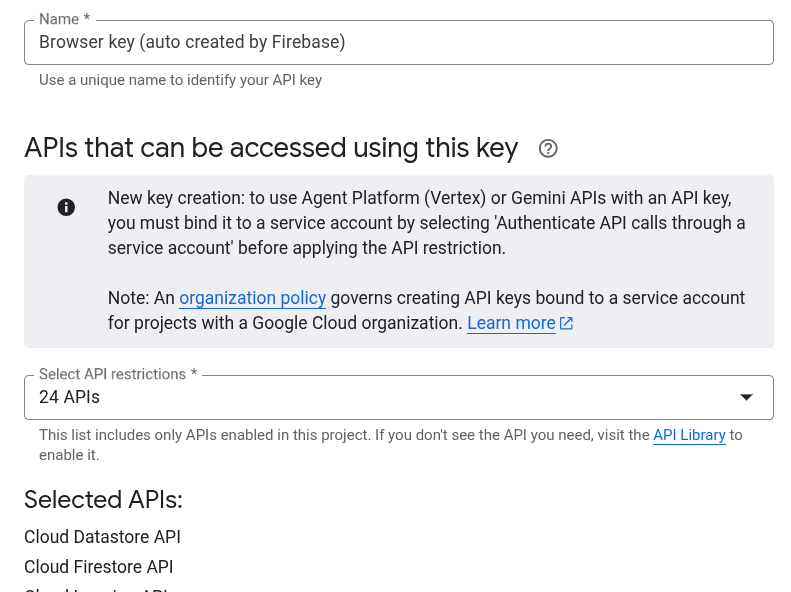
If you use Firebase to store your website you probably will not use most of them. When you create an API key to use with AI Studio, restrict it to only “Gemini API”.
Attention points:
-
By default a new API key is created without restriction.
-
If you search for an API that you want to select but it is missing, this API is probably not enabled in the Google Cloud project that you use. Go to the API Library in your Cloud console, find the API by name and enable it first.
-
You can do all actions using the Cloud console or gcloud CLI. Other interfaces (e.g. Firebase) may not provide you with access to all parameters of the API keys
Application Restrictions
Similar to API restrictions that limit what services your key can be used for, Application Restrictions limit the applications which can use the key. For example, if you create an API key only for use with Google AI Studio, setting up the application restrictions to the website “https://aistudio.google.com/” will prevent using your key by automations that utilize Gemini and consume a high volume of tokens at scale.
You can set up one or more restrictions of one of the following types:
-
Website/Web application using the list of URLs
-
Services using the list of IPv4 or IPv6 address or a subnet masks
-
iOS applications using the list of Bundle IDs
-
Android applications using the list of pairs of the package name and certificate fingerprint
Note that you can restrict the key to a single application type only. Create a designated API key for each application type. Having a key per application type helps when observing the key usage and investigating potentially compromised keys.
Step 2: Store API key
I want to reiterate that the API key is not paired with your identity. ANYONE can use it. So, storing the key securely is as important as restricting the key use in Step 1.
The rule is simple: NEVER EVER store the key where it can be easily seen.
If you use an API key in your application, store it in Secret Manager or a similar secret management service. Secret Manager allows you to inject your API key into Cloud Run and GKE environments easily. However, to elevate the key protection you may want to read the key in your code instead. See documentation for an example.
If you use an API key with an external application that asks you to type in the key, take extra steps to explore how the application manages your key. You would need to find out how the key is stored and how it is used in the requests. For Web applications, you may use browser developer tools to inspect application traffic and ensure that the key is never sent in an unencrypted communication channel. For example, Google AI Studio uses encrypted local storage and sends the key via a TLS-encrypted channel.
When Something Goes Wrong
What to do if you suspect that your key is compromised? The straightforward action is the same as with a credit card. First thing ‒ delete the key. You can do it in the Cloud console or using gcloud services api-keys delete command. If you find out that it was a false alarm, you can undelete during the next 30 days.
What if you do not know which key is compromised? In that case you need to do a two-step investigation:
-
Find out all API keys in your organization or project(s)
-
Check the graph of API consumption for APIs this key allowing to access
Find out all your API keys
There is more than one way to find your API key resources. You can use Asset Inventory in the Cloud console and filter the dashboard by the Resource type to check apikeys.Key. If you do not see this resource type, find and click on “View more…” to expand the resource type list. Note that the list shows deleted API keys as well.
If you favor CLI, and you know specific project(s) you can use the gcloud services api-keys list command.
To see all active keys in your organization, you will need to use the gcloud asset search-all-resources command and query its JSON output to filter out deleted keys:
- code_block
- <ListValue: [StructValue([(‘code’, ‘gcloud asset search-all-resources \rn –scope=’organizations/123456789012′ \rn –asset-types=’apikeys.googleapis.com/Key’ \rn –read-mask=”name,displayName,versionedResources” \rn –format=json \rn –order-by=’createTime’ \rn| jq ‘.[] | select(.versionedResources | all(.resource.data.deleteTime == null))”), (‘language’, ”), (‘caption’, <wagtail.rich_text.RichText object at 0x7fb2ffdbd310>)])]>
Find out API consumption
There is a way to track the usage of the API key. You can do it using the Cloud Monitoring metric serviceruntime.googleapis.com/api/request_count. This metric shows a number of times different services have been invoked. To see the number of service requests for a particular API key you will need to use the metric’s label credential_id and filter it by the API key unique ID. You can see the metric data using Metrics explorer or use the Monitoring API with the following PromQL expression:
- code_block
- <ListValue: [StructValue([(‘code’, ‘sum(rn rate({rn “__name__”=”serviceruntime.googleapis.com/api/request_count”,rn “monitored_resource”=”consumed_api”,rn “credential_id”=”apikey:00000000-0000-0000-0000-000000000000″rn }[${__interval}])rn)’), (‘language’, ”), (‘caption’, <wagtail.rich_text.RichText object at 0x7fb2ffdbd0d0>)])]>
You can further filter this metric by service_name label using API name (e.g. mapstools.googleapis.com).
In order to find out the API key ID you will need to use one of the following methods:
-
Using the Cloud console, open the Credentials page and select the API key that you want. Inspect URL of the API key page in the browser which will look like:
https://console.cloud.google.com/apis/credentials/key/[KEY_ID]?project=[PROJECT_ID]. Copy the[KEY_ID]part. -
Using gcloud CLI, run the
gcloud services api-keys list --format='value(displayName,uid)'command and find the key by its display name. Copy the UID next to the display name.
Abnormally high level of API invocations usually indicates that the API key was compromised and used to access API by a malicious party.
Step 3: API key management hygiene
Whether you are an engineer, an experienced cloud user or just came to experiment, keeping proper API key hygiene is important to avoid your environment being hijacked from you.
If you already use Google API keys do the following right now:
-
Find out all API keys that you have
-
Delete all keys that you no longer use or do not recognize (do not worry, you can restore them during next 30 days)
-
Restrict API keys to only APIs that you intend to use. Narrow the list of clients that can use the APIs if you can
-
If you administer your Google Cloud projects or organization, consider setting up the apikeys.googleapis.com/Key org policy to minimize wrangling API keys
-
Consider periodically rotating (refreshing) your API keys by replacing them with newly created ones that share the exact same restrictions. Just be careful to track down and update all places where your existing key is used before deleting it to prevent unexpectedly breaking your application or abruptly losing access to one.
Wrapping up
Securing API keys is a user’s responsibility. By implementing strict API and application restrictions, utilizing secure storage solutions, and maintaining proactive monitoring of API consumption, you can effectively prevent unauthorized access. These essential security practices not only protect your development environment from being hijacked but also safeguard against the significant financial impact of unexpected billing charges.
What else you can try:
-
Check more about APIs: Review Best practices for managing API keys and practice Search for and use Google APIs.
-
Watch a quick tutorial: Check out this great Google Cloud Tech video on Manage your Cloud Run secrets securely with Secret Manager to see secure storage concepts in action.
-
Get hands-on with a Codelab: Practice fetching credentials safely in a guided environment by trying Secret Manager with Python or with Spring Boot codelabs.
Dive deeper into the docs: Learn about how to select metrics, create charts and set up alerts to observe your API consumption.