Written by: Matthew McWhirt, Bhavesh Dhake, Emilio Oropeza, Gautam Krishnan, Stuart Carrera, Greg Blaum, Michael Rudden
Background
Threat actors leverage destructive malware to destroy data, eliminate evidence of malicious activity, or manipulate systems in a way that renders them inoperable. Destructive cyberattacks can be a powerful means to achieve strategic or tactical objectives; however, the risk of reprisal is likely to limit the frequency of use to very select incidents. Destructive cyberattacks can include destructive malware, wipers, or modified ransomware.
When conflict erupts, cyber attacks are an inexpensive and easily deployable weapon. It should come as no surprise that instability leads to increases in attacks. This blog post provides proactive recommendations for organizations to prioritize for protecting against a destructive attack within an environment. The recommendations include practical and scalable methods that can help protect organizations from not only destructive attacks, but potential incidents where a threat actor is attempting to perform reconnaissance, escalate privileges, laterally move, maintain access, and achieve their mission.
The detection opportunities outlined in this blog post are meant to act as supplementary monitoring to existing security tools. Organizations should leverage endpoint and network security tools as additional preventative and detective measures. These tools use a broad spectrum of detective capabilities, including signatures and heuristics, to detect malicious activity with a reasonable degree of fidelity. The custom detection opportunities referenced in this blog post are correlated to specific threat actor behavior and are meant to trigger anomalous activity that is identified by its divergence from normal patterns. Effective monitoring is dependent on a thorough understanding of an organization’s unique environment and usage of pre-established baselines.
Organizational Resilience
While the core focus of this blog post is aligned to technical- and tactical-focused security controls, technical preparation and recovery are not the only strategies. Organizations that include crisis preparation and orchestration as key components of security governance can naturally adopt a “living” resilience posture. This includes:
-
Out-of-Band Incident Command and Communication: Establish a pre-validated, “out-of-band” communication platform that is completely decoupled from the corporate identity plane. This ensures that the key stakeholders and third-party support teams can coordinate and communicate securely, even if the primary communication platform is unavailable.
-
Defined Operational Contingency and Recovery Plans: Establish baseline operational requirements, including manual procedures for vital business functions to ensure continuity during restoration or rebuild efforts. Organizations must also develop prioritized application recovery sequences and map the essential dependencies needed to establish a secure foundation for recovery goals.
-
Pre-Establish Trusted Third-Party Vendor Relationships: Based on the range of technologies and platforms vital to business operations, develop predefined agreements with external partners to ensure access to specialists for legal / contractual requirements, incident response, remediation, recovery, and ransomware negotiations.
-
Practice and Refine the Recovery: Conduct exercises that validate the end-to-end restoration of mission-critical services using isolated, immutable backups and out-of-band communication channels, ensuring that recovery timelines (RTO) and data integrity (RPO) are tested, practiced, and current.
Google Security Operations
Google Security Operations (SecOps) customers have access to these broad category rules and more under the Mandiant Intel Emerging Threats, Mandiant Frontline Threats, Mandiant Hunting Rules, CDIR SCC Enhanced Data Destruction Alerts rule packs. The activity discussed in the blog post is detected in Google SecOps under the rule names:
-
BABYWIPER File Erasure
-
Secure Evidence Destruction And Cleanup Commands
-
CMD Launching Application Self Delete
-
Copy Binary From Downloads
-
Rundll32 Execution Of Dll Function Name Containing Special Character
-
Services Launching Cmd
-
System Process Execution Via Scheduled Task
-
Dllhost Masquerading
-
Backdoor Writing Dll To Disk For Injection
-
Multiple Exclusions Added To Windows Defender In Single Command
-
Path Exclusion Added to Windows Defender
-
Registry Change to CurrentControlSet Services
-
Powershell Set Content Value Of 0
-
Overwrite Disk Using DD Utility
-
Bcdedit Modifications Via Command
-
Disabling Crash Dump For Drive Wiping
-
Suspicious Wbadmin Commands
-
Fsutil File Zero Out
External-Facing Assets
Identify, Enumerate, and Harden
To protect against a threat actor exploiting vulnerabilities or misconfigurations via an external-facing vector, organizations must determine the scope of applications and organization-managed services that are externally accessible. Externally accessible applications and services (including both on-premises and cloud) are often targeted by threat actors for initial access by exploiting known vulnerabilities, brute-forcing common or default credentials, or authenticating using valid credentials.
To proactively identify and validate external-facing applications and services, consider:
-
Leveraging Mandiant Attack Surface Management or a third-party vulnerability scanning technology to identify assets and associated vulnerabilities.
-
Performing a focused vulnerability assessment or penetration test with the goal of identifying external-facing vectors that could be leveraged for authentication and access.
-
Verifying with technology vendors if the products leveraged by an organization for external-facing services require patches or updates to mitigate known vulnerabilities.
Any identified vulnerabilities should not only be patched and hardened, but the identified technology platforms should also be reviewed to ensure that evidence of suspicious activity or technology/device modifications have not already occurred.
The following table provides an overview of capabilities to proactively review and identify external-facing assets and resources within common cloud-based infrastructures.
|
Cloud Provider |
Attack Surface Discovery Capability |
|
Google Cloud |
|
|
Amazon Web Services |
|
|
Microsoft Azure |
Enforce Multi-Factor Authentication
External-facing assets that leverage single-factor authentication (SFA) are highly susceptible to brute-forcing attacks, password spraying, or unauthorized remote access using valid (stolen) credentials. External-facing applications and services that currently allow for SFA should be configured to support multi-factor authentication (MFA). Additionally, MFA should be leveraged for accessing not only on-premises external-facing managed infrastructure, but also for cloud-based resources (e.g., software-as-a-service [SaaS] such as Microsoft 365 [M365]).
When configuring multifactor authentication, the following methods are commonly considered (and ranked from most to least secure):
-
Fast IDentity Online 2 (FIDO2)/WebAuthn security keys or passkeys
-
Software/hardware Open Authentication (OAUTH) token
-
Authenticator application (e.g., Duo/Microsoft [MS] Authenticator/Okta Verify)
-
Time-based One Time Password (TOTP)
-
Push notification (least preferred option) using number matching when possible
-
Phone call
-
Short Message Service (SMS) verification
-
Email-based verification
Risks of Specific MFA Methods
Push Notifications
If an organization is leveraging push notifications for MFA (e.g., a notification that requires acceptance via an application or automated call to a mobile device), threat actors can exploit this type of MFA configuration for attempted access, as a user may inadvertently accept a push notification on their device without the context of where the authentication was initiated.
Phone/SMS Verification
If an organization is leveraging phone calls or SMS-based verification for MFA, these methods are not encrypted and are susceptible to potentially being intercepted by a threat actor. These methods are also vulnerable if a threat actor is able to transfer an employee’s phone number to an attacker-controlled subscriber identification module (SIM) card. This would result in the MFA notifications being routed to the threat actor instead of the intended employee.
Email-Based Verification
If an organization is leveraging email-based verification for validating access or for retrieving MFA codes, and a threat actor has already established the ability to access the email of their target, the actor could potentially also retrieve the email(s) to validate and complete the MFA process.
If any of these MFA methods are leveraged, consider:
-
Training remote users to never accept or respond to a logon notification when they are not actively attempting to log in.
-
Establishing a method for users to report suspicious MFA notifications, as this could be indicative of a compromised account.
-
Ensuring there are messaging policies in place to prevent the auto-forwarding of email messages outside the organization.
Time-Based One-Time Password
Time-based one-time password (TOTP) relies on a shared secret, called a seed, known by both the authenticating system and the authenticator possessed by an end user. If a seed is compromised, the TOTP authenticator can be duplicated and used by a threat actor.
Detection Opportunities for External-Facing Assets and MFA Attempts
|
Use Case |
MITRE ID |
Description |
|
Brute Force |
Search for a single user with an excessive number of failed logins from external Internet Protocol (IP) addresses. This risk can be mitigated by enforcing a strong password, MFA, and lockout policy. |
|
|
Password Spray |
Search for a high number of accounts with failed logins, typically from the similar origination addresses. |
|
|
Multiple Failed MFA Same User |
Search for multiple failed MFA conditions for the same account. This may be indicative of a previously compromised credential. |
|
|
Multiple Failed MFA Same Source |
Search for multiple failed MFA prompts for different users from the same source. This may be indicative of multiple compromised credentials and an attempt to “spray” MFA prompts/tokens for access. |
|
|
External Authentication from an Account with Elevated Privileges |
Privileged accounts should use internally managed and secured privileged access workstations for access and should not be accessible directly from an external (untrusted) source. |
|
|
Adversary in the Middle (AiTM) Session Token Theft |
Monitor for sign-ins where the authentication method succeeds but the session originates from an IP/ASN inconsistent with the user’s prior sessions. Detect logins from newly registered domains or known reverse-proxy infrastructure (EvilProxy, Tycoon 2FA). Correlate sign-in logs for “isInteractive: true” sessions with anomalous user-agent strings or geographically impossible travel. |
|
|
MFA Fatigue / Prompt Bombing |
Search for accounts receiving more than five MFA push notifications within a 10-minute window without a corresponding successful authentication. |
|
|
Post-Authentication MFA Device Registration |
Monitor audit logs for new MFA device registrations (AuthenticationMethodRegistered) occurring within 60 minutes of a sign-in from a new IP or device. Attackers who steal session tokens via AiTM immediately register their own MFA device for persistent access. |
|
|
OAuth/Consent Phishing |
Monitor for OAuth application consent grants with high-privilege scopes (Mail.Read, Files.ReadWrite.All) from unrecognized application IDs. |
Table 3: Detection opportunities for external-facing assets and MFA attempts
Critical Asset Protections
Domain Controller and Critical Asset Backups
Organizations should verify that backups for domain controllers and critical assets are available and protected against unauthorized access or modification. Backup processes and procedures should be exercised on a continual basis. Backups should be protected and stored within secured enclaves that include both network and identity segmentation.
If an organization’s Active Directory (AD) were to become corrupted or unavailable due to ransomware or a potentially destructive attack, restoring Active Directory from domain controller backups may be the only viable option to reconstitute domain services. The following domain controller recovery and reconstitution best practices should be proactively reviewed by organizations:
-
Verify that there is a known good backup of domain controllers and
SYSVOLshares (e.g., from a domain controller – backupC:WindowsSYSVOL).-
For domain controllers, a system state backup is preferred.
Note: For a system state backup to occur, Windows Server Backup must be installed as a feature on a domain controller.
-
The following command can be run from an elevated command prompt to initiate a system state backup of a domain controller.
-
wbadmin start systemstatebackup -backuptarget:<targetDrive>:Figure 1: Command to perform a system state backup
-
- The following command can be run from an elevated command prompt to perform a
SYSVOLbackup. (Manage auditing and security log permissions must also be configured for the account performing the backup.)
- The following command can be run from an elevated command prompt to perform a
robocopy c:windowssysvol c:sysvol-backup /copyall /mir /b /r:0 /xdFigure 2: Command to perform a SYSVOL backup
-
Proactively identify domain controllers that hold flexible single master operation (FSMO) roles, as these domain controllers will need to be prioritized for recovery in the event that a full domain restoration is required.
netdom query fsmoFigure 3: Command to identify domain controllers that hold FSMO roles
-
Offline backups: Ensure offline domain controller backups are secured and stored separately from online backups.
-
Encryption: Backup data should be encrypted both during transit (over the wire) and when at rest or mirrored for offsite storage.
-
DSRM Password validation: Ensure that the Directory Services Restore Mode (DSRM) password is set to a known value for each domain controller. This password is required when performing an authoritative or nonauthoritative domain controller restoration.
-
Configure alerting for backup operations: Backup products and technologies should be configured to detect and provide alerting for operations critical to the availability and integrity of backup data (e.g., deletion of backup data, purging of backup metadata, restoration events, media errors).
-
Enforce role-based access control (RBAC): Access to backup media and the applications that govern and manage data backups should use RBAC to restrict the scope of accounts that have access to the stored data and configuration parameters.
-
Testing and verification: Both authoritative and nonauthoritative domain controller restoration processes should be documented and tested on a regular basis. The same testing and verification processes should be enforced for critical assets and data.
Business Continuity Planning
Critical asset recovery is dependent upon in-depth planning and preparation, which is often included within an organization’s business continuity plan (BCP). Planning and recovery preparation should include the following core competencies:
-
A well-defined understanding of crown jewels data and supporting applications that align to backup, failover, and restoration tasks that prioritize mission-critical business operations
-
Clearly defined asset prioritization and recovery sequencing
-
Thoroughly documented recovery processes for critical systems and data
-
Trained personnel to support recovery efforts
-
Validation of recovery processes to ensure successful execution
-
Clear delineation of responsibility for managing and verifying data and application backups
-
Online and offline data backup retention policies, including initiation, frequency, verification, and testing (for both on-premises and cloud-based data)
-
Established service-level agreements (SLAs) with vendors to prioritize application and infrastructure-focused support
Continuity and recovery planning can become stale over time, and processes are often not updated to reflect environment and personnel changes. Prioritizing evaluations, continuous training, and recovery validation exercises will enable an organization to be better prepared in the event of a disaster.
Detection Opportunities for Backups
|
Use Case |
MITRE ID |
Description |
|
Volume Shadow Deletion |
Search for instances where a threat actor will delete volume shadow copies to inhibit system recovery. This can be accomplished using the command line, PowerShell, and other utilities. |
|
|
Unauthorized Access Attempt |
Search for unauthorized users attempting to access the media and applications that are used to manage data backups. |
|
|
Suspicious Usage of the DSRM Password |
Monitor security event logs on domain controllers for:
Monitoring the following registry key on domain controllers: Figure 4: DSRM registry key for monitoring The possible values for the registry key noted in Figure 4 are:
|
IT and OT Segmentation
Organizations should ensure that there is both physical and logical segmentation between corporate information technology (IT) domains, identities, networks, and assets and those used in direct support of operational technology (OT) processes and control. By enforcing IT and OT segmentation, organizations can inhibit a threat actor’s ability to pivot from corporate environments to mission-critical OT assets using compromised accounts and existing network access paths.
OT environments should leverage separate identity stores (e.g., dedicated Active Directory domains), which are not trusted or cross-used in support of corporate identity and authentication. The compromise of a corporate identity or asset should not result in a threat actor’s ability to directly pivot to accessing an asset that has the ability to influence an OT process.
In addition to separate AD forests being leveraged for IT and OT, segmentation should also include technologies that may have a dual use in the IT and OT environments (backup servers, antivirus [AV], endpoint detection and response [EDR], jump servers, storage, virtual network infrastructure). OT segmentation should be designed such that if there is a disruption in the corporate (IT) environment, the OT process can safely function independently, without a direct dependency (account, asset, network pathway) with the corporate infrastructure. For any dependencies that cannot be readily segmented, organizations should identify potential short-term processes or manual controls to ensure that the OT environment can be effectively isolated if evidence of an IT (corporate)-focused incident were detected.
Segmenting IT and OT environments is a best practice recommended by industry standards such as the National Institute of Standards and Technology (NIST) SP800-82 Rev 2: Guide to Industrial Control Systems Security and IEC 62443 (formerly ISA99).
According to these best-practice standards, segmenting IT and OT networks should include the following:
-
OT attack surface reduction by restricting the scope of ports, services, and protocols that are directly accessible within the OT network from the corporate (IT) network.
-
Incoming access from corporate (IT) into OT must terminate within a segmented OT demilitarized zone (DMZ). The OT DMZ must require that a separate level of authentication and access be granted (outside of leveraging an account or endpoint that resides within the corporate IT domain).
-
Explicit firewall rules should restrict both incoming traffic from the corporate environment and outgoing traffic from the OT environment.
-
Firewalls should be configured using the principle of deny by default, with only approved and authorized traffic flows permitted. Egress (internet) traffic flows for all assets that support OT should also follow the deny-by-default model.
-
Identity (account) segmentation must be enforced between corporate IT and OT. An account or endpoint within either environment should not have any permissions or access rights assigned outside of the respective environment.
-
Remote access to the OT environment should not leverage similar accounts that have remote access permissions assigned within the corporate IT environment. MFA using separate credentials should be enforced for remotely accessing OT assets and resources.
-
Training and verification of manual control processes, including isolation and reliability verification for safety systems.
-
Secured enclaves for storing backups, programming logic, and logistical diagrams for systems and devices that comprise the OT infrastructure.
-
The default usernames and passwords associated with OT devices should always be changed from the default vendor configuration(s).
Detection Opportunities for IT and OT Segmented Environments
|
Use Case |
MITRE ID |
Description |
|
Network Service Scanning |
Search for instances where a threat actor is performing internal network discovery to identify open ports and services between segmented environments. |
|
|
Unauthorized Authentication Attempts Between Segmented Environments |
Search for failed logins for accounts limited to one environment attempting to log in within another environment. This can detect threat actors attempting to reuse credentials for lateral movement between networks. |
Egress Restrictions
Servers and assets that are infrequently rebooted are highly targeted by threat actors for establishing backdoors to create persistent beacons to command-and-control (C2) infrastructure. By blocking or severely limiting internet access for these types of assets, an organization can effectively reduce the risk of a threat actor compromising servers, extracting data, or installing backdoors that leverage egress communications for maintaining access.
Egress restrictions should be enforced so that servers, internal network devices, critical IT assets, OT assets, and field devices cannot attempt to communicate to external sites and addresses (internet resources). The concept of deny by default should apply to all servers, network devices, and critical assets (including both IT and OT), with only allow-listed and authorized egress traffic flows explicitly defined and enforced. Where possible, this should include blocking recursive Domain Name System (DNS) resolutions not included in an allow-list to prevent communication via DNS tunneling.
If possible, egress traffic should be routed through an inspection layer (such as a proxy) to monitor external connections and block any connections to malicious domains or IP addresses. Connections to uncategorized network locations (e.g., a domain that has been recently registered) should not be permitted. Ideally, DNS requests would be routed through an external service (e.g., Cisco Umbrella, Infoblox DDI) to monitor for lookups to malicious domains.
Threat actors often attempt to harvest credentials (including New Technology Local Area Network [LAN] Manager [NTLM] hashes) based upon outbound Server Message Block (SMB) or Web-based Distributed Authoring and Versioning (WebDAV) communications. Organizations should review and limit the scope of egress protocols that are permissible from any endpoint within the environment. While Hypertext Transfer Protocol (HTTP) (Transmission Control Protocol (TCP)/80) and HTTP Secure (HTTPS) (TCP/443) egress communications are likely required for many user-based endpoints, the scope of external sites and addresses can potentially be limited based upon web traffic-filtering technologies. Ideally, organizations should only permit egress protocols and communications based upon a predefined allow-list. Common high-risk ports for egress restrictions include:
-
File Transfer Protocol (FTP)
-
Remote Desktop Protocol (RDP)
-
Secure Shell (SSH)
-
Server Message Block (SMB)
-
Trivial File Transfer Protocol (TFTP)
-
WebDAV
Detection Opportunities for Suspicious Egress Traffic Flows
|
Use Case |
MITRE ID |
Description |
|
External Connection Attempt to a Known Malicious IP |
Leverage threat feeds to identify attempted connections to known bad IP addresses. |
|
|
External Communications from Servers, Critical Assets, and Isolated Network Segments |
Search for egress traffic flows from subnets and addresses that correlate to servers, critical assets, OT segments, and field devices. |
|
|
Outbound Connections Attempted Over SMB |
Search for external connection attempts over SMB, as this may be an attempt to harvest credential hashes. |
Virtualization Infrastructure Protections
Threat actors often target virtualization infrastructure (e.g., VMware vSphere, Microsoft Hyper-V) as part of their reconnaissance, lateral movement, data theft, and potential ransomware deployment objectives. Securing virtualization infrastructure requires a Zero Trust network posture as a primary defense. Because management appliances often lack native MFA for local privileged accounts, identity-based security alone can be a high-risk single point of failure. If credentials are compromised, the logical network architecture becomes the final line of defense protecting the virtualization management plane.
To reduce the attack surface of virtualized infrastructure, a best practice for VMware vSphere vCenter ESXi and Hyper-V appliances and servers is to isolate and restrict access to the management interfaces, essentially enclaving these interfaces within isolated virtual local area networks (VLANs) (network segments) where connectivity is only permissible from dedicated subnets where administrative actions can be initiated.
To protect the virtualization control plane, organizations must consider a “defense-in-depth” network model. This architecture integrates physical isolation and east-west micro-segmentation to remove all access paths from untrusted networks. The result is a management zone that remains isolated and resilient, even during an active intrusion.
VMware vSphere Zero-Trust Network Architecture
The primary goal is to ensure that even if privileged credentials are compromised, the logical network remains the definitive defensive layer preventing access to virtualization management interfaces.
-
Immutable VLAN Segmentation: Enforce strict isolation using distinct 802.1Q VLAN IDs for host management, Infrastructure/VCSA, vMotion (non-routable), Storage (non-routable), and production Guest VMs.
-
Virtual Routing and Forwarding (VRF): Transition all infrastructure VLANs into a dedicated VRF instance. This ensures that even a total compromise of the “User” or “Guest” zones results in no available route to the management zone(s).
Layer 3 and 4 Access Policies
The management network must be accessible only from trusted, hardened sources.
-
PAW-Exclusive Access: Deconstruct all direct routes from the general corporate LAN to management subnets. Access must originate strictly from a designated Privileged Access Workstation (PAW) subnet.
-
Ingress Filtering (Management Zone):
-
ALLOW: TCP/443 (UI/API) and TCP/902 (MKS) from the PAW subnet only.
-
DENY: Explicitly block SSH (TCP/22) and VAMI (TCP/5480) from all sources except the PAW subnet.
-
-
Restrictive Egress Policy: Enforce outbound filtering at the hardware gateway (as the VCSA GUI cannot manage egress). To prevent persistence using C2 traffic and data exfiltration, block all internet access except to specific, verified update servers (e.g., VMware Update Manager) and authorized identity providers.
Host-Based Firewall Enforcement
Complement network firewalls with host-level filtering to eliminate visibility gaps within the same VLAN.
-
VCSA (Photon OS): Transition the default policy to “Default Deny” via the VAMI or, preferably, at the OS level using iptables/nftables for granular source/destination mapping.
-
ESXi Hypervisors: Restrict all services (SSH, Web Access, NFC/Storage) to specific management IPs by deselecting “Allow connections from any IP address.”
Additional information related to VMware vSphere VCSA host based firewalls.
A listing of administrative ports associated with VMWare vCenter (that should be targeted for isolation).
Hyper-V Zero-Trust Network Architecture
Similar to vSphere, Hyper-V requires strict isolation of its various traffic types to prevent lateral movement from guest workloads to the management plane.
-
VLAN Segmentation: Organizations must enforce isolation using distinct VLANs for Host Management, Live Migration, Cluster Heartbeat (CSV), and Production Guest VMs.
-
Non-Routable Networks: Traffic for Live Migration and Cluster Shared Volumes (CSV) should be placed on non-routable VLANs to ensure these high-bandwidth, sensitive streams cannot be intercepted from other segments.
Layer 3 and 4 Access Policies
The management network must be accessible only from trusted, hardened sources.
-
PAW-Exclusive Access: Deconstruct all direct routes from the general corporate LAN to management subnets. Access must originate strictly from a designated Privileged Access Workstation (PAW) subnet.
-
Ingress Filtering (Management Zone):
-
ALLOW: WinRM / PowerShell Remoting (TCP/5985 and TCP/5986), RDP (TCP/3389), and WMI/RPC (TCP/135 and dynamic RPC ports)strictly from the PAW subnet. If using Windows Admin Center, allow HTTPS (TCP/443) to the gateway.
-
DENY: Explicitly block SMB (TCP/445), RPC/WMI (TCP/135), and all other management traffic from untrusted sources to prevent credential theft and lateral movement.
Restrictive Egress Policy: Enforce outbound filtering at the network gateway. To prevent persistence using C2 traffic and data exfiltration, block all internet access from Hyper-V hosts except to specific, verified update servers (e.g., internal WSUS), authorized Active Directory Domain Controllers, and Key Management Servers (KMS).
Host-Based Firewall Enforcement
Use the Windows Firewall with Advanced Security (WFAS) to achieve a defense-in-depth posture at the host level.
-
Scope Restriction: For all enabled management rules (e.g., File and Printer Sharing, WMI, PowerShell Remoting), modify the Remote IP Address scope to “These IP addresses” and enter only the PAW and management server subnets.
-
Management Logging: Enable logging for Dropped Packets in the Windows Firewall profile. This allows the SIEM to ingest “denied” connection attempts, which serve as high-fidelity indicators of internal reconnaissance or unauthorized access attempts.
Additional information related to Hyper-V host based firewalls.
Additional information related to securing Hyper-V.
General Virtualization Hardening
To protect management interfaces for VMware vSphere the VMKernel network interface card (NIC) should not be bound to the same virtual network assigned to virtual machines running on the host. Additionally, ESXi servers can be configured in lockdown mode, which will only allow console access from the vCenter server(s). Additional information related to lockdown mode.
The SSH protocol (TCP/22) provides a common channel for accessing a physical virtualization server or appliance (vCenter) for administration and troubleshooting. Threat actors commonly leverage SSH for direct access to virtualization infrastructure to conduct destructive attacks. In addition to enclaving access to administrative interfaces, SSH access to virtualization infrastructure should be disabled and only enabled for specific use-cases. If SSH is required, network ACLs should be used to limit where connections can originate.
Identity segmentation should also be configured when accessing administrative interfaces associated with virtualization infrastructure. If Active Directory authentication provides direct integrated access to the physical virtualization stack, a threat actor that has compromised a valid Active Directory account (with permissions to manage the virtualization infrastructure) could potentially use the account to directly access virtualized systems to steal data or perform destructive actions.
Authentication to virtualized infrastructure should rely upon dedicated and unique accounts that are configured with strong passwords and that are not co-used for additional access within an environment. Additionally, accessing management interfaces associated with virtualization infrastructure should only be initiated from isolated privileged access workstations, which prevent the storing and caching of passwords used for accessing critical infrastructure components.
Protecting Hypervisors Against Offline Credential Theft and Exfiltration
Organizations should implement a proactive, defense-in-depth technical hardening strategy to systematically address security gaps and mitigate the risk of offline credential theft from the hypervisor layer. The core of this attack is an offline credential theft technique known as a “Disk Swap.” Once an adversary has administrative control over the hypervisor (vSphere or Hyper-V), they perform the following steps:
-
Target Identification: The actor identifies a critical virtualized asset, such as a Domain Controller (DC)
-
Offline Manipulation: The target VM is powered off, and its virtual disk file (e.g., .vmdk for VMware or .vhd/.vhdx for Hyper-V) is detached.
-
NTDS.dit Extraction: The disk is attached to a staging or “orphaned” VM under the attacker’s control. From this unmonitored machine, they copy the NTDS.dit Active Directory database.
-
Stealthy Recovery: The disk is re-attached to the original DC, and the VM is powered back on, leaving minimal forensic evidence within the guest operating system.
Hardening and Mitigation Guidance
To defend against this logic, organizations must implement a defense-in-depth strategy that focuses on cryptographic isolation and strict lifecycle management.
-
Virtual Machine Encryption: Organizations must encrypt all Tier 0 virtualized assets (e.g., Domain Controllers, PKI, and Backup Servers). Encryption ensures that even if a virtual disk file is stolen or detached, it remains unreadable without access to the specific keys.
-
Strict Decommissioning Processes: Do not leave powered-off or “orphaned” virtual machines on datastores. These “ghost” VMs are ideal staging environments for attackers. Formally decommission assets by deleting their virtual disks rather than just removing them from the inventory.
-
Harden Hypervisor Accounts: Disable or restrict default administrative accounts (such as root on ESXi or the local Administrator on Hyper-V hosts). Enforce Lockdown Mode (VMware ESXi feature) where possible to prevent direct host-level changes outside of the central management plane.
-
Remote Audit Logging: Enable and forward all hypervisor-level audit logs (e.g., hostd.log, vpxa.log, or Windows Event Logs for Hyper-V) to a centralized SIEM.
Protecting Backups
Security measures must encompass both production and backup environments. An attack on the production plane is often coupled with a simultaneous focus on backup integrity, creating a total loss of operational continuity. Virtual disk files (VMDK for VMware and VHD/VHDX for Hyper-V) represent a high-value target for offline data theft and direct manipulation.
Hardening and Mitigation Guidance
To mitigate the risk of offline theft and backup manipulation, organizations must implement a “Default Encrypted” policy across the entire lifecycle of the virtual disk .
-
At-Rest Encryption for all Tier-0 Assets: Implement vSphere VM Encryption or Hyper-V Shielded VMs for all critical infrastructure (e.g., Domain Controllers, Certificate Authorities). This ensures that the raw VMDK or VHDX files are cryptographically protected, rendering them unreadable if detached or mounted by an unauthorized party.
-
Encrypted Backup Repositories: Ensure that the backup application is configured to encrypt backup data at rest using a unique key stored in a separate, hardened Key Management System (KMS). This prevents “direct manipulation” of the backup files even if the backup storage itself is compromised.
-
Network Isolation of Storage & Backups: Isolate the storage management network and the backup infrastructure into dedicated, non-routable VLANs. Access to the backup console and repositories must require phishing-resistant MFA and originate from a designated Privileged Access Workstation (PAW).
-
Immutability and Air-Gapping: Use Immutable Backup Repositories to ensure that once a backup is written, it cannot be modified or deleted by any user including a compromised administrator for a set period. This provides a definitive recovery point in the event of a ransomware attack or intentional data sabotage.
Detection Opportunities for Monitoring Virtualization Infrastructure
|
Use Case |
MITRE ID |
Description |
|
Unauthorized Access Attempt to Virtualized Infrastructure |
Search for attempted logins to virtualized infrastructure by unauthorized accounts. |
|
|
Unauthorized SSH Connection Attempt |
Search for instances where an SSH connection is attempted when SSH has not been enabled for an approved purpose or is not expected from a specific origination asset. |
|
|
ESXi Shell/SSH Enablement |
Monitor ESXi hostd.log and shell.log for the SSH service being enabled via DCUI, vSphere client, or API calls. Alert on any ESXi SSH enablement event that was not preceded by an approved change request. |
|
|
Bulk VM Power-Off Events |
Detect sequences where multiple VMs are powered off within a short time window (e.g., >5 VMs in 10 minutes) via vCenter events. Correlate with vpxd.log “ReceivedPowerOffVM” events. |
|
|
VMDK File Access from Non-Standard Processes |
Monitor for processes accessing .vmdk, .vmx, .vmsd, or .vmsn files outside of normal VMware service processes (hostd, vpxd, fdm). |
|
|
execInstalledOnly Disablement |
Monitor ESXi shell.log for execution of “esxcli system settings encryption set” with “–require-exec-installed-only=F” or “–require-secure-boot=F”. Alert on any cryptographic enforcement disablement event that was not preceded by an approved change request. |
|
|
vCenter SSO Identity Modification |
Monitor vCenter events and vpxd.log for modifications to SSO identity sources, including the addition of new LDAP providers or changes to vshphere.local administrator group membership. Alert on an identity source change not initiated from a designated PAW subnet. |
|
|
VM Disk Detach and Reattach to Non-Inventory VM |
Detect sequences where a virtual disk is removed from a Tier-0 asset via “vim.event.VmReconfiguredEvent” and subsequently attached to an orphaned or non-standard inventory VM. Correlate with “vim.event.VmRegisteredEvent” events on non-standard datastore paths within the same time window. |
|
|
VCSA Shell Command Anomaly |
Monitor VCSA shell audit logs for execution of high-risk commands (e.g., wget, curl, psql, certificate-manager) by any user following an interactive SSH session. Alert on any instance where these commands are executed outside of an approved change window. |
|
|
Bulk Snapshot Deletion |
Detects sequences where snapshots are removed across multiple VMs within a short time window via vCenter events. Correlate with “vim-cmd vmsvc/snapshot.removeall” execution in hostd.log to confirm host-level action. |
Protecting Against DDoS Attacks
A distributed denial-of-service (DDoS) attack is an example of a disruptive attack that could impact the availability of cloud-based resources and services. Modernized DDoS protection must extend beyond the legacy concepts of filtering and rate-limiting, and include cloud-native capabilities that can scale to combat adversarial capabilities.
In addition to third-party DDoS and web application access protection services, the following table provides an overview of DDoS protection capabilities within common cloud-based infrastructures.
|
Cloud Provider |
DDoS Protection Capability |
|
Google Cloud |
|
|
Amazon Web Services |
|
|
Microsoft Azure |
|
|
Cloud Platform Agnostic |
Table 8: Common cloud capabilities to mitigate DDoS attacks
Hardening the Cloud Perimeter
With the hybrid operating model of modern day infrastructure, cloud consoles and SaaS platforms are high-value targets for credential harvesting and data exfiltration. Minimizing these risks requires a dual-defense strategy: robust identity controls to prevent unauthorized access, and platform-specific guardrails to protect access to resources, data, and to minimize the attack surface.
Strong Authentication Enforcement
Strong authentication is the foundational requirement for cloud resilience and securing cloud infrastructure. Similar to on-premises environments, a compromise of a privileged credential, token, or session could lead to unintended consequences that result in a high-impact event for an organization. To mitigate these pervasive risks, organizations must unconditionally enforce strong authentication for all external-facing cloud services, administrative portals, and SaaS platforms.
Organizations should enforce the usage of phishing-resistant authenticators such as FIDO2 (WebAuthn) hardware tokens or passkeys, or certificate based authentication for accounts assigned privileged roles and functions. For non-privileged users, authenticator software (Microsoft Authenticator or Okta Verify) should be configured to utilize device-bound factors such as Windows Hello for Business or TouchID.
Additionally, organizations should leverage the concept of authenticators (identity + device attestation) as part of the authentication transaction. This includes enforcing a validated-device access policy that restricts privileged access to only originate from managed, compliant, and healthy devices. Trusted network zones should be defined in order to restrict access to cloud resources from the open internet. Untrusted network zones should be defined to restrict authentication from anonymizing services such as VPNs or TOR. Using device-bound session credentials where possible mitigates the risk of session token theft.
Identity and Device Segmentation for Privileged Actions
The implementation of privileged access workstations (PAWs) is a critical defense against threat actors attempting to compromise administrative sessions. A PAW is a highly hardened, dedicated hardware endpoint used exclusively for sensitive administrative tasks.
Administrators should leverage a non-privileged account for daily tasks, while privileged actions are restricted to only being permissible from the hardened PAW, or from explicitly defined IP ranges. This “air-gap” between communication and administration prevents an adversary from moving laterally from a compromised non-privileged identity to a privileged context within hybrid environments.
Just-in-Time Access and the Principle of Least Privilege
Static, standing privileges present a security risk in hybrid environments. Following a zero-trust cloud architecture, administrative privileges should be entirely ephemeral. Implementing Just-In-Time (JIT) and Just-Enough-Access (JEA) mechanisms ensures that administrators are granted only the specific, granular permissions necessary to perform a discrete task, and only for a highly limited duration, after which the permissions are automatically revoked. This architectural model provides organizations with the ability to enforce approvals for privileged actions, enhanced monitoring, and detailed visibility regarding any privileged actions taken within a specific session.
Securing Non-Human Identities
Organizations should implement identity governance practices that include processes to rotate API keys, certificates, service account secrets, tokens, and sessions on a predefined basis. AI agents or identities correlating to autonomous outcomes should be configured with strictly scoped permissions and associated monitoring. Non-privileged users should be restricted from authorizing third-party application integrations or creating API keys without organizational approval.
Continuous scanning should be performed to identify and remediate hard-coded secrets and sensitive credentials across all cloud and SaaS environments.
Storage Infrastructure Security and Immutable Backups
The strategic objective of a destructive cyberattack—whether for extortion or sabotage—is to prolong recovery and reconstitution efforts by ensuring data is irrecoverable. Modern adversaries systematically target the backup plane as part of a destructive event. If backups remain mutable or share an identity plane with the primary environment, attackers can delete or encrypt them, transforming an incident into a prolonged and chaotic recovery exercise.
While modern-day redundancy for backups should include multiple data copies across diverse media, geographic separation can be a subverted defensive strategy if logical access is unified. To ensure resilience against destructive attacks, the secondary recovery environment should reside within a sovereign cloud tenant or isolated subscription. This environment should be governed by an independent Identity and Access Management (IAM) plane, using distinct credentials and administrative personas that share no commonality with the production environment.
Backups within an isolated environment must be anchored by immutable storage architectures. By leveraging hardware-verified Write-Once, Read-Many (WORM) technology, the recovery plane ensures that data integrity is mathematically guaranteed. Once committed, data cannot be modified, encrypted, or deleted—even by accounts with root or global administrative privileges, until the retention period expires. This creates a definitive “fail-safe” that ensures a known-good recovery point remains accessible regardless of potential security risks in the primary environment.
Additional defense-in-depth security architecture controls relevant to common cloud-based infrastructures are included in Table 9.
|
Cloud Provider |
Identity Controls |
Secrets Governance |
Network Controls |
Policy Guardrails |
|
Google Cloud |
||||
|
Amazon Web Services |
||||
|
Microsoft Azure |
||||
|
Cloud Agnostic Security Solutions |
Table 9: Common cloud capabilities for infrastructure hardening
Detection Opportunities for Protecting Cloud Infrastructure and Resources
|
Use Case |
MITRE ID |
Description |
|
Cloud Account Abuse |
Monitor cloud audit logs for authentication from unseen source IPs, anomalous ASNs, or impossible travel patterns. Alert on IAM policy modifications, new role assignments, and service account key creation by accounts without prior administrative API activity. |
|
|
Lateral Movement via Cloud Interfaces |
Detect interactive console sign-ins from IPs that previously only performed programmatic API/CLI access. Alert on cloud CLI execution from non-administrative endpoints. Monitor for cross-service lateral movement where a single identity authenticates to multiple cloud services in a compressed timeframe outside its historical access pattern. |
|
|
Modify Cloud Compute Configurations |
Monitor for unauthorized compute changes including bulk instance creation or deletion deviating from change management baselines. Alert on snapshot creation of production volumes by non-backup accounts, disk detach/reattach targeting domain controller or database instances for offline credential theft, and network/firewall modifications exposing internal services to public access. |
|
|
Cloud Log Enumeration |
Monitor for API calls listing or accessing logging configurations from identities without documented operational need. Alert on enumeration of SIEM integration settings, log export destinations, and alert rule definitions. |
|
|
Mass Deletion & Impact |
Alert when bulk delete API calls exceed baseline thresholds targeting compute instances, storage, databases, or virtual networks. Detect deletion or retention reduction of recovery-critical resources including backup vaults, snapshot schedules, and disaster recovery configurations. |
|
|
Backup Policy Modification or Deletion |
Monitor for unauthorized modifications to backup configurations, including changes to WORM retention policies, backup vault access policies, snapshot deletion, or backup schedule disablement. Alert on backup storage account access from identities other than designated backup service accounts. |
|
|
Conditional Access or Security Policy Modification |
Monitor cloud identity provider audit logs for modifications to Conditional Access Policies, MFA enforcement rules, legacy authentication blocking rules, or PIM/JIT role settings. Alert on changes that add location or device exclusions to MFA policies, disable legacy protocol blocks, extend privilege role activation durations, or register new authentication methods on privileged accounts. |
On-Premises Lateral Movement Protections
Endpoint Hardening
Windows Firewall Configurations
Once initial access to on-premises infrastructure is established, threat actors will conduct lateral movement to attempt to further expand the scope of access and persistence. To protect Windows endpoints from being accessed using common lateral movement techniques, a Windows Firewall policy can be configured to restrict the scope of communications permitted between endpoints within an environment. A Windows Firewall policy can be enforced locally or centrally as part of a Group Policy Object (GPO) configuration. At a minimum, the common ports and protocols leveraged for lateral movement that should be blocked between workstation-to-workstation and workstations to non-domain controllers and non-file servers include:
-
SMB (TCP/445, TCP/135, TCP/139)
-
Remote Desktop Protocol (TCP/3389)
-
Windows Remote Management (WinRM)/Remote PowerShell (TCP/80, TCP/5985, TCP/5986)
-
Windows Management Instrumentation (WMI) (dynamic port range assigned through Distributed Component Object Model (DCOM))
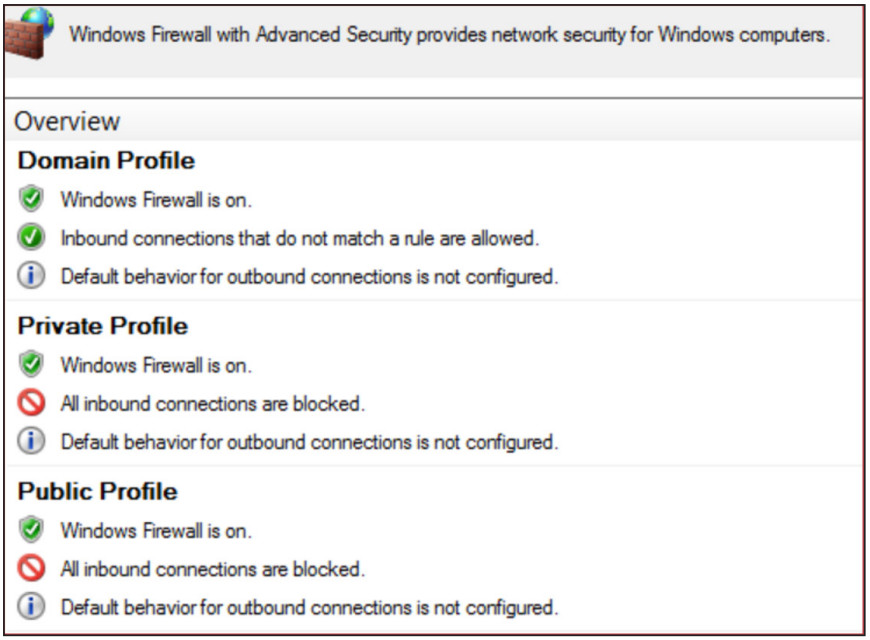
Using a GPO (Figure 5), the settings listed in Table 11 can be configured for the Windows Firewall to control inbound communications to endpoints in a managed environment. The referenced settings will effectively block all inbound connections for the Private and Public profiles, and for the Domain profile, only allow connections that do not match a predefined block rule.
| Computer Configuration > Policies > Windows Settings > Security Settings > Windows Firewall with Advanced Security |
Figure 5: GPO path for creating Windows Firewall rules
|
Profile Setting |
Firewall State |
Inbound Connections |
Log Dropped Packets |
Log Successful Connections |
Log File Path |
Log File Maximum Size (KB) |
|
Domain |
On |
Allow |
Yes |
Yes |
|
4,096 |
|
Private |
On |
Block All Connections |
Yes |
Yes |
|
4,096 |
|
Public |
On |
Block All Connections |
Yes |
Yes |
|
4,096 |
Figure 6: Windows Firewall recommendation configurations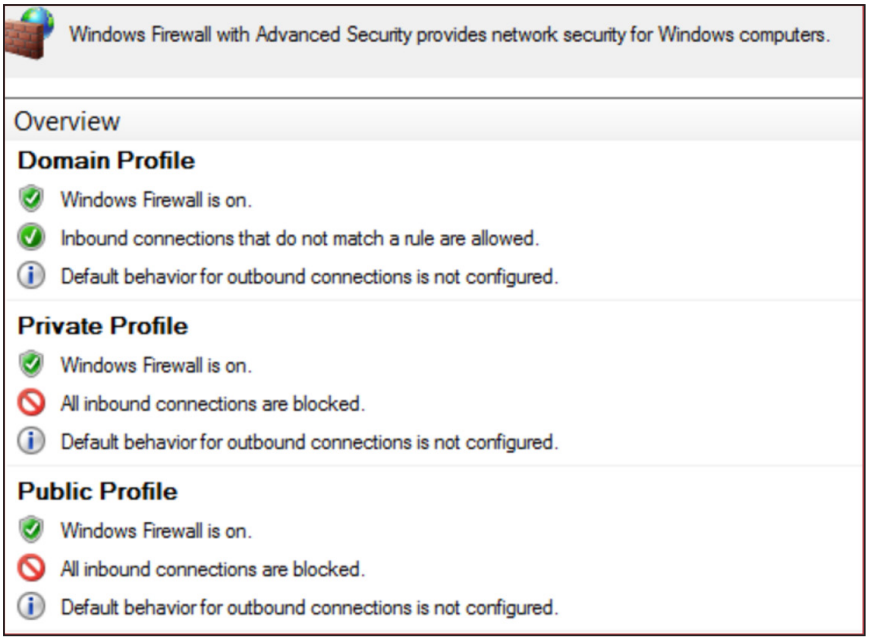
Additionally, to ensure that only centrally managed firewall rules are enforced (and cannot be overridden by a threat actor), the settings for Apply local firewall rules and Apply local connection security rules can be set to No for all profiles.
Figure 7: Windows Firewall domain profile customized settings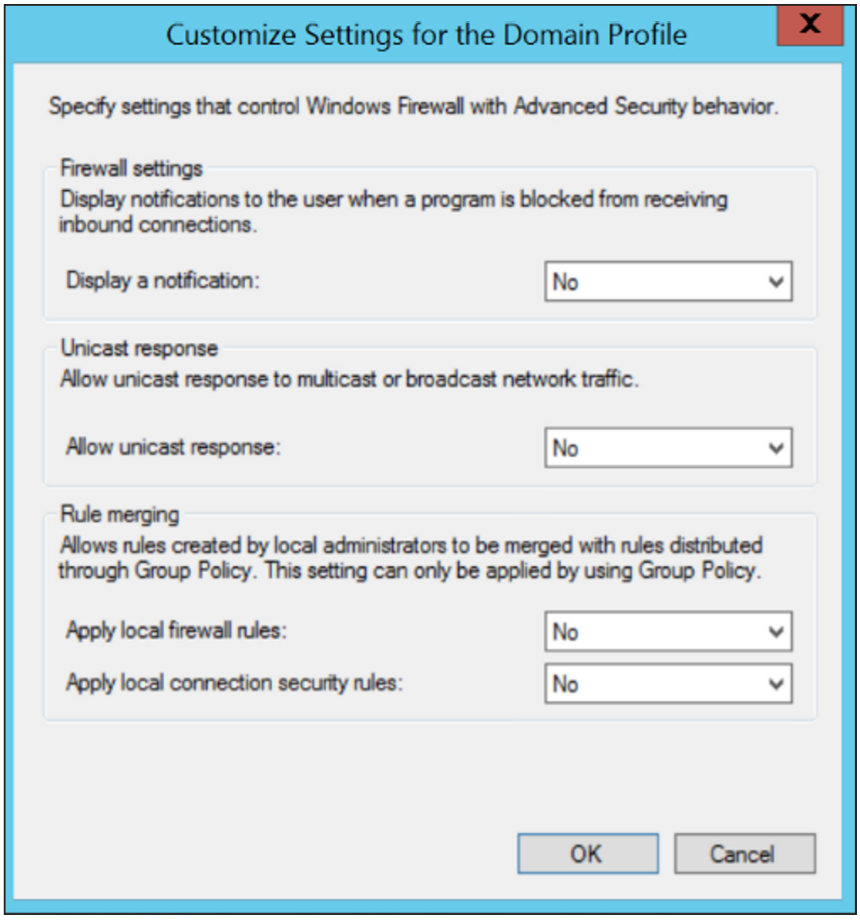
To quickly contain and isolate systems, the centralized Windows Firewall setting of Block all connections (Figure 8) will prevent any inbound connections from being established to a system. This is a setting that can be enforced on workstations and laptops, but will likely impact operations if enforced for servers, although if there is evidence of an active threat actor lateral pivoting within an environment, it may be a necessary step for rapid containment.
Note: If this control is being used temporarily to facilitate containment as part of an active incident, once the incident has been contained and it has been deemed safe to re-establish connectivity among systems within an environment, the Inbound Connections setting can be changed back to Allow using a GPO.
Figure 8: Windows Firewall – Block All Connections settings
If blocking all inbound connectivity for endpoints during a containment event is not practical, or for the Domain profile configurations, at a minimum, the protocols listed in Table 12 should be enforced using either a GPO or via the commands referenced within the table.
|
For any specific applications that may require inbound connectivity to end-user endpoints, the local firewall policy should be configured with specific IP address exceptions for origination systems that are authorized to initiate inbound connections to such devices. |
|
Protocol/Port |
Windows Firewall Rule |
Command Line Enforcement |
|
SMB TCP/445, TCP/139, TCP/135 |
Predefined Rule Name:
|
|
|
Remote Desktop Protocol TCP/3389 |
Predefined Rule Name: |
|
|
WMI |
Predefined Rule Name: |
|
|
Windows Remote Management/PowerShell Remoting TCP/80, TCP/5985, TCP/5986 |
Predefined Rule Name: |
Via PowerShell:
|
Table 12: Windows Firewall suggested block rules
Figure 9: Windows Firewall suggested rule blocks via Group Policy
NTLM Authentication Configurations
Threat actors often attempt to harvest credentials (including Windows NTLMv1 hashes) based upon outbound SMB or WebDAV communications. Organizations should review NTLM settings for Windows-based endpoints, and work to harden, disable, or restrict NTLMv1 authentication requests.
To fully restrict NTLM authentication to remote servers, the following GPO settings can be leveraged:
-
Computer Configuration > Windows Settings > Security Settings > Local Policies > Security Options > Network Security: Restrict NTLM: Outgoing NTLM traffic to remote servers
-
Allow all
-
Audit all
- Deny all
-
Note: If “Deny all” is selected, the client computer cannot authenticate (send credentials) to a remote server using NTLM authentication. Before setting to “Deny all,” organizations should configure the GPO setting with the “Audit all” enforcement. With this configuration, audit and block events will be recorded within the Operational event log on endpoints (Applications and Services LogMicrosoftWindowsNTLM).
If any recorded NTLM authentication events are required, organizations can configure the “Network security: Restrict NTLM: Add remote server exceptions for NTLM authentication” setting to define a listing of remote servers, which are required to use NTLM authentication.
Detection Opportunities for SMB, WMI, and NTLM Communications
|
Use Case |
MITRE ID |
Description |
|
High Volume of SMB Connections |
Search for a sharp increase in SMB connections that fall outside of a normal pattern. |
|
|
Outbound Connection Attempted Over SMB |
Search for external connection attempts over SMB, as this may be an attempt to harvest credential hashes. |
|
|
WMI Being Used to Call a Remote Service |
Search for WMI being used via a command line or PowerShell to call a remote service for execution. |
|
|
WMI Being Used for Ingress Tool Transfer |
Search for suspicious usage of WMI to download external resources. |
|
|
Forced NTLM Authentication Using SMB or WebDAV |
Search for potential NTLM authentication attempts using SMB or WebDAV. |
|
|
NTLM Relay via Coercion |
T1187 – Forced Authentication |
Monitor for NTLM authentication attempts from Domain Controllers or privileged servers to unexpected destinations, particularly to HTTP endpoints (AD CS web enrollment). Detect PetitPotam by monitoring for EfsRpcOpenFileRaw calls, DFSCoerce via DFS-related named pipe access, and PrinterBug via SpoolService RPC calls. |
Remote Desktop Protocol Hardening
Remote Desktop Protocol (RDP) is a common method used by threat actors to remotely connect to systems, laterally move from the perimeter onto a larger scope of internal systems, and perform malicious activities (such as data theft or ransomware deployment). External-facing systems with RDP open to the internet present an elevated risk. Threat actors may exploit this vector to gain initial access to an organization and then perform lateral movement into the organization to complete their mission objectives.
Proactively, organizations should scan their public IP address ranges to identify systems with RDP (TCP/3389) and other protocols (SMB – TCP/445) open to the internet. At a minimum, RDP and SMB should not be directly exposed for ingress and egress access to/from the internet. If required for operational purposes, explicit controls should be implemented to restrict the source IP addresses, which can interface with systems using these protocols. The following hardening recommendations should also be implemented.
Enforce Multi-Factor Authentication
If external-facing RDP must be used for operational purposes, MFA should be enforced when connecting using this method. This can be accomplished either via the integration of a third-party MFA technology or by leveraging a Remote Desktop Gateway and Azure Multifactor Authentication Server using Remote Authentication Dial-In User Service (RADIUS).
Leverage Network-Level Authentication
For external-facing RDP servers, Network-Level Authentication (NLA) provides an extra layer of preauthentication before a connection is established. NLA can also be useful for protecting against brute-force attacks, which often target open internet-facing RDP servers.
NLA can be configured either via the user interface (UI) (Figure 10) or via Group Policy (Figure 11).
Figure 10: Enabling NLA via the UI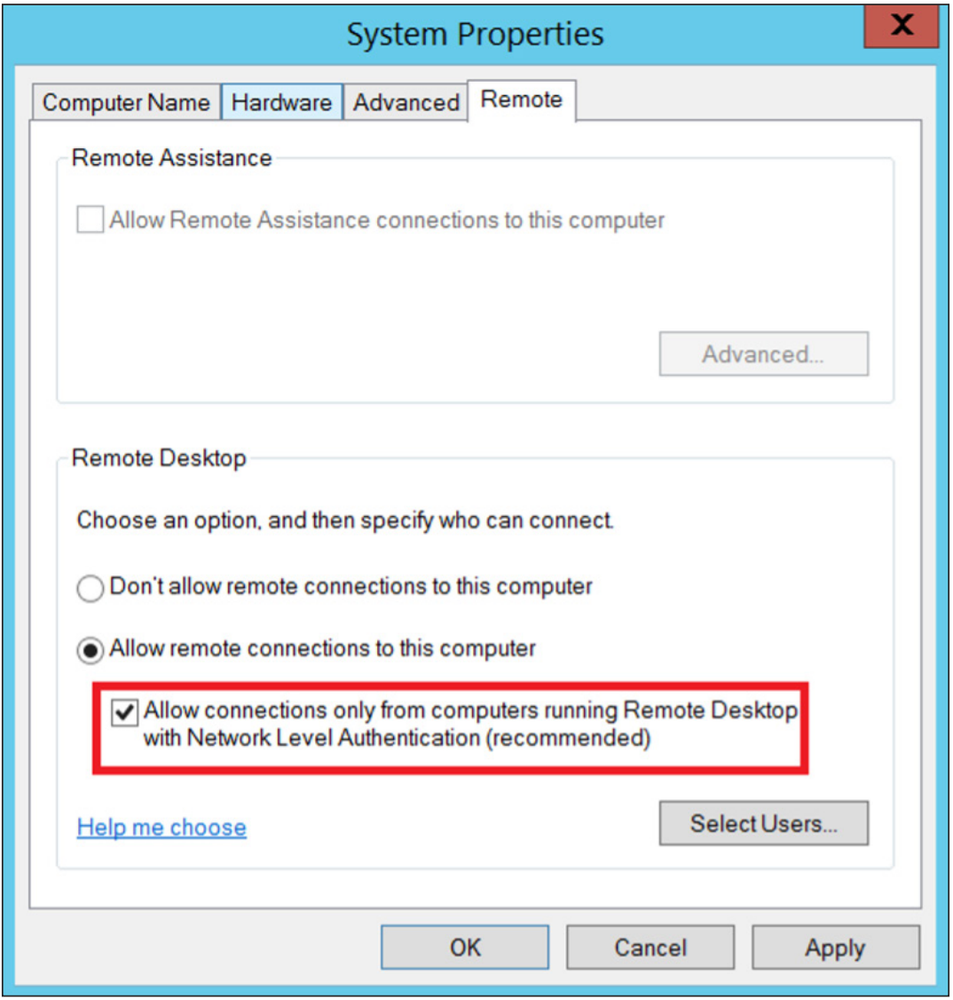
Using a GPO, the setting for NLA can be configured via:
-
Computer Configuration > Policies > Administrative Templates > Windows Components > Remote Desktop Services > Remote Desktop Session Host > Security > Require user authentication for remote connections by using Network Level Authentication
-
Enabled
-
Figure 11: Enabling NLA via Group Policy
Some caveats about leveraging NLA for RDP:
-
The Remote Desktop client v7.0 (or greater) must be leveraged.
-
NLA uses CredSSP to pass authentication requests on the initiating system. CredSSP stores credentials in Local Security Authority (LSA) memory on the initiating system, and these credentials may remain in memory even after a user logs off the system. This provides a potential exposure risk for credentials in memory on the source system.
-
On the RDP server, users permitted for remote access using RDP must be assigned the Access this computer from the network privilege when NLA is enforced. This privilege is often explicitly denied for user accounts to protect against lateral movement techniques.
Restrict Administrative Accounts from Leveraging RDP on Internet-Facing Systems
For external-facing RDP servers, highly privileged domain and local administrative accounts should not be permitted access to authenticate with the external-facing systems using RDP (Figure 12).
This can be enforced using Group Policy, configurable via the following path:
-
Computer Configuration > Policies > Windows Settings > Security Settings > Local Policies > User Rights Assignment > Deny log on through Terminal Services
Figure 12: Group Policy configuration for restricting highly privileged domain and local administrative accounts from leveraging RDP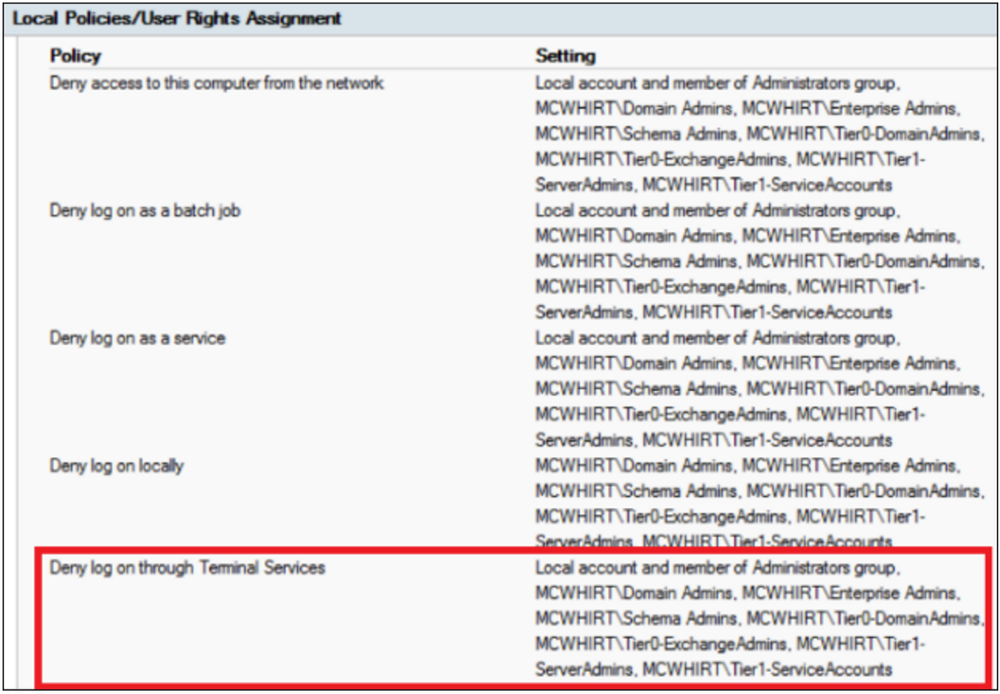
Detection Opportunities for RDP Usage
|
Use Case |
MITRE ID |
Description |
|
RDP Authentication Integration |
Existing authentication rules should include RDP attempts. This includes use cases for:
|
|
|
Anomalous Connection Attempts over RDP |
Searching for anomalous RDP connection attempts over known RDP ports such as TCP/3389. |
Disabling Administrative/Hidden Shares
To conduct lateral movement, threat actors may attempt to identify administrative or hidden network shares, including those that are not explicitly mapped to a drive letter and use these for remotely binding to endpoints throughout an environment. As a protective or rapid containment measure, organizations may need to quickly disable default administrative or hidden shares from being accessible on endpoints. This can be accomplished by either modifying the registry, stopping a service, or by using the MSS (Legacy) Group Policy template.
Common administrative and hidden shares on endpoints include:
ADMIN$C$D$IPC$
|
Note: Disabling administrative and hidden shares on servers, specifically including domain controllers, may significantly impact the operation and functionality of systems within a domain-based environment. Additionally, if PsExec is used in an environment, disabling the admin ( |
Registry Method
Using the registry, administrative and hidden shares can be disabled on endpoints (Figure 13 and Figure 14).
Workstations
HKEY_LOCAL_MACHINESYSTEMCurrentControlSetServicesLanmanServerParameters
DWORD Name = "AutoShareWks"
Value = "0"
Figure 13: Registry value disabling administrative shares on workstations
Servers
HKEY_LOCAL_MACHINESYSTEMCurrentControlSetServicesLanmanServerParameters
DWORD Name = "AutoShareServer"
Value = "0"
Figure 14: Registry value disabling administrative shares on servers
Service Method
By stopping the Server service on an endpoint, the ability to access any shares hosted on the endpoint will be disabled (Figure 15).
Figure 15: Server service properties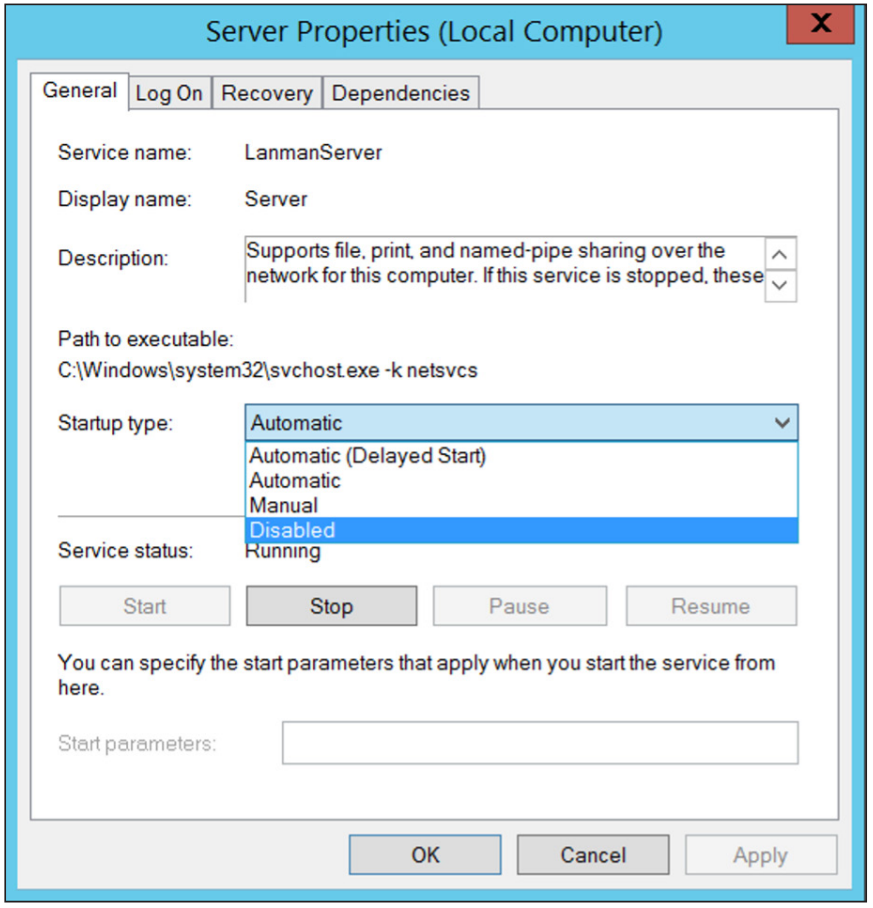
Group Policy Method
Using the MSS (Legacy) Group Policy template, administrative and hidden shares can be disabled on either a server or workstation via a GPO setting (Figure 16).
-
Computer Configuration > Policies > Administrative Templates > MSS (Legacy) > MSS (AutoShareServer)
-
Disabled
-
-
Computer Configuration > Policies > Administrative Templates > MSS (Legacy) > MSS (AutoShareWks)
-
Disabled
-
Figure 16: Disabling administrative and hidden shares via the MSS (Legacy) Group Policy template
Detection Opportunities for Accessing Administrative or Hidden Shares
|
Use Case |
MITRE ID |
Description |
|
Network Discovery: Suspicious Usage of the Net Command |
Search for suspicious use of the |
Hardening Windows Remote Management
Threat actors may leverage Windows Remote Management (WinRM) to laterally move throughout an environment. WinRM is enabled by default on all Windows Server operating systems (since Windows Server 2012 and above), but disabled on all client operating systems (Windows 7 and Windows 10) and older server platforms (Windows Server 2008 R2).
PowerShell remoting (PS remoting) is a native Windows remote command execution feature that is built on top of the WinRM protocol.
Windows client (nonserver) operating system platforms where WinRM is disabled indicates that there is:
-
No WinRM listener configured
-
No Windows firewall exception configured
By default, WinRM uses TCP/5985 and TCP/5986, which can be either disabled using the Windows Firewall or configured so that a specific subset of IP addresses can be authorized for connecting to endpoints using WinRM.
WinRM and PowerShell remoting can be explicitly disabled on endpoint using either a PowerShell command (Figure 17) or specific GPO settings.
PowerShell
Disable-PSRemoting -ForceFigure 17: PowerShell command to disable WinRM/PowerShell remoting on an endpoint
Note: Running Disable-PSRemoting -Force does not prevent local users from creating PowerShell sessions on the local computer or for sessions destined for remote computers.
After running the command, the message recorded in Figure 18 will be displayed. These steps provide additional hardening, but after running the Disable-PSRemoting -Force command, PowerShell sessions destined for the target endpoint will not be successful.
Figure 18: Warning message after disabling PSRemoting
To enforce the additional steps for disabling WinRM via PowerShell (Figure 19 through Figure 22):
- Stop and disable the WinRM service.
Stop-Service WinRM -PassThruSet-Service WinRM -StartupType DisabledFigure 19: PowerShell command to stop and disable the WinRM service
- Disable the listener that accepts requests on any IP address.
dir wsman:localhostlistener

Remove-Item -Path WSMan:Localhostlistener<Listener name>
Figure 20: PowerShell commands to delete a WSMan listener
- Disable the firewall exceptions for WS-Management communications.
Set-NetFirewallRule -DisplayName 'Windows Remote Management (HTTP-In)' -Enabled FalseFigure 21: PowerShell command to disable firewall exceptions for WinRM
- Restore the value of
the LocalAccountTokenFilterPolicyto 0, which restricts remote access to members of the Administrators group on the computer.Set-ItemProperty -Path HKLM:SOFTWAREMicrosoftWindowsCurrentVersionpoliciessystem -Name LocalAccountTokenFilterPolicy -Value 0Figure 22: PowerShell command to configure the registry key for LocalAccountTokenFilterPolicy
Group Policy
-
Computer Configuration > Policies > Administrative Templates > Windows Components > Windows Remote Management (WinRM) > WinRM Service > Allow remote server management through WinRM
-
Disabled
-
If this setting is configured as Disabled, the WinRM service will not respond to requests from a remote computer, regardless of whether any WinRM listeners are configured.
-
Computer Configuration > Policies > Administrative Templates > Windows Components > Windows Remote Shell > Allow Remote Shell Access
- Disabled
This policy setting will manage the configuration of remote access to all supported shells to execute scripts and commands.
Detection Opportunities for WinRM Usage
|
Use Case |
MITRE ID |
Description |
|
Unauthorized WinRM Execution Attempt |
Search for command execution attempts for WinRM on a system where WinRM has been disabled. |
|
|
Suspicious Process Creation Using WinRM |
Search for anomalous process creation events using WinRM that deviate from an established baseline. |
|
|
Suspicious Network Connection Using WinRM |
Search for network activity over known WinRM ports, such as TCP/5985 and TCP/5986, to identify anomalous connections that deviate from an established baseline. |
|
|
Remote WMI Connection Using WinRM |
Search for remote WMI connection attempts using WinRM. |
Restricting Common Lateral Movement Tools and Methods
Table 17 provides a consolidated summary of security configurations that can be leveraged to combat against common remote access tools and methods used for lateral movement within environments.
|
Tool/Tactic |
Mitigating Security Configurations (Target Endpoints) |
|---|---|
|
PsExec (using the current logged-on user account, without the If the PsExec high-level functionality:
|
Option 1: GPO configuration:
Option 2: Windows Firewall rule: Figure 23: PowerShell command to disable inbound file and print sharing (SMB) for an endpoint using a local Windows Firewall rule Option 3: Disable administrative and hidden shares. |
|
PsExec (with Alternative Credentials, via the If the |
Option 1: GPO configuration:
Option 2: Windows Firewall rule: Figure 24: PowerShell command to disable inbound file and print sharing (SMB) for an endpoint using a local Windows Firewall rule |
|
Remote Desktop Protocol (RDP) |
Option 1: GPO configuration:
Option 2: Windows Firewall rule: Figure 25: PowerShell command to disable inbound Remote Desktop (RDP) for an endpoint using a local Windows Firewall rule |
|
PS remoting and WinRM |
Option 1: PowerShell command: Figure 26: PowerShell command to disable PowerShell remoting for an endpoint Option 2: GPO configuration:
Option 3: Windows Firewall rule: Figure 27: PowerShell command to disable inbound WinRM for an endpoint using a local Windows Firewall rule |
|
Distributed Component Object Model (DCOM) |
Option 1: GPO configuration:
Both of these settings allow an organization to define additional computer-wide controls that govern access to all DCOM–based applications on an endpoint. When users or groups that are provided permissions are specified, the security descriptor field is populated with the SDDL representation of those groups and privileges. Users and groups can be given explicit Allow or Deny privileges for both local and remote access using DCOM. Option 2: Windows Firewall rules: Figure 28: PowerShell commands to disable inbound DCOM for an endpoint using a local Windows Firewall rule |
|
Third-party remote access applications (e.g., VNC/DameWare/ScreenConnect) that rely upon specific interactive and remote logon permissions being configured on an endpoint. |
GPO configuration:
|
Detection Opportunities for Common Lateral Movement Tools and Methods
|
Use Case |
MITRE |
Description |
|
Anomalous PsExec Usage |
T1569.002 – System Services: Service Execution |
Search for attempted execution of PsExec on systems where PsExec is disabled or where it deviates from normal activity. |
|
Process Creation Event Involving a COM Object by Different User |
T1021.003 – Remote Services: Distributed Component Object Model |
Search for process creation events including COM objects that are initiated by an account that is not currently the logged-in user for the system. |
|
High Volume of DCOM-Related Activity |
T1021.003 – Remote Services: Distributed Component Object Model |
Search for a sharp increase in volume of DCOM-related activity. |
|
Third-Party Remote Access Applications |
Search for anomalous use of third-party remote access applications. This type of activity could indicate a threat actor is attempting to use third-party remote access applications as an alternate communication channel or for creating remote interactive sessions. |
|
|
BYOVD – EDR/AV Tampering via Vulnerable Drivers |
Monitor for kernel driver installations (Sysmon Event ID 6) where the loaded driver hash matches known vulnerable drivers from the LOLDrivers project. Alert on new service creation (Event ID 7045) loading .sys files from user-writable paths (e.g., %TEMP%, %APPDATA%). |
|
|
RMM Tool Abuse for Lateral Movement |
Monitor for installation or execution of legitimate RMM tools (ScreenConnect/ConnectWise, AnyDesk, Atera, Splashtop, TeamViewer) that are not part of the organization’s approved toolset. Monitor for new service installations matching known RMM tool signatures. |
Additional Endpoint Hardening
To help protect against malicious binaries, malware, and encryptors being invoked on endpoints, additional security hardening technologies and controls should be considered. Examples of additional security controls for consideration for Windows-based endpoints are provided as follows.
Windows Defender Application Control
Windows Defender Application Control is a set of inherent configuration settings within Active Directory that provide lockdown and control mechanisms for controlling which applications and files users can run on endpoints. With this functionality, the following types of rules can be configured within GPOs:
-
Publisher rules: Can be leveraged to allow or restrict execution of files based upon digital signatures and other attributes
-
Path rules: Can be leveraged to allow or restrict file execution or access based upon files residing in specific path
-
File hash rules: Can be leveraged to allow or restrict file execution based on a file’s hash
Additional information related to Windows Defender Application Control.
Microsoft Defender Attack Surface Reduction
Microsoft Defender Attack Surface Reduction (ASR) rules can help protect against various threats, including:
-
A threat actor launching executable files and scripts that attempt to download or run files
-
A threat actor running obfuscated or suspicious scripts
-
A threat actor invoking credential theft tools that interface with Local Security Authority Subsystem Service (LSASS)
-
A threat actor invoking PsExec or WMI commands
-
Normalizing and blocking behaviors that applications do not usually initiate as part of standardized activity
-
Blocking executable content from email clients and web mail (phishing)
ASR requires a Windows E3 license or above. A Windows E5 license provides advanced management capabilities for ASR.
Additional information related to Microsoft Defender Attack Surface Reduction functionality.
Controlled Folder Access
Controlled folder access can help protect data from being encrypted by ransomware. Beginning with Windows 10 version 1709+ and Windows Server 2019+, controlled folder access was introduced within Windows Defender Antivirus (as part of Windows Defender Exploit Guard).
Once controlled folder access is enabled, applications and executable files are assessed by Windows Defender Antivirus, which then determines if an application is malicious or safe. If an application is determined to be malicious or suspicious, it will be blocked from making changes to any files in a protected folder.
Once enabled, controlled folder access will apply to a number of system folders and default locations, including:
- Documents
C:users<username>DocumentsC:usersPublicDocuments
- Pictures
C:users<username>PicturesC:usersPublicPictures
- Videos
C:users<username>VideosC:usersPublicVideos
- Music
C:users<username>MusicC:usersPublicMusic
- Desktop
C:users<username>DesktopC:usersPublicDesktop
- Favorites
C:users<username>Favorites
Additional folders can be added using the Windows Security application, Group Policy, PowerShell, or mobile device management (MDM) configuration service providers (CSPs). Additionally, applications can be allow-listed for access to protected folders.
Note: For controlled folder access to fully function, Windows Defender’s Real Time Protection setting must be enabled.
Additional information related to controlled folder access.
Tamper Protection
Threat actors will often attempt to disable security features on endpoints. Tamper protection either in Windows (via Microsoft Defender for Endpoint) or integrated within third-party AV/EDR platforms can help protect security tools from being modified or stopped by a threat actor. Organizations should review the configuration of security technologies that are deployed to endpoints and verify if tamper protection is (or can be) enabled to protect against unauthorized modification. Once implemented, organizations should test and validate that the tamper protection controls behave as expected as different products offer different levels of protection.
Additional information related to tamper protection for Windows Defender for Endpoint.
Detection Opportunities for Tamper Protection Events
|
Use Case |
MITRE |
Description |
|
Threat Actor Attempting to Disable Security Tooling on an Endpoint |
Monitor for evidence of processes or command-line arguments correlating to security tools/services being stopped. |
Credential Exposure and Account Protections
Identification of Privileged Accounts and Groups
Threat actors will prioritize identifying privileged accounts as part of reconnaissance efforts. Once identified, threat actors will attempt to obtain credentials for these accounts for lateral movement, persistence, and mission fulfillment.
Organizations should proactively focus on identifying and reviewing the scope of accounts and groups within Active Directory that have an elevated level of privilege. An elevated level of privilege can be determined by the following criteria:
-
Accounts or nested groups that are assigned membership into default domain and Exchange-based privileged groups (Figure 29)
-
Accounts or nested groups that are assigned membership into security groups protected by
AdminSDHolder -
Accounts or groups assigned permissions for organizational units (OUs) housing privileged accounts, groups, or endpoints
-
Accounts or groups assigned specific extended right permissions either directly at the root of the domain or for OUs where permissions are inherited by child objects. Examples include:
DS-Replication-Get-Changes-AllAdminister Exchange Information StoreView Exchange Information Store StatusCreate-Inbound-Forest-TrustMigrate-SID-HistoryReanimate-TombstonesView Exchange Information Store StatusUser-Force-Change-Password
-
Accounts or groups assigned permissions for modifying or linking GPOs
-
Accounts or groups assigned explicit permissions on domain controllers or Tier 0 endpoints
-
Accounts or groups assigned directory service replication permissions
-
Accounts or groups with local administrative access on all endpoints (or a large scope of critical assets) in a domain
To identify accounts that are provided membership into default domain-based privileged groups or are protected by AdminSDHolder, the following PowerShell cmdlets can be run from a domain controller.
get-ADGroupMember -Identity "Domain Admins" -Recursive | export-csv -path <output directory>DomainAdmins.csv -NoTypeInformation

get-ADGroupMember -Identity "Enterprise Admins" -Recursive | export-csv -path <output directory>EnterpriseAdmins.csv -NoTypeInformation

get-ADGroupMember -Identity "Schema Admins" -Recursive | export-csv -path <output directory>SchemaAdmins.csv -NoTypeInformation

get-ADGroupMember -Identity "Administrators" -Recursive | export-csv -path <output directory>Administrators.csv -NoTypeInformation

get-ADGroupMember -Identity "Account Operators" -Recursive | export-csv -path <output directory>AccountOperators.csv -NoTypeInformation

get-ADGroupMember -Identity "Backup Operators" -Recursive | export-csv -path <output directory>BackupOperators.csv -NoTypeInformation

get-ADGroupMember -Identity "Cert Publishers" -Recursive | export-csv -path <output directory>CertPublishers.csv -NoTypeInformation

get-ADGroupMember -Identity "Print Operators" -Recursive | export-csv -path <output directory>PrintOperators.csv -NoTypeInformation

get-ADGroupMember -Identity "Server Operators" -Recursive | export-csv -path <output directory>ServerOperators.csv -NoTypeInformation

get-ADGroupMember -Identity "DNSAdmins" -Recursive | export-csv -path <output directory>DNSAdmins.csv -NoTypeInformation

get-ADGroupMember -Identity "Group Policy Creator Owners" -Recursive | export-csv -path <output directory>Group-Policy-Creator-Owners.csv -NoTypeInformation

get-ADGroupMember -Identity "Exchange Trusted Subsystem" -Recursive | export-csv -path <output directory>Exchange-Trusted-Subsystem.csv -NoTypeInformation

get-ADGroupMember -Identity "Exchange Windows Permissions" -Recursive | export-csv -path <output directory>Exchange-Windows-Permissions.csv -NoTypeInformation

get-ADGroupMember -Identity "Exchange Recipient Administrators" -Recursive | export-csv -path <output directory>Exchange-Recipient-Admins.csv -NoTypeInformation

get-ADUser -Filter {(AdminCount -eq 1) -And (Enabled -eq $True)} | Select-Object Name, DistinguishedName | export-csv -path <output directory>AdminSDHolder_Enabled.csv
Figure 29: Commands to identify domain and exchange-based privileged accounts
Any privileged accounts granted membership into additional security groups can provide a threat actor with a potential path to domain administration-level permissions based upon endpoints where the accounts have permissions to log on or remotely access systems.
Ideally, only a small scope of accounts should be provided with highly privileged access within a domain. Accounts with highly privileged permissions should not be leveraged for daily use; used for interactive or remote logons to workstations, laptops, or common servers; or used for performing functions on non-domain controller (Tier 0) assets.For additional recommendations for restricting access for privileged accounts, reference the Privileged Account Logon Restrictions section of this blog post.
Detection Opportunities for Privileged Accounts, Groups, and GPO Modifications
|
Use Case |
MITRE |
Description |
|
Interactive or Remote Logon of a Highly Privileged Account to an Unauthorized System |
Search for logon attempts correlating to highly privileged accounts authenticating to systems that reside outside of the Tier 0 layer. |
|
|
Privileged Account and Group Discovery |
Search for command-line events where a user is attempting to enumerate privileged accounts and groups. |
|
|
Account Added to Highly Privileged Group |
Identify when accounts are added to highly privileged groups. While this can occur as part of normal activity, it should be infrequent and limited to specific accounts. |
|
|
Modification of Group Policy Objects |
T1484.001 – Domain Policy Modification: Group Policy Modification |
Identify when GPOs are created or modified. GPOs can also be exported and reviewed to identify last modification timestamps. Figure 30: PowerShell cmdlet to export and review GPO creation and modification timestamps |
|
DCSync Attack |
Monitor for non-domain-controller sources issuing directory replication requests (DS-Replication-Get-Changes and DS-Replication-Get-Changes-All). Event ID 4662 with properties matching the replication GUIDs (1131f6aa-*, 1131f6ad-*) from non-domain-controller source addresses is a high-fidelity indicator of DCSync. |
Privileged and Service Account Protections
Identify and Review Noncomputer Accounts Configured with an SPN
Accounts with service principal names (SPNs) are commonly targeted by threat actors for privilege escalation. Using Kerberos, any domain user can request a Kerberos service ticket (TGS) from a domain controller for any account configured with an SPN. Noncomputer accounts likely are configured with guessable (nonrandom) passwords. Regardless of the domain function level or the host’s Windows version, SPNs that are registered under a noncomputer account will use the legacy RC4-HMAC encryption suite rather than Advanced Encryption Standard (AES). The key used for encryption and decryption of the RC4-HMAC encryption type represents an unsalted NTLM hash version of the account’s password, which could be derived via cracking the ticket.
Organizations should review Active Directory to identify noncomputer accounts configured with an SPN. Noncomputer accounts correlated to registered SPNs are likely service accounts and provide a method for a threat actor (without administrative privileges) to potentially derive (crack) the plain-text password for the account (Kerberoasting). To identify noncomputer accounts configured with an SPN, the PowerShell cmdlet referenced in Figure 31 can be run from a domain controller.
Get-ADUser -Filter {(ServicePrincipalName -like "*")} | Select-Object name,samaccountname,sid,enabled,DistinguishedNameFigure 31: PowerShell cmdlet to identify noncomputer accounts configured with an SPN
Where possible, organizations should deregister noncomputer accounts with SPNs configured. Where SPNs are needed, organizations should mitigate the risk associated with Kerberoasting attacks. Accounts with SPNs should be configured with strong, unique passwords (e.g., minimum 25+ characters) with the passwords rotated on a periodic basis for the accounts. Furthermore, privileges should be reviewed and reduced for these accounts to ensure that each account has the minimum required privileges needed for the intended function.
Accounts with SPNs should be considered in-scope for the proactive hardening measures detailed throughout this blog post.
Note: SPNs should never be associated with regular interactive user accounts.
Detection Opportunities for Noncomputer Accounts Configured with an SPN
|
Use Case |
MITRE ID |
Description |
|
Potential Kerberoasting Attempt Using RC4 |
Searching for a Kerberos request using downgraded RC4 encryption. |
|
|
AS-REP Roasting |
Monitor Event ID 4768 for Kerberos authentication requests using RC4 encryption (0x17) for accounts with the “Do not require Kerberos preauthentication” flag set. Unlike Kerberoasting (which targets SPNs), AS-REP Roasting targets accounts with disabled preauthentication (which should be reviewed and mitigated). |
Privileged Account Logon Restrictions
Privileged and service account credentials are commonly used for lateral movement and establishing persistence.
For any accounts that have privileged access throughout an environment, the accounts should not be used on standard workstations and laptops, but rather from designated systems (e.g., privileged access workstations [PAWs]) that reside in restricted and protected VLANs and tiers. Dedicated privileged accounts should be defined for each tier, with controls that enforce that the accounts can only be used within the designated tier. Guardrail enforcement for privileged accounts can be defined within GPOs or by using authentication policy silos (Windows Server 2012 R2 domain-functional level or above).
The recommendations for restricting the scope of access for privileged accounts are based upon Microsoft’s guidance for securing privileged access. For additional information, reference:
User Rights Assignments
As a proactive hardening or quick containment measure, consider blocking any accounts with privileged AD access from being able to log in (remotely or locally) to standard workstations, laptops, and common access servers (e.g., virtualized desktop infrastructure).
The settings referenced as follows are configurable using user rights assignments defined within GPOs via the path of:
-
Computer Configuration > Policies > Windows Settings > Security Settings > Local Policies > User Rights Assignment
Accounts delegated with domain-based privileged access should be explicitly denied access to standard workstations and laptop systems within the context of the following settings (which can be configured using GPO settings similar to what are depicted in Figure 32):
-
Deny access to this computer from the network (also include
S-1-5-114: NT AUTHORITYLocal account and member of Administrators group) (SeDenyNetworkLogonRight) -
Deny logon as a batch job (
SeDenyBatchLogonRight) -
Deny logon as a service (
SeDenyServiceLogonRight) -
Deny logon locally (
SeDenyInteractiveLogonRight) -
Deny logon through Terminal Services (
SeDenyRemoteInteractiveLogonRight)
Figure 32: Example of privileged account access restrictions for a standard workstation using GPO settings
Additionally, using GPOs, permissions can be restricted on endpoints to protect against privilege escalation and potential data theft by reducing the scope of accounts that have the following user rights assignments:
-
Debug programs (
SeDebugPrivilege) -
Back up files and directories (
SeBackupPrivilege) -
Restore files and directories (
SeRestorePrivilege) -
Take ownership of files or other objects (
SeTakeOwnershipPrivilege)
Detection Opportunities for Privileged Account Logons
|
Use Case |
MITRE ID |
Description |
|
Attempted Logon of a Privileged Account from a Nonprivileged Access Workstation |
Search for logon attempts correlating to highly privileged accounts authenticating to systems that reside outside of the Tier 0 layer. |
Service Account Logon Restrictions
Organizations should also consider enhancing the security of domain-based service accounts to restrict the capability for the accounts to be used for interactive, remote desktop, and, where possible, network-based logons.
Minimum recommended logon hardening for service accounts (on endpoints where the service account is not required for interactive or remote logon purposes):
- Computer Configuration > Policies > Windows Settings > Security Settings > Local Policies > User Rights Assignment
- Deny logon locally (
SeDenyInteractiveLogonRight) - Deny logon through Terminal Services (
SeDenyRemoteInteractiveLogonRight)
- Deny logon locally (
Additional recommended logon hardening for service accounts (on endpoints where the service accounts is not required for network-based logon purposes):
- Computer Configuration > Policies > Windows Settings > Security Settings > Local Policies > User Rights Assignment
- Deny access to this computer from the network (
SeDenyNetworkLogonRight)
- Deny access to this computer from the network (
If a service account is only required to be leveraged on a single endpoint to run a specific service, the service account can be further restricted to only permit the account’s usage on a predefined listing of endpoints (Figure 33).
- Active Directory Users and Computers > Select the account
- Account tab
- Log On To button > Select the proper scope of computers for access
- Account tab
Figure 33: Option to restrict an account to log onto specific endpoints
Detection Opportunities for Service Account Logons
|
Use Case |
MITRE ID |
Description |
|
Anomalous Logon from a Service Account |
Search for login attempts for a service account on a new (unexpected) endpoint. This will require baselining service accounts to expected (approved) systems. |
Managed/Group Managed Service Accounts
Organizations with static service accounts should review the feasibility of migrating the service accounts to be managed service accounts (MSAs) or group managed service accounts (gMSAs).
MSAs were first introduced with the Windows Server 2008 R2 Active Directory schema (domain-functional level) and provide automatic password management (30-day rotation) for dedicated service accounts that are associated with running services on specific endpoints.
-
Standard MSA: The account is associated with a single endpoint, and the complex password for the account is automatically managed and changed on a predefined frequency (30 days by default). While an MSA can only be associated with a single computer account, multiple services on the same endpoint can leverage the MSA.
-
Group managed service account (gMSA): First introduced with Windows Server 2012 and are very similar to MSAs, but allow for a single gMSA to be leveraged across multiple endpoints.
Common uses for MSAs and gMSAs:
-
Scheduled Tasks
-
Internet Information Services (IIS) application pools
-
Structured Query Language (SQL) services (SQL 2012 and later) – Express editions are not supported by MSAs.
-
Microsoft Exchange services
-
Network Load Balancing (clustering) – gMSAs only
-
Third-party applications that support MSAs
Note: Threat actors can potentially discover accounts and groups that have permissions to read/leverage the password for a gMSA for privilege escalation and lateral movement. This can be accomplished by leveraging the get-adserviceaccount PowerShell cmdlet and enumerating the msDS-GroupMSAMembership (PrincipalsAllowedToRetrieveManagedPassword) configuration for a gMSA, which stores the security principals that can access the gMSA password. It is important that when configuring managed service accounts, organizations focus on restricting the scope of accounts and groups that have the ability to obtain and leverage the password for the managed service accounts and enforce structured monitoring of these accounts and groups.
For additional information related to MSAs and gMSAs, reference:
Detection Opportunities for Managed/Group Managed Service Accounts
|
Use Case |
MITRE ID |
Description |
|
Group Membership Addition |
Search for MSAs/gMSAs and the associated Example reconnaissance commands for querying for MSAs/gMSAs and associated attributes: Figure 34: Example reconnaissance commands for querying for MSAs/gMSAs |
Protected Users Security Group
By leveraging the Protected Users security group for privileged accounts, an organization can minimize various exposure factors and common exploitation methods by a threat actor or malware variant obtaining credentials for privileged accounts on disk or in memory from endpoints.
Beginning with Microsoft Windows 8.1 and Microsoft Windows Server 2012 R2 (and above), the Protected Users security group was introduced to manage credential exposure within an environment. Members of this group automatically have specific protections applied to accounts, including:
-
The Kerberos ticket granting ticket (TGT) expires after four hours, rather than the normal 10-hour default setting.
-
No NTLM hash for an account is stored in LSASS, since only Kerberos authentication is used (NTLM authentication is disabled for an account).
-
Cached credentials are blocked. A domain controller must be available to authenticate the account.
-
WDigest authentication is disabled for an account, regardless of an endpoint’s applied policy settings.
-
DES and RC4 cannot be used for Kerberos preauthentication (Server 2012 R2 or higher); rather, Kerberos with AES encryption will be enforced.
-
Accounts cannot be used for either constrained or unconstrained delegation (equivalent to enforcing the Account is sensitive and cannot be delegated setting in Active Directory Users and Computers).
To provide domain controller-side restrictions for members of the Protected Users security group, the domain functional level must be Windows Server 2012 R2 (or higher). Microsoft Security Advisory KB2871997 adds compatibility support for the protections enforced for members of the Protected Users security group for Windows 7, Windows Server 2008 R2, and Windows Server 2012 systems.
Successful (Event IDs 303, 304) or failed (Event IDs 100, 104) logon events for members of the Protected Users security group can be recorded on domain controllers within the following event logs:
-
%SystemRoot%System32WinevtLogsMicrosoft-Windows-Authentication%4ProtectedUserSuccesses-DomainController.evtx -
%SystemRoot%System32WinevtLogsMicrosoft-Windows-Authentication%4ProtectedUserFailures-DomainController.evtx
The event logs are disabled by default and must be enabled on each domain controller. The PowerShell cmdlets referenced in Figure 35 can be leveraged to enable the event logs for the Protected Users security group on a domain controller.
$log1 = New-Object System.Diagnostics.Eventing.Reader.EventLogConfiguration Microsoft-Windows-Authentication/ProtectedUserSuccesses-DomainController
$log1.IsEnabled=$true
$log1.SaveChanges()

$log2 = New-Object System.Diagnostics.Eventing.Reader.EventLogConfiguration Microsoft-Windows-Authentication/ProtectedUserFailures-DomainController
$log2.IsEnabled=$true
$log2.SaveChanges()
Figure 35: PowerShell cmdlets for enabling event logging for the Protected Users security group on domain controllers
Note: Service accounts (including MSAs) should not be added to the Protected Users security group, as authentication will fail.
|
If the Protected Users security group cannot be used, at a minimum, privileged accounts should be protected against delegation by configuring the account with the Account is Sensitive and Cannot Be Delegated flag in Active Directory. |
Detection Opportunities for the Protected Users Security Group
|
Use Case |
MITRE ID |
Description |
|
Removal of Account from Protected User Group |
Search for an account that has been removed from the Protected Users group. |
|
|
Attempted Logon of an Account in the Protected User Group from a Nonprivileged Access Workstation |
Search for logon attempts from accounts in the Protected Users group authenticating from workstations of nonprivileged users. |
Clear-Text Password Protections
In addition to restricting access for privileged accounts, controls should be enforced that minimize the exposure of credentials and tokens in memory on endpoints.
On older Windows versions, clear-text passwords are stored in memory (LSASS) to primarily support WDigest authentication. WDigest should be explicitly disabled on all Windows endpoints where it is not disabled by default.
By default, WDigest authentication is disabled in Windows 8.1+ and in Windows Server 2012 R2+.
Beginning with Windows 7 and Windows Server 2008 R2, after installing KB2871997, WDigest authentication can be configured either by modifying the registry or by using the Microsoft Security Guide GPO template from the Microsoft Security Compliance Toolkit.
Registry Method
HKLMSYSTEMCurrentControlSetControlSecurityProvidersWDigestUseLogonCredential
REG_DWORD = "0"
Figure 36: Registry key and value for disabling WDigest authentication
Another registry setting that should be explicitly configured is the TokenLeakDetectDelaySecs setting (Figure 37), which will clear credentials in memory of logged-off users after 30 seconds, mimicking the behavior of Windows 8.1 and above.
HKLMSYSTEMCurrentControlSetControlLsaTokenLeakDetectDelaySecs
REG_DWORD = "30"
Figure 37: Registry key and value for enforcing the TokenLeakDetectDelaySecs setting
Group Policy Method
Using the Microsoft Security Guide Group Policy template, WDigest authentication can be disabled via a GPO setting (Figure 38).
-
Computer Configuration > Policies > Administrative Templates > MS Security Guide > WDigest Authentication
- Disabled
Figure 38: Disabling WDigest authentication via the MS Security Guide Group Policy Template
Additionally, an organization should verify that Allow* settings are not specified within the registry keys referenced in Figure 39, as this configuration would permit the tspkgs/CredSSP providers to store clear-text passwords in memory.
HKEY_LOCAL_MACHINESYSTEMCurrentControlSetControlLsaCredsspPolicyDefaults
HKEY_LOCAL_MACHINESOFTWAREPoliciesMicrosoftWindowsCredentialsDelegation
Figure 39: Additional registry keys for hardening against clear-text password storage
Group Policy Reprocessing
Threat actors can manually enable WDigest authentication on endpoints by directly modifying the registry (UseLogonCredential configured to a value of 1). Even on endpoints where WDigest authentication is automatically disabled by default, it is recommended to enforce the GPO settings noted as follows, which will enforce automatic group policy reprocessing for the configured (expected) settings on an automated basis.
-
Computer Configuration > Policies > Administrative Templates > System > Group Policy > Configure security policy processing
-
Enabled – Process even if the Group Policy objects have not changed
-
-
Computer Configuration > Policies > Administrative Templates > System > Group Policy > Configure registry policy processing
-
Enabled – Process even if the Group Policy objects have not changed
-
Note: By default, Group Policy settings are only reprocessed and reapplied if the actual Group Policy was modified prior to the default refresh interval.
As KB2871997 is not applicable for Windows XP, Windows Server 2003, and Windows Server 2008, to disable WDigest authentication on these platforms, prior to a system reboot, WDigest needs to be removed from the listing of LSA security packages within the registry (Figure 40 and Figure 41).
HKLMSystemCurrentControlSetControlLsaSecurity PackagesFigure 40: Registry key to modify LSA security packages
Figure 41: LSA security package registry key before and after removal of WDigest authentication from listing of providers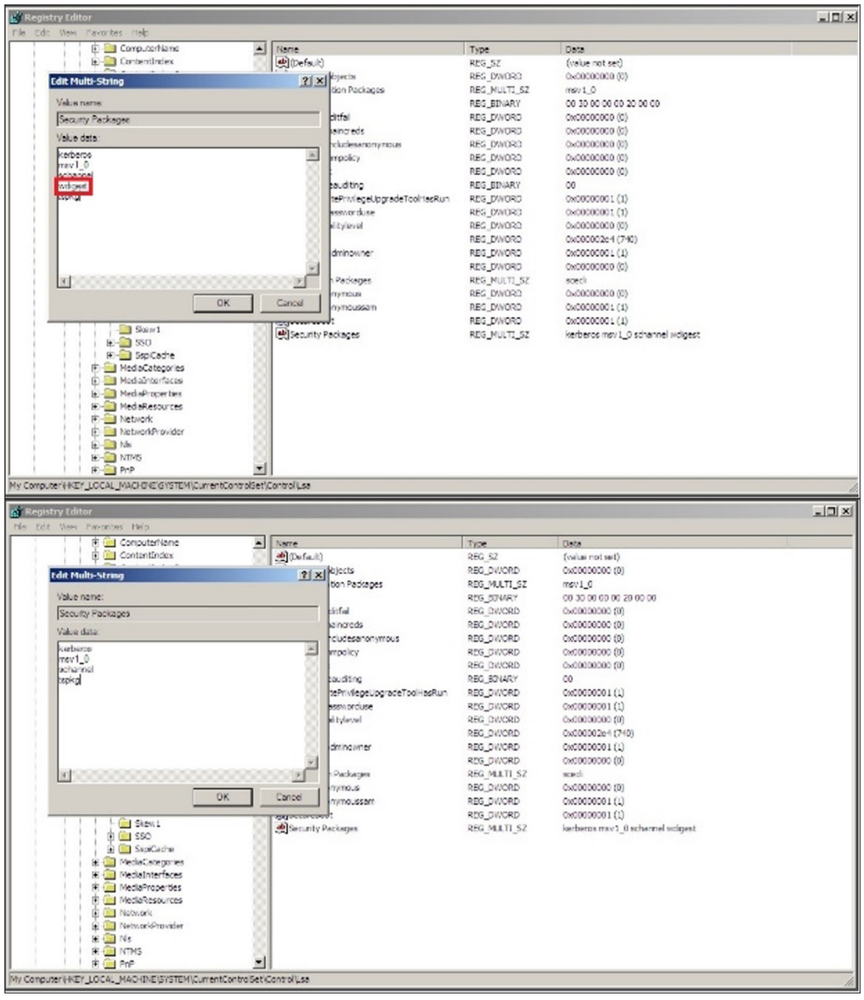
Detection Opportunities for WDigest Authentication Conditions
|
Use Case |
MITRE ID |
Description |
|
Enable WDigest Authentication |
Search for evidence of WDigest being enabled in the Windows Registry. Figure 42: WDigest Windows Registry modification |
|
|
LSASS Memory Access |
Monitor for processes accessing lsass.exe memory (Sysmon Event ID 10 with GrantedAccess 0x1010 or 0x1FFFFF). Alert on any non-system process opening a handle to LSASS. Deploy LSA Protection (RunAsPPL) and Credential Guard on all supported endpoints. |
Credential Protections When Using RDP
Restricted Admin Mode for RDP
Restricted Admin mode for RDP can be enabled for all end-user systems assigned to personnel that perform Remote Desktop connections to servers or workstations with administrative credentials. This feature can limit the in-memory exposure of administrative credentials on a destination endpoint when accessed using RDP.
To leverage Restricted Admin RDP, the command referenced in Figure 43 can be invoked.
mstsc.exe /RestrictedAdminFigure 43: Command to invoke restricted admin RDP
When an RDP connection uses the Restricted Admin mode, if the authenticating account is an administrator on the destination endpoint, the credentials for the user account are not stored in memory; rather, the context of the user account appears as the destination machine account (domaindestination-computer$).
To leverage Restricted Admin mode for RDP, settings must be enforced on the originating endpoint in addition to the destination endpoint.
Originating Endpoint (Client Mode – Windows 7 and Windows Server 2008 R2 and above)
A GPO setting must be applied to the originating endpoint initiating the remote desktop session using the Restricted Admin feature.
-
Computer Configuration > Policies > Administrative Templates > System > Credential Delegation > Restrict delegation of credentials to remote servers
-
Require Restricted Admin > set to Enabled
-
Use the Following Restricted Mode > Required Restricted Admin
-
-
Configuring this GPO setting will result in the registry keys noted in Figure 44 being configured on an endpoint.
HKLMSoftwarePoliciesMicrosoftWindowsCredentialsDelegationRestrictedRemoteAdministration
0 = Disabled
1 = Enabled

HKLMSoftwarePoliciesMicrosoftWindowsCredentialsDelegationRestrictedRemoteAdministrationType
1 = Require Restricted Admin
2 = Require Remote Credential Guard
3 = Restrict Credential Delegation
Figure 44: Registry settings for requiring Restricted Admin mode
Destination Endpoint (Server Mode – Windows 8.1 and Windows Server 2012 R2 and above)
A registry setting will need to be configured (Figure 45).
HKLMSystemCurrentControlSetControlLsaDisableRestrictedAdmin
0 = Enabled
1 = Disabled
Figure 45: Registry setting for enabling or disabling Restricted Admin RDP
Recommended: Set the registry value to 0 to enable Restricted Admin mode.
With Restricted Admin RDP, another setting that should be configured is the DisableRestrictedAdminOutboundCreds registry key (Figure 46).
HKLMSystemCurrentControlSetControlLsaDisableRestrictedAdminOutboundCreds
0 = default value (doesn't exist) - Admin Outbound Creds are Enabled
1 = Admin Outbound Creds are Disabled
Figure 46: Registry setting for disabling admin outbound credentials
Recommended: Set the registry value to 1 to disable admin outbound credentials.
Note: With this setting set to 0, any outbound authentication requests will appear as the system (domaindestination-computer$) that a user connected to using Restricted Admin mode. Setting this to 1 disables the ability to authenticate to any downstream network resources when attempting to authenticate outbound from a system that a user connected to using Restricted Admin mode for RDP.
For additional information regarding Restricted Admin mode for RDP, reference:
Detection Opportunities for Restricted Admin Mode for RDP
|
Use Case |
MITRE ID |
Description |
|
Disable Restricted Admin Mode for RDP |
Search for an account disabling Restricted Admin mode for RDP in the Windows Registry. Figure 47: Restricted Admin mode for RDP being disabled in the Windows Registry on a destination endpoint |
|
|
Disable Require Restricted Admin |
T1484.001 – Domain Policy Modification: Group Policy Modification |
Search for the Require Restricted Admin option being disabled within a GPO configuration. Figure 48: Require Restricted Admin being disabled in a GPO |
Windows Defender Remote Credential Guard
For Windows 10 and Windows Server 2016 endpoints, Windows Defender Remote Credential Guard can be leveraged to reduce the exposure of privileged accounts in memory on destination endpoints when Remote Desktop is used for connectivity. With Remote Credential Guard, all credentials remain on the client (origination system) and are not directly exposed to the destination endpoint. Instead, the destination endpoint requests service tickets from the source as needed.
When a user logs in via RDP to an endpoint that has Remote Credential Guard enabled, none of the SSPs in memory store the account’s clear-text password or password hash. Note that Kerberos tickets remain in memory to allow interactive (and single sign-on [SSO]) experiences from the destination server.
The Remote Desktop client (origination) host:
-
Must be running at least Windows 10 (v1703) to be able to supply credentials
-
Must be running at least Windows 10 (v1607) or Windows Server 2016 to use the user’s signed-in credentials (no prompt for credentials)
-
User’s account must be able to sign into both the client (origination) and the remote (destination) endpoint
-
Must be running the Remote Desktop Classic Windows application
-
Must use Kerberos authentication to connect to the remote host
-
The Remote Desktop Universal Windows Platform application does not support Windows Defender Remote Credential Guard.
Note: If the client cannot connect to a domain controller, then RDP attempts to fall back to NTLM. Windows Defender Remote Credential Guard does not allow NTLM fallback because this would expose credentials to risk.
The Remote Desktop remote (destination) host:
-
Must be running at least Windows 10 (v1607) or Windows Server 2016
-
Must allow Restricted Admin connections
-
Must allow the client’s domain user to access Remote Desktop connections
-
Must allow delegation of nonexportable credentials
To enable Remote Credential Guard on the client (origination) host using a GPO configuration:
- Computer Configuration > Administrative Templates > System > Credentials Delegation > Restrict delegation of credentials to remote servers
- To require either Restricted Admin mode or Windows Defender Remote Credential Guard, choose Prefer Windows Defender Remote Credential Guard.
- In this configuration, Remote Credential Guard is preferred, but it will use Restricted Admin mode (if supported) when Remote Credential Guard cannot be used.
- Neither Remote Credential Guard nor Restricted Admin mode for RDP will send credentials in clear text to the Remote Desktop server.
- To require Remote Credential Guard, choose Require Windows Defender Remote Credential Guard.
- In this configuration, a Remote Desktop connection will succeed only if the remote computer meets the requirements for Remote Credential Guard.
- To require either Restricted Admin mode or Windows Defender Remote Credential Guard, choose Prefer Windows Defender Remote Credential Guard.
To enable Remote Credential Guard on the remote (destination) host, see Figure 49.
HKLMSystemCurrentControlSetControlLsa
Registry Entry: DisableRestrictedAdmin
Value: 0
reg add HKLMSYSTEMCurrentControlSetControlLsa /v DisableRestrictedAdmin /d 0 /t REG_DWORD
Figure 49: Registry key and command options to enable Remote Credential Guard on a remote (destination) host
To leverage Remote Credential Guard, use the command referenced in Figure 50.
mstsc.exe /remoteguardFigure 50: Command to leverage Remote Credential Guard
Detection Opportunities for Windows Defender Remote Credential Guard
|
Use Case |
MITRE ID |
Description |
|
Disable Remote Credential Guard |
Search for an account disabling Remote Credential Guard in the Windows Registry. Figure 51: Remote Credential Guard being disabled in the Windows Registry on a destination endpoint |
|
|
Disable Require Remote Credential Guard |
T1484.001 – Domain Policy Modification: Group Policy Modification |
Search for the Require Remote Credential Guard option being disabled within a GPO configuration. Figure 52: Remote Credential Guard being disabled in a GPO |
Restrict Remote Usage of Local Accounts
Local accounts that exist on endpoints are often a common avenue leveraged by threat actors to laterally move throughout an environment. This tactic is especially impactful when the password for the built-in local administrator account is configured to the same value across multiple endpoints.
To mitigate the impact of local accounts being leveraged for lateral movement, organizations should consider both limiting the ability of local administrator accounts to establish remote connections and creating unique and randomized passwords for local administrator accounts across the environment.
KB2871997 introduced two well-known SIDs that can be leveraged within GPO settings to restrict the use of local accounts for lateral movement.
S-1-5-113: NT AUTHORITYLocal accountS-1-5-114: NT AUTHORITYLocal account and member of Administrators group
Specifically, the SID S-1-5-114: NT AUTHORITYLocal account and member of Administrators group is added to an account’s access token if the local account is a member of the BUILTINAdministrators group. This is the most beneficial SID to leverage to help stop a threat actor (or ransomware variant) that propagates using credentials for any local administrative accounts.
Note: For SID S-1-5-114: NT AUTHORITYLocal account and member of Administrators group, if Failover Clustering is used, this feature should leverage a nonadministrative local account (CLIUSR) for cluster node management. If this account is a member of the local Administrators group on an endpoint that is part of a cluster, blocking the network logon permissions can cause cluster services to fail. Be cautious and thoroughly test this configuration on servers where Failover Clustering is used.
Step 1 – Option 1: S-1-5-114 SID
To mitigate the use of local administrative accounts from being used for lateral movement, use the SID S-1-5-114: NT AUTHORITYLocal account and member of Administrators group within the following settings:
- Computer Configuration > Policies > Windows Settings > Security Settings > Local Policies > User Rights Assignment
- Deny access to this computer from the network (
SeDenyNetworkLogonRight) - Deny logon as a batch job (
SeDenyBatchLogonRight) - Deny logon as a service (
SeDenyServiceLogonRight) - Deny logon through Terminal Services (
SeDenyRemoteInteractiveLogonRight) - Debug programs (
SeDebugPrivilege: Permission used for attempted privilege escalation and process injection)
- Deny access to this computer from the network (
Step 1 – Option 2: UAC Token-Filtering
An additional control that can be enforced via GPO settings pertains to the usage of local accounts for remote administration and connectivity during a network logon. If the full scope of permissions (referenced previously) cannot be implemented in a short timeframe, consider applying the User Account Control (UAC) token-filtering method to local accounts for network-based logons.
To leverage this configuration via a GPO setting:
-
Download the Security Compliance Toolkit (https://www.microsoft.com/en-us/download/details.aspx?id=55319) to use the MS Security Guide
ADMXfile. -
Once downloaded, the
SecGuide.admxandSecGuide.admlfiles must be copied to theWindowsPolicyDefinitionsandWindowsPolicyDefinitionsen-US directoriesrespectively. -
If a centralized GPO store is configured for the domain, copy the
PolicyDefinitionsfolder to theC:WindowsSYSVOLsysvol<domain>Policiesfolder.
GPO Setting
-
Computer Configuration > Policies > Administrative Templates > MS Security Guide > Apply UAC restrictions to local accounts on network logons
- Enabled
Once enabled, the registry value (Figure 53) will be configured on each endpoint.
HKLMSOFTWAREMicrosoftWindowsCurrentVersionPoliciesSystemLocalAccountTokenFilterPolicy

REG_DWORD = "0" (Enabled)
Figure 53: Registry key and value for enabling UAC restrictions for local accounts
When set to 0, remote connections with high-integrity access tokens are only possible using either the plain-text credential or password hash of the RID 500 local administrator (and only then depending on the setting of FilterAdministratorToken, which is configurable via the GPO setting of User Account Control: Admin Approval Mode for the built-in Administrator account).
The FilterAdministratorToken option can either enable (1) or disable (0) (default) Admin Approval mode for the RID 500 local administrator. When enabled, the access token for the RID 500 local administrator account is filtered and therefore UAC is enforced for this account (which can ultimately stop attempts to leverage this account for lateral movement across endpoints).
GPO Setting
-
Computer Configuration > Policies > Windows Settings > Security Settings > Local Policies > Security Options > User Account Control: Admin Approval Mode for the built-in Administrator account
Once enabled, the registry value (Figure 54) will be configured on each endpoint.
HKLMSOFTWAREMicrosoftWindowsCurrentVersionPoliciesSystemFilterAdministratorToken

REG_DWORD = "1" (Enabled)
Figure 54: Registry key and value for requiring Admin Approval Mode for local administrative accounts
Note: It is also prudent to ensure that the default setting for User Account Control: Run all administrators in Admin Approval Mode (EnableLUA option) is not changed from Enabled (default, as shown in Figure 55) to Disabled. If this setting is disabled, all UAC policies are also disabled. With this setting disabled, it is possible to perform privileged remote authentication using plain-text credentials or password hashes with any local account that is a member of the local Administrators group.
GPO Setting
-
Computer Configuration > Policies > Administrative Templates > MS Security Guide > User Account Control: Run all administrators in Admin Approval Mode
-
Enabled
-
Once enabled, the registry value (Figure 55) will be configured on each endpoint. This is the default setting.
HKLMSOFTWAREMicrosoftWindowsCurrentVersionPoliciesSystemEnableLUA

REG_DWORD = "1" (Enabled)
Figure 55: Registry key and value for requiring Admin Approval Mode for all local administrative accounts
UAC access token filtering will not affect any domain accounts in the local Administrators group on an endpoint.
Step 2: LAPS
In addition to blocking the use of local administrator accounts from remote authentication to access endpoints, an organization should align a strategy to enforce password randomization for the built-in local administrator account. For many organizations, the easiest way to accomplish this task is by deploying and leveraging Microsoft’s Local Administrator Password Solutions (LAPS).
Additional information regarding LAPS.
Detection Opportunities for Local Accounts
|
Use Case |
MITRE ID |
Description |
|
Attempted Remote Logon of Local Account |
Search for remote logon attempts for local accounts on an endpoint. |
Active Directory Certificate Services (AD CS) Protections
Active Directory Certificate Services (AD CS) is Microsoft’s implementation of Public Key Infrastructure (PKI) and integrates directly with Active Directory forests and domains. It can be utilized for a variety of purposes, including digital signatures and user authentication. Certificate Templates are used in AD CS to issue certificates that have been preconfigured for particular tasks. They contain settings and rules that are applied to incoming certificate requests and provide instructions on how a valid certificate request is provided.
In June of 2021, SpecterOps published a blog post named Certified Pre-Owned, which details their research into possible attacks against AD CS. Since that publication, Mandiant has continued to observe both threat actors and red teamers enhance targeting of AD CS in support of post-compromise objectives. Mandiant’s blog post and hardening guide address the continued abuse scenarios and AD CS attack vectors identified through our frontline observations of recent security breaches.
Discover Vulnerable Certificate Templates
Certificate templates that have been configured and published by AD CS are stored in Active Directory as objects with an object class of pKICertificateTemplate and can be discovered by blue teams as well as threat actors. Any account that is authenticated to Active Directory can query LDAP directly, with the built-in Windows command certutil.exe, or with specialized tools such as PSPKIAudit, Certipy, and Certify. Mandiant recommends using one of these methods to discover vulnerable certificate templates.
Harden Vulnerable Certificate Templates
Once discovered, vulnerable certificate templates should be hardened to prevent abuse.
-
Ensure that all domain controllers and Certificate Authority servers are patched with the latest updates and hotfixes.
-
After installing Windows update (KB5014754) and monitoring/remediating for Event IDs 39 and 41, configure Active Directory to support full enforcement mode to reject authentications based on weaker mappings in certificates.
-
Using one of the aforementioned methods, regularly review published certificate templates, specifically for any settings related to SAN specifications configured in existing templates.
-
Review the security permissions assigned to all published certificate templates and validate the scope of enrollment and write permissions are delegated to the correct security principals.
-
Review published templates configured with the following Enhanced Key Usages (EKUs) that support domain authentication and verify the operational requirement for these configurations.
-
Any Purpose (2.5.29.37.0)
-
Subordinate CA (None)
-
Client Authentication (1.3.6.1.5.5.7.3.2)
-
PKINIT Client Authentication (1.3.6.1.5.2.3.4)
-
Smart Card Logon (1.3.6.1.4.1.311.20.2.2)
For templates with sensitive Enhanced Key Usage (EKU), limit enrollment permissions to predefined users or groups, as certificates with EKUs can be used for multiple purposes. Access control lists for templates should be audited to ensure that they align with the principle of least privilege.Templates that allow for domain authentication should be carefully reviewed to verify that built-in groups that contain a large scope of accounts are not assigned enrollment permissions. Example: built-in groups that could increase the risk for abuse include:
-
Everyone
-
NT AUTHORITYAuthenticated Users
-
Domain Users
-
Domain Computers
Where possible, enforce “CA Certificate Manager approval” for any templates that include a SAN as an issuance requirement. This will require that any certificate issuance requests be manually reviewed and approved by an identity assigned the “Issue and Manage Certificates” permission on a certificate authority server.
Ensure that Certificate Authorities have not been configured to accept any SAN (irrelevant of the template configuration). This is a non-default configuration and should be avoided wherever possible. This abuse vector is mitigated by KB5014754, but until enforcement of strong mappings is enforced, abuse could still occur based upon historical certificates missing the new OID containing the requester’s SID. For additional information, reference the following Microsoft article.
Treat both root and subordinate certificate authorities as Tier 0 assets and enforce logon restrictions or authentication policy silos to limit the scope of accounts that have elevated access to the servers where certificate services are installed and configured.
Audit and review the NTAuthCertificates container in AD to validate the referenced CA certificates, as this container references CA certificates that enable authentication within AD. Before authenticating a principal, AD checks the NTAuthCertificates container for the CA specified in the authenticating certificate’s Issuer field to validate the authenticity of the CA. If rogue or unauthorized CA certificates are present, this could be indicative of a security event that requires further triage and investigation.
To avoid the theft of a CA’s private keys (e.g., via the DPAPI backup protocol), protect the private keys by leveraging a Hardware Security Module (HSM) on servers where certificate authority services are installed and configured.
Enforce multifactor authentication (MFA) for CA and AD management and operations.
Keep the root CA offline and use subordinate CAs to issue certificates.
Regularly validate and identify potential misconfigurations within existing certificate templates using the built-in Windows command certutil.exe, or with specialized tools such as PSPKIAudit, Certipy, and Certify. Public tools (e.g., PSPKIAudit, Certipy, or Certify) may be flagged by EDR products as they are frequently used by red teams and threat actors.
To mitigate NTLM Relay attacks in AD CS, enable Extended Protection For Authentication for Certificate Authority Web Enrollment and Certificate Enrollment Web Service. Additionally, require that AD CS accept only HTTPS connections. For additional details, reference the following Microsoft Article.
Enable audit logging for Certificate Services on CA servers and Kerberos Authentication Service on Domain Controllers by using group policy. Ensure that event IDs 4886 and 4887 from CA servers and 4768 from domain controllers are aggregated in the organization’s SIEM solution.
Enable the audit filter on each CA server. This is a bitmask value that represents the seven different audit categories that can be enabled; if all values are enabled, the audit filter will have a value of 127.
Log and monitor events from the CA servers and domain controllers to enhance detections related to AD CS activities (steps 16 and 17 are needed to ensure the appropriate logs are generated).
Detection Opportunities for AD CS Abuse
|
Certificate Request with Mismatched SAN (ESC1) |
Monitor event IDs 4886 (certificate request received) and 4887 (certificate issued) on CA servers. Alert when the requesting account’s identity differs from the Subject Alternative Name (SAN) specified in the certificate. |
|
|
NTLM Relay to AD CS Web Enrollment (ESC8) |
Monitor for NTLM authentication to AD CS HTTP enrollment endpoints from domain controllers or privileged servers. Correlate with PetitPotam coercion indicators. This attack chain provides a direct path from any domain user to Domain Admin. |
Preventing Destructive Actions in Kubernetes and CI/CD Pipelines
Organizations should implement a proactive, defense-in-depth technical hardening strategy to systematically address foundational security gaps and mitigate the risk of destructive actions across their Kubernetes environments and Continuous Integration/Continuous Delivery or Deployment (CI/CD) pipelines. Adversaries increasingly target the CI/CD pipeline and the Kubernetes control plane because they serve as centralized hubs with direct access to application deployments and underlying infrastructure.
-
Source and Build Compromise: Threat actors target code repositories (e.g., GitHub, GitLab, Azure DevOps) and build environments to steal injected environment variables and secrets. Attackers can then commit malicious workflow files designed to exfiltrate repository data or deploy unauthorized infrastructure.
-
Container Registry Poisoning: By compromising developer credentials or CI/CD pipeline permissions, attackers overwrite legitimate application images in the container registry. When the Kubernetes cluster pulls the updated image, it unknowingly deploys a poisoned container embedded with backdoors, ransomware, or destructive data-wiping logic.
-
Cluster-Level Destruction: Once an attacker gains a foothold inside the Kubernetes cluster, they often abuse over-permissive role-based access control (RBAC) configurations. This provides the capability to execute destructive commands using application programming interfaces (APIs) (e.g., kubectl delete deployments), wipe persistent volumes, or delete critical namespaces, effectively causing a loss of availability and application denial of service.
-
Secrets Extraction and Lateral Movement: Attackers routinely execute Kubernetes-specific attack tools to harvest secrets from compromised Kubernetes pods. These secrets often contain database passwords and cloud identity and access management (IAM) keys, allowing the attacker to pivot out of the cluster and impact cloud-based resources.
Additional information related to securing CI/CD.
Hardening and Mitigation Guidance
To defend against CI/CD compromises and destructive actions within Kubernetes, organizations must enforce strict identity boundaries, cryptographic trust, and a least-privilege architecture.
-
Isolate the Kubernetes Control Plane: Disable unrestricted and public internet access to the Kubernetes API server. For managed services like GKE, EKS, and AKS, ensure the control plane is configured as a private endpoint or heavily restricted via authorized network IP allow-listing. Access to the API should only be permitted from trusted, designated internal management subnets or secure corporate VPNs.
-
Secure Management Interfaces and CI/CD Pipelines: Enforce mandatory MFA for all access to infrastructure management platforms, including source code repositories such as GitLab/GitHub, and container registries. Utilize hardened container images (e.g., Chainguard containers, Docker Hardened Images) as base images. Implement software supply chain security frameworks (like SLSA) by requiring image signing, provenance generation, and admission controllers (such as Binary Authorization). This ensures that the Kubernetes cluster will definitively reject and block any unverified or poisoned container images from running.
-
Enforce Strict RBAC and Least Privilege: To limit the “blast radius” of a compromised pod, restrict the use of the cluster-admin role and strictly prohibit wildcard (*) permissions for standard service accounts. Workloads must run under strict security contexts—blocking containers from executing as root, preventing privilege escalation, and restricting access to the underlying worker node (e.g., disabling hostPID and hostNetwork).
-
Implement Immutable Cluster Backups: Protect the cluster’s state (etcd) and stateful workload data (Persistent Volumes) by utilizing immutable backup repositories. This ensures that even if an attacker gains administrative access to the cluster or CI/CD pipeline and attempts to maliciously delete all resources, the backups cannot be destroyed or altered.
-
Enable Audit Logging and Threat Detection: Ensure Kubernetes Control Plane audit logs, node-level telemetry, and CI/CD pipeline logs are actively forwarded to a centralized SIEM. Deploy dedicated container threat detection capabilities to immediately alert on malicious exec commands, suspicious Kubernetes enumeration tools, or bulk data deletion attempts within the pods.
Additional information related to securing Kubernetes.
Detection Opportunities for Kubernetes and CI/CD
|
Use Case |
MITRE ID |
Description |
|
Bulk Kubernetes Resource Deletion |
Monitor Kubernetes API audit logs for bulk delete operations targeting Deployments, StatefulSets, Persistent Volume Claims, Namespaces, or ConfigMaps. |
|
|
Unsigned or Modified Container Image Deployed to Cluster |
Monitor container registries and Kubernetes admission events for deployment of images that fail signature verification, lack provenance attestation, or originate from untrusted registries. |
|
|
Anomalous Kubernetes Secret Access |
Monitor Kubernetes audit logs for API calls to /api/v1/secrets or /api/v1/namespaces/*/secrets from service accounts or users that do not normally access secrets. Alert on bulk secret enumeration and on access to secrets in sensitive namespaces. |
|
|
Unauthorized Modification to CI/CD Pipeline Configuration |
T1195.002 – Supply Chain Compromise: Compromise Software Supply Chain |
Monitor source code repositories for modifications to CI/CD pipeline configuration files. Alert on changes to pipeline definitions made by accounts that are not members of designated pipeline-owner groups, or changes pushed code outside of an approved pull request/merge request workflow. |
|
Privileged Container or Host Namespace Access |
Monitor Kubernetes audit logs for pod creation or modification events requesting privileged security contexts, host namespace access, or volume mounts to sensitive host paths. These configurations allow container escape and direct access to the underlying worker node. Alert on any workload requesting these capabilities outside or pre-approved system namespaces. |
|
|
Kubernetes Audit Logging or Security Agent Tampering |
T1562.007 – Impair Defenses: Disable or Modify Cloud Firewall |
Monitor for modifications to Kubernetes API server audit policy configurations, deletion or redirection of log export sinks, and disablement or removal of container runtime security agents. Alert on changes to cluster-level logging configurations in managed services (GKE Cloud Audit Logs, EKS Control Plane Logging, AKS Diagnostic Settings) including disablement of API server, authenticator, or scheduler log streams. |
Conclusion
Destructive attacks, including ransomware, pose a serious threat to organizations. This blog post provides practical guidance on protecting against common techniques used by threat actors for initial access, reconnaissance, privilege escalation, and mission objectives. This blog post should not be considered as a comprehensive defensive guide for every tactic, but it can serve as a valuable resource for organizations to prepare for such attacks. It is based on front-line expertise with helping organizations prepare, contain, eradicate, and recover from potentially destructive threat actors and incidents.